How to Use the ForexR EA Library: Find, Check & Download EAs

How do you find a free MT4 or MT5 EA in the EA Library?
Open the ForexR EA Library and type a word such as “trailing” into the search box, or pick filters for platform, type and strategy. Open an EA’s page, check its stars, last update, licence and any risk badge, read its input parameters, then use “View on GitHub” or “Download source (.zip)” to get the code.
The EA Library is free to browse. This walkthrough covers every part of it, so you can follow along in another tab.
What is the EA Library, and what is it not?
The library is a free directory of expert advisors (EAs, programs that trade or manage trades inside MetaTrader) whose source code is published on GitHub, the website where programmers share code. Each entry links to the original GitHub repository, the author’s project folder. ForexR never hosts the files.
- New EAs: a crawler, an automatic search program, looks through GitHub every week for MetaTrader repositories and adds new ones.
- Fresh numbers: star counts, last updates and licences are synced from GitHub every hour.
- Automatic summaries: the overview and tags on each page are written by software from the repository’s README, its front-page description, and its code.
- Not a recommendation: a listing describes what an EA does. ForexR does not test or endorse any EA.
How to search, sort and switch views
- Search: the box reads “Search EAs, strategies or authors”. Try a job such as “break-even”, a strategy such as “breakout” or a market such as “gold”.
- Sort: Most stars is the default. Recently updated puts active projects first, Newly added shows the latest additions, and Name A-Z helps when you know the name.
- View: switch between cards, one box per EA, and a table, which fits more EAs on screen for comparing.
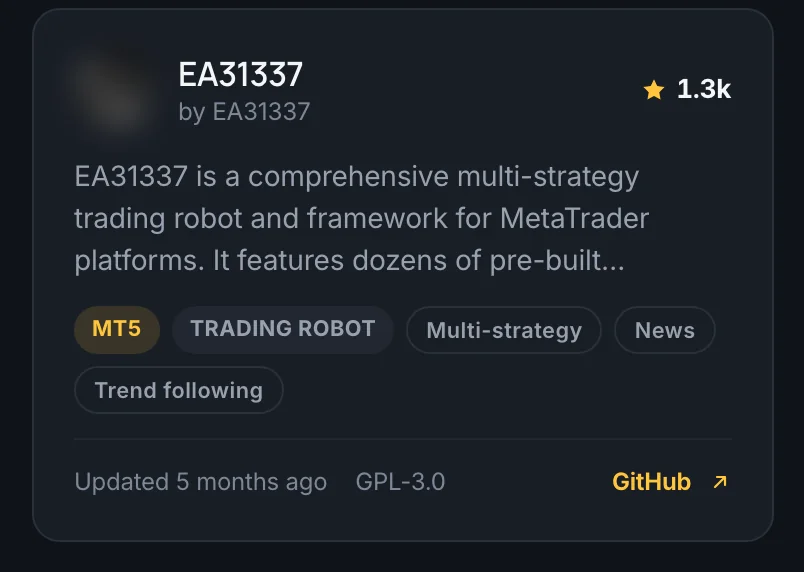
Most stars is a popularity sort. It surfaces well-known projects, not profitable ones, so combine it with the filters below.
How to use the filters
Each filter option shows how many EAs match, and you can combine filters. Every filtered view also has its own web address, so you can bookmark or share it.
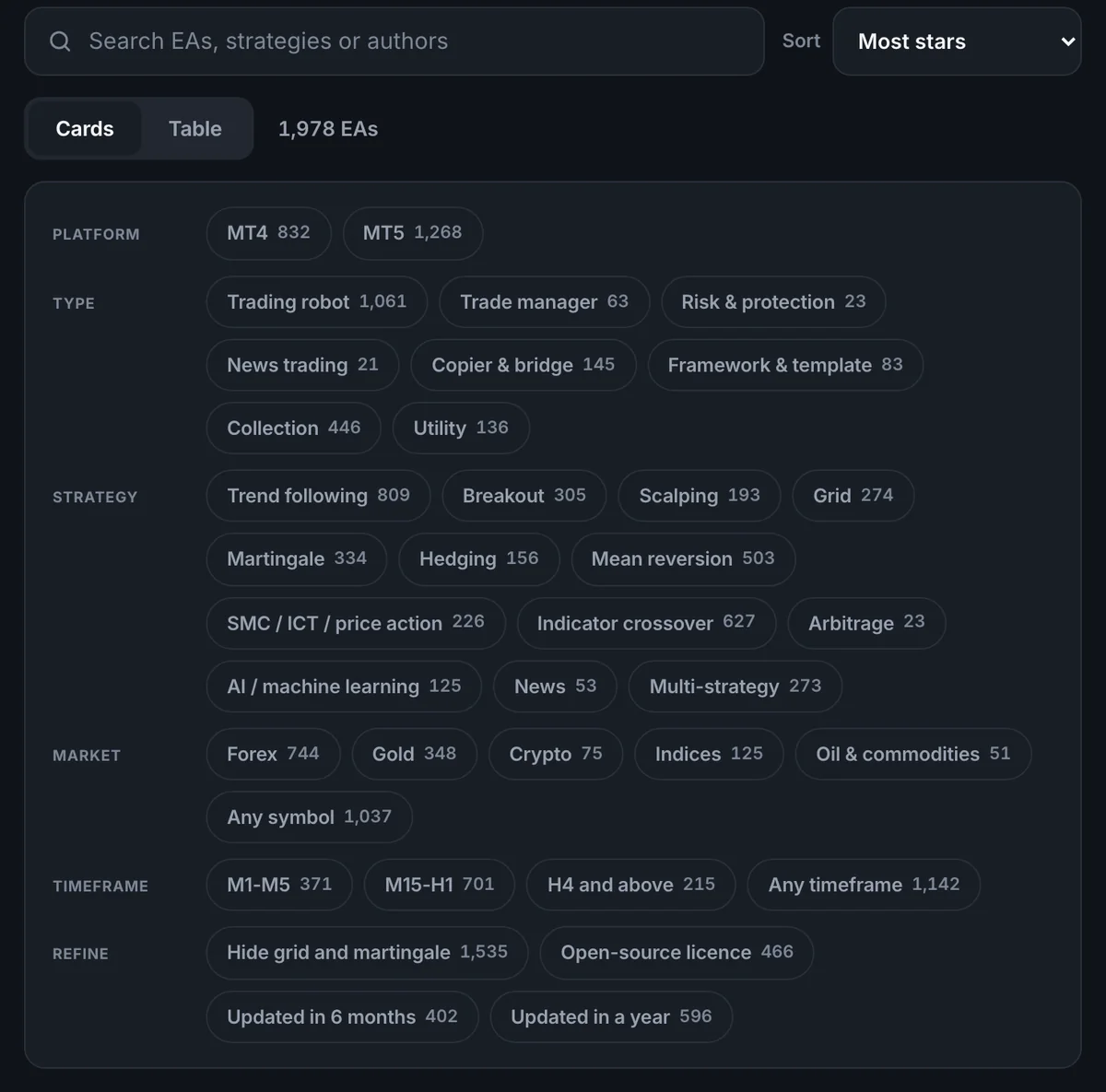
- Platform: MT4 or MT5. Some EAs support both. Pick the one your account runs, because MT4 code does not run on MT5.
- Type: Trading robot, Trade manager, Risk & protection, News trading, Copier & bridge, Framework & template, Collection or Utility. Types of expert advisors explains each one.
- Strategy: up to three at once, from Trend following, Breakout, Scalping, Grid, Martingale, Hedging, Mean reversion, SMC / ICT / price action, Indicator crossover, Arbitrage, AI / machine learning, News and Multi-strategy.
- Market: Forex, Gold, Crypto, Indices, Oil & commodities or Any symbol.
- Timeframe: M1-M5, M15-H1, H4 and above, or Any timeframe. M1 means one-minute candles; H4 means four-hour candles.
- Toggles: “Hide grid and martingale”, “Open-source licence”, “Updated in 6 months” and “Updated in a year”.
The toggles remove a lot of noise. A large share of listed EAs use grid or martingale, fewer than half have an open-source licence, and only a minority were updated in the last six months.
How to read an EA page
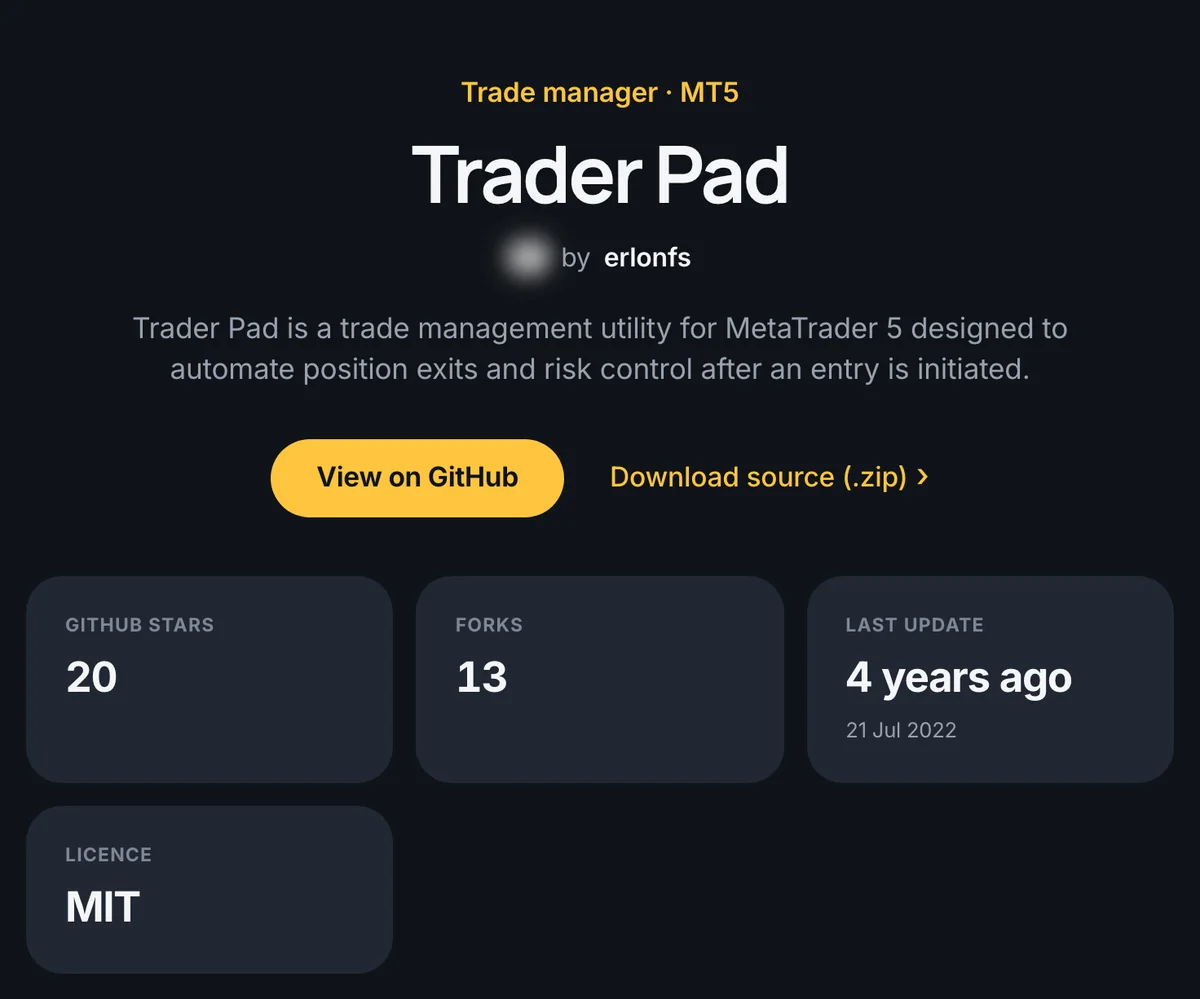
- Header: the name, the author and two buttons, “View on GitHub” and “Download source (.zip)”. A High risk badge means the EA uses grid (a ladder of orders at fixed distances) or martingale (bigger lots after losses). “Archived by its author” means the author has frozen the project.
- Stats: GitHub stars, forks (copies other people made to build on), last update, licence and latest release.
- Overview and details: an automatic summary, then author, type, platform, strategy, markets, timeframes and risk profile. You also see the EA files found (the .mq4 or .mq5 files), the GitHub “About” text, topics and source.
- Input parameters: a table read from the EA’s code, with each setting’s name, type, default and description. Press “Show all” for long lists. EA settings explained decodes the common ones.
- How to install it: five steps: download the source, open the data folder, copy the files into Experts and Include, compile in MetaEditor, then test in the Strategy Tester and on a demo chart.
- Third-party code note: a reminder that ForexR did not write, test or endorse the EA, and that you should read the code, backtest it and use a demo first.
Further down you will find similar expert advisors and a link to compare brokers for MT4 and MT5.
“View on GitHub” vs “Download source (.zip)”
- View on GitHub opens the repository. Use it to read the README and the licence file, look at recent changes and check any bug reports in the Issues tab. It is the careful first step.
- Download source (.zip) gets the whole repository as one compressed file. Unzip it and find the .mq4 or .mq5 file named under EA files. Any .mqh files are include files, shared code the EA needs to compile.
Before you run anything, search the code for how it sets the lot size and the stop-loss. A lot multiplier or a missing stop is easier to spot in the code than in a backtest. If the licence matters to you, open-source forex EAs on GitHub explains what MIT, GPL-3.0 and other licences allow.
Three worked search recipes
Recipe 1: a trade manager for MT5.
- Type: choose Trade manager.
- Platform: choose MT5.
- Compare: open two or three pages and check their input tables for trailing stop, break-even and partial close settings.
- Link: start from the trade manager list and choose MT5.
Recipe 2: a low-risk trend EA for gold.
- Toggle: switch on “Hide grid and martingale”.
- Strategy and market: choose Trend following and Gold, plus a timeframe you can follow, such as H4 and above.
- Check: gold moves in bigger steps than most currency pairs, so read the stop-loss input and its default. “Low-risk” here only means no grid or martingale; the EA can still lose.
- Link: start from the list with grid and martingale hidden, then add Trend following and Gold.
Recipe 3: an open-source EA updated recently.
- Toggles: switch on “Open-source licence” and “Updated in 6 months”.
- Sort: choose Recently updated.
- Check: on each page, read the licence name in the stats and make sure there is no Archived badge.
- Link: start from the open-source licence view, then add the six-month toggle.
What do the library’s automatic checks mean?
Every listing passes an automatic safety filter. A repository is listed only if it contains readable MQL source code, the code MetaTrader EAs are written in, for a real expert advisor. It is left out automatically in these cases:
- Executables: it ships ready-to-run program files you cannot read.
- Antivirus: it asks you to disable your antivirus.
- Passwords: it hides downloads behind archive passwords.
- Stars: it shows signs of bought GitHub stars.
Those checks remove some common traps, but they are not a test. Nobody has run the EA on an account for you, checked that its logic is sound or confirmed that its automatic summary is accurate. The checks mean “this looks like readable EA code”. They do not mean “this is safe”, “this is bug-free” or “this will make money”.
What to do after you find an EA
- Read before you run. Skim the README and the input table, and note the lot-size mode, the stop-loss and any multiplier.
- Install it on a demo account. Follow how to install an EA in MT4 and MT5, which covers the data folder, compiling and common errors.
- Backtest it. How to backtest an EA shows how to use the Strategy Tester with realistic costs.
- Judge it. Work through how to choose a safe forex EA before real money goes near it.
- Check your broker. Symbol names, minimum lot sizes and rules on automated trading differ; our broker comparison is a place to start.
The library helps you find code; it cannot tell you whether that code suits your broker, your account size or next month’s market. Automated trading of forex and CFDs carries a high risk of loss, so test on a demo account first and only risk money you can afford to lose.
FAQ
Can I add my own EA to the ForexR EA Library?
You do not upload anything. A crawler searches GitHub every week for MetaTrader repositories and adds new ones. If your EA is public on GitHub, contains readable MQL source code and passes the automatic safety checks, it can appear after a later crawl. Its summary and tags are written automatically from your README and code, so describe the EA clearly there.
What does “Archived by its author” mean on an EA?
It means the author has set the GitHub repository to read-only. The code is still there to read and download, but the author no longer accepts changes, so known bugs will not be fixed and the EA will not be updated for future MetaTrader builds. An archived EA can still be useful to study, but test it with extra care before you run it.
Do more GitHub stars mean an EA is more profitable?
No. A star is a bookmark any GitHub user can add, so it measures interest, not trading results. Old projects collect stars over many years, and a simple teaching example can be popular without being meant for live trading. Use stars to find well-known projects, then judge each EA by its code, its risk profile and your own tests.
Do I need a GitHub account to download an EA?
No. The EAs in the library come from public GitHub repositories, which anyone can open and download without signing in. An account is only useful if you want to star a project, follow its updates, report a bug in its Issues tab or keep your own edited copy, which GitHub calls a fork.