MT5 Mobile 101: Push Notifications, Messages and Settings

How Do You Get MT5 Alerts on Your Phone?
Copy the MetaQuotes ID from the app’s Messages section, paste it into Tools, Options, Notifications in the desktop terminal, and switch on trade notifications for your account. Alerts, trade confirmations and broker messages then arrive as push notifications. By the end you will have a desktop price alert ringing on your phone.
Push notifications are short messages from the desktop terminal, your broker and the MQL5.community services. They arrive whether or not the app is open. This lesson follows placing a trade on your phone.
What You Need
- The MT5 app on your phone. Android: a Google account must be set up on the device. iPhone: notifications must be allowed for MetaTrader 5 in the phone’s Settings, under Notifications.
- The MT5 desktop terminal on a computer, logged in to the same account, as set up in installing MT5 and opening a demo account.
Step 1: Find Your MetaQuotes ID
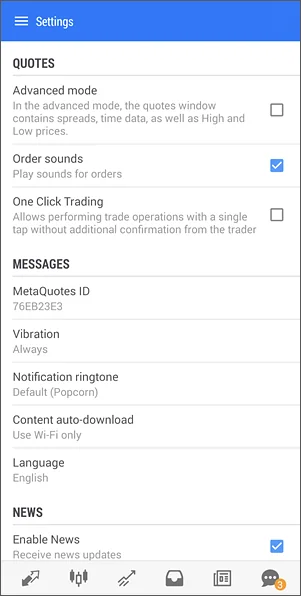
- Step 1, open Messages: Android: open the side panel, tap Messages, then tap MQID on the top panel. iPhone: open Settings, then Messages; the ID is shown at the bottom of the screen. The app is given this ID when it is installed, and it works like a phone number that other programs use to reach you.
- Step 2, copy it: write the code down or copy it. Each installation has its own ID, so a second phone or a tablet has a different one.
Step 2: Link the Desktop Terminal and Send a Test
- Step 1, open the Notifications tab: in the desktop terminal choose Tools, then Options (or press Ctrl+O), and open the Notifications tab.
- Step 2, enable push and paste the ID: tick Enable Push Notifications and type the MetaQuotes ID into the field. Up to four IDs can go in, separated by commas, so one terminal can message two phones.
- Step 3, choose what is sent: tick Notifications from the local terminal for a message on each successful trade while the terminal runs, or Notifications from the trade server to get them from the broker with the PC off. Failed orders do not send a message.
- Step 4, test it: click Test, then OK. A test message should appear on the phone and in Messages under the Terminal category.
- Step 5, create a price alert: in the Toolbox, open the Alerts tab, right-click and choose Create. Set the condition (for example Bid greater than a price just above the market), choose Notification as the action, and click OK. When the price crosses the level, the phone buzzes.
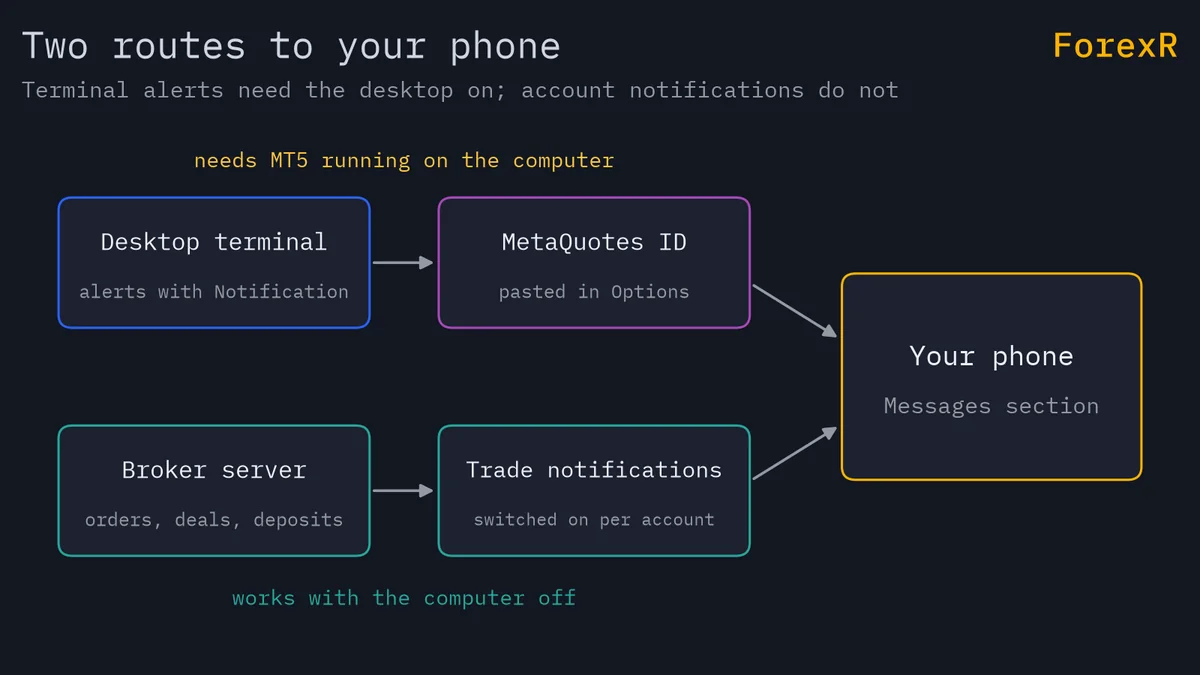
The desktop side, including sounds, email and the difference between terminal alerts and server alerts, is covered in full in MT5 alerts, push notifications and settings. One point matters here: a terminal alert only fires while the desktop terminal is running, so a laptop that goes to sleep sends nothing.
An alert is only useful when you can act on it. Most forex volume trades in the London and New York hours, described in forex trading sessions; the session scripts in the Pine Script Library shade those hours on a TradingView chart, though they do not run in MT5.
Step 3: Turn On Trade Notifications for the Account
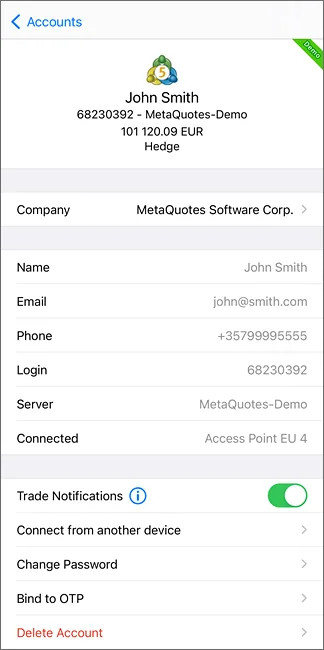
- Step 1, open the account list: Android: open the side panel; the current account sits at the top. iPhone: open Settings and tap the account.
- Step 2, switch on trade notifications: enable the option for the account. The broker’s server then sends a push message for every order, deal, deposit and withdrawal, even when the desktop terminal is off.
- Step 3, know the limits: your broker can disable this feature, and the messages go only to the device that connected to the account most recently. The broker comparison shows which brokers offer MT5.
Reading the Messages Section
Messages are grouped by sender, each with its own avatar and unread count: Chat (conversations with MQL5.community members), Broker, Terminal (pushes from the desktop platform), Community (service notices), Virtual hosting (VPS rental) and Other. The search icon on the top panel finds older messages, and a long press on a chat offers Delete.
Signing in with an MQL5.community login adds chats, group chats and channels. Without signing in you can still receive private messages if your community profile allows it, but the website chat history will not appear in the app. The same login is also what the desktop terminal uses to link its MQL5 services.
The Settings That Matter
The Settings section is short. These are the Android names; most have an iPhone equivalent under the Settings tab:
- Advanced mode: shows spread, time and the day’s high and low in Quotes, instead of bid and ask alone.
- Order sounds: a sound when a position opens, changes or closes, and when an order is placed.
- One Click Trading: sends orders from the chart panel and Depth of Market without a confirmation screen. You accept special terms first. Leave it off until your demo routine is automatic.
- Vibration and notification ringtone: how a push message announces itself, with vibration set to never, silent mode only or always.
- Screen Lock and OTP: Screen Lock asks for a PIN or a fingerprint or face each time the app opens, using the phone’s own lock method. OTP sets up a one-time password generator that your broker may require at login.
- Language, Enable News and theme: 25 interface languages independent of the phone language, a switch for broker newsletters, and a light or dark colour scheme that follows the system by default.
Three more sections sit alongside Settings. Mailbox holds messages from your broker, including demo account details. News shows the broker’s news feed, and the economic calendar entry opens the Tradays app, a separate calendar of data releases; the site’s own economic calendar and the guide to reading the economic calendar cover the same releases. Journal records connection errors, and About shows the version number to quote in a support ticket.
If Something Goes Wrong
- The desktop Test sends nothing: check the ID for a typo, that Enable Push Notifications is ticked, and that the phone has internet. Android: confirm a Google account is signed in on the device.
- Alerts arrive on the wrong phone: trade notifications go to the device that connected last. Log in again on the phone you want them on.
- “No connection” in the Journal: the app cannot reach the broker’s server, so no broker messages arrive. Switch between Wi-Fi and mobile data and let it reconnect.
- A price alert never fires: the desktop terminal was closed or asleep. Keep it running, or use your broker’s server-side alerts if offered.
What You Just Learned
- Where the MetaQuotes ID lives and where to paste it on the desktop.
- Two kinds of message: terminal alerts that need the desktop running, and account notifications sent by the broker’s server.
- The Messages categories and what Mailbox, News, Journal and About are for.
- The settings worth changing: advanced mode, order sounds, screen lock, and why One Click Trading stays off for now.
The last lesson in the series, MT5 mobile vs desktop, sets out what the app cannot do and a routine that uses both. CFDs and leveraged trading carry a high risk of losing money, and every step here is practised on a demo account first.
FAQ
Where do I find my MetaQuotes ID in the MT5 app?
On Android, open Messages from the side panel and tap MQID on the top panel; the ID also appears in Settings. On iPhone, open Settings and then Messages, where the ID is shown at the bottom of the screen. Each phone or tablet has its own ID, and it is the code you type into the desktop terminal’s Notifications tab.
Do MT5 push notifications work when the app is closed?
Yes. Messages from the desktop terminal, your broker and the MQL5.community services are delivered to the phone’s notification centre whether or not the app is running, as long as the phone has an internet connection. The full history is kept in the app’s Messages section.
Why does my broker’s trade notification go to another device?
Trade notifications for an account are sent to the device that connected to that account most recently. If you logged in on a tablet after your phone, the tablet receives them. Log in again on the device you want, and check that trade notifications are enabled for the account there.
Can the MT5 app send its own price alerts?
Price alerts with a push action are created in the desktop terminal’s Alerts tab and delivered to the phone through your MetaQuotes ID. They fire only while the terminal is running. Account events such as fills, closes, deposits and withdrawals come from the broker’s server instead, so they do not depend on the desktop being on.