EA Settings Explained: Lot Size, Magic Number, Stop-Loss & More

What are EA settings, and where do you find them?
EA settings, also called inputs or input parameters, are the values you can change without editing an expert advisor’s code: lot size, stop-loss, magic number, trading hours and more. You see them on the Inputs tab when you attach the EA to a chart, and again whenever you reopen its properties from the chart.
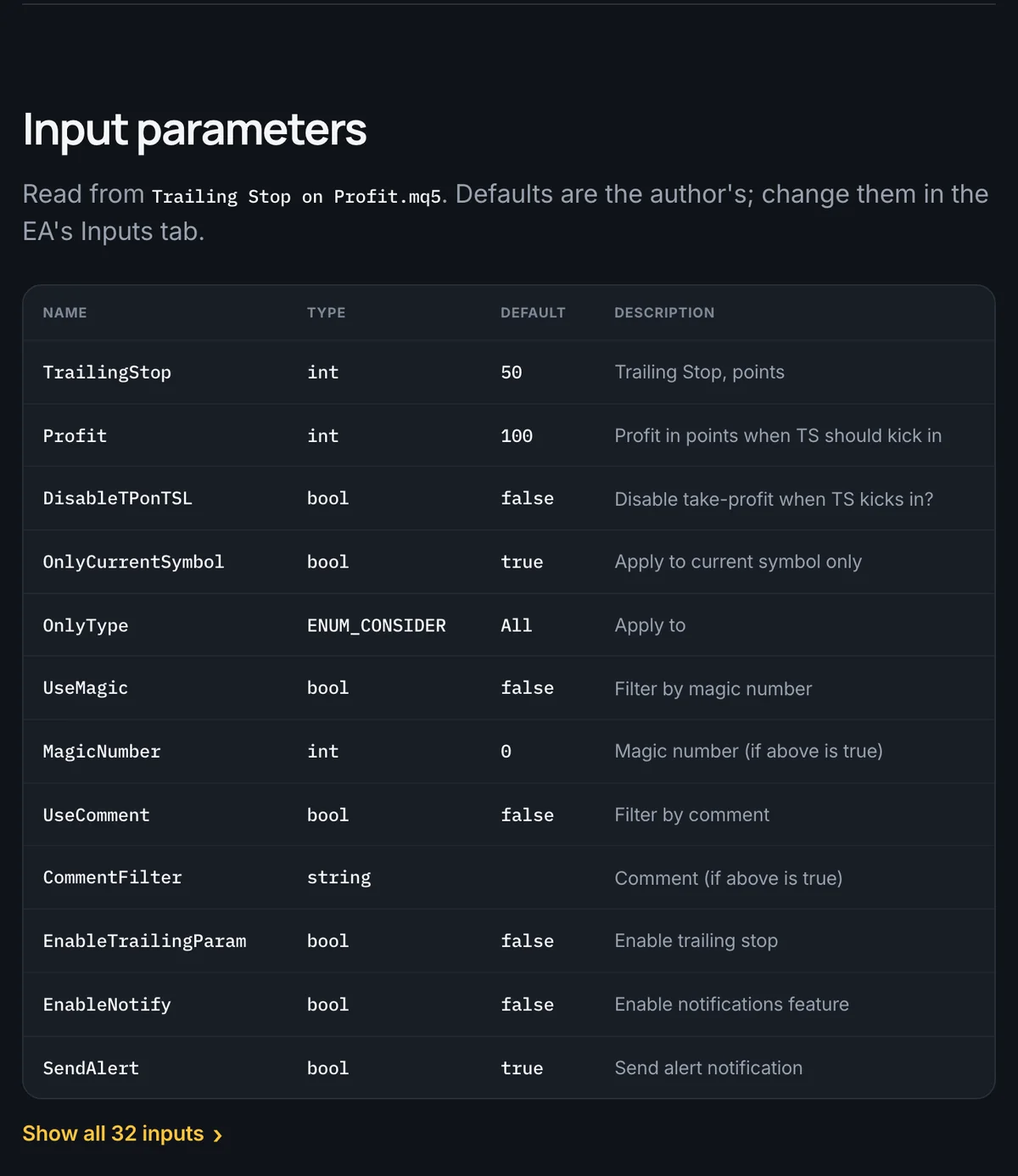
Names differ between authors (Lots, LotSize and FixedLot can all mean the same thing), but most inputs fall into five groups: money, stops, filters, identity and safety. New to EAs? Start with how to install an EA in MT4 and MT5.
Money settings: fixed lot vs risk-percent lot
- Fixed lot: every trade uses the same size, such as 0.01 lots. It is simple, but the money at risk changes with the stop distance: a 50-pip stop risks twice as much as a 25-pip stop at the same lot size.
- Risk-percent lot: you set a share of the account, such as 1%, and the EA works out the lot size from the stop distance, so the risk stays in proportion to the account.
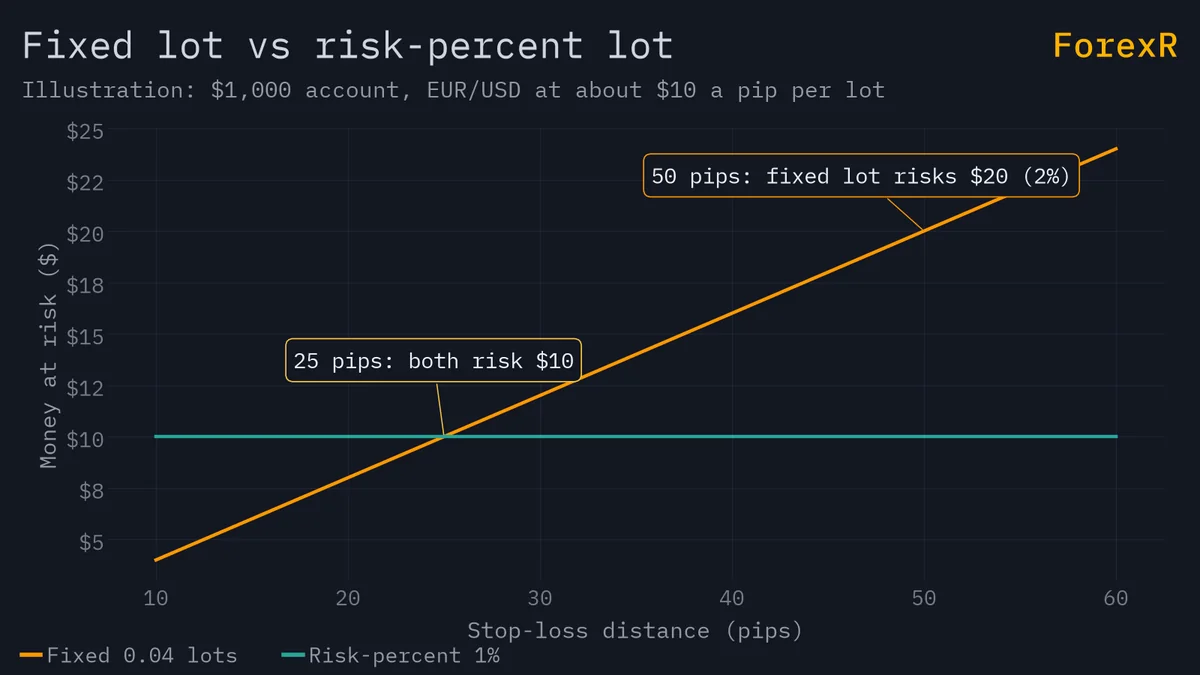
A worked example on EUR/USD, where one standard lot (100,000 units) moves about $10 per pip for a US dollar account. A pip is the standard small price step, 0.0001 on EUR/USD.
- Account: $1,000.
- Risk: 1% of $1,000 = $10.
- Stop-loss: 25 pips.
- Money per pip: $10 ÷ 25 pips = $0.40 per pip.
- Lot size: $0.40 ÷ $10 per pip per lot = 0.04 lots.
Check it backwards: 0.04 lots × $10 = $0.40 per pip, and 25 pips × $0.40 = $10, which is 1% of the account. If an EA has a risk-percent mode, confirm it gives the same answer as the position size calculator. Position sizing explains the method in full.
Stop settings: points vs pips, trailing stop and break-even
Most EAs ask for distances in points, not pips. A point is the smallest price step your broker quotes. With a 5-digit quote such as EUR/USD at 1.10005, one point is 0.00001 and one pip is 0.0001, so 10 points = 1 pip. Three-decimal yen quotes work the same way.

- Stop-loss and take-profit: the stop-loss closes a losing trade at a set distance and the take-profit closes a winner. On a 5-digit account, StopLoss = 250 means 25 pips. Type 25 by mistake and the stop sits only 2.5 pips away, where normal noise can hit it.
- Trailing stop: moves the stop behind the price as a trade gains. With a 200-point (20-pip) trail, a buy that rises 60 pips has its stop 40 pips above the entry.
- Break-even: moves the stop to the entry price once the trade is, say, 150 points (15 pips) in profit. Some add an offset of a few points so that costs are covered.
Filter settings: spread, slippage, hours and news
- Max spread: the widest spread, the gap between buy and sell prices, at which the EA may open a trade. MaxSpread = 20 points blocks new trades while the EUR/USD spread is above 2 pips, as it often is around news.
- Slippage: the most you accept, in points, between the price asked for and the price filled. Some account types ignore it.
- Trading hours and time zone: start and end times are nearly always in the broker’s server time, not yours; the clock at the top of the Market Watch window shows server time. Suppose the server runs on GMT+3 and you live in Bangkok on GMT+7, which is 7 − 3 = 4 hours ahead. An EA set to trade from 08:00 to 12:00 server time trades from 12:00 to 16:00 your time. Many servers also move an hour for daylight saving. The market hours tool shows when each session is open.
- News filter: pauses trading for a set time around important economic releases. Many read an online calendar, which only works after you add its web address under Tools > Options > Expert Advisors, in the WebRequest setting. Test it before you rely on it.
Identity settings: magic number and comment
- Magic number: an ID the EA stamps on its own trades so it never touches yours or another EA’s. Manual trades carry the number 0, so pick another value, and give each EA and each chart its own, for example 1001 on EUR/USD and 1002 on GBP/USD. Two EAs sharing a number can close or change each other’s trades.
- Comment: a short text label shown with each trade in the Trade tab. Brokers can change comments, so good EAs find their trades by magic number instead.
Safety settings: max trades, daily loss and grid inputs
- Max open trades: a cap on how many positions the EA may hold at once.
- Max daily loss: the EA stops for the day once losses reach a limit. At 3% on a $1,000 account, that is $30. If your EA has no such setting, a separate risk and protection EA can add one.
- Grid step and lot multiplier: grid EAs open extra orders every set number of points, and martingale EAs multiply the lot size after a loss. A multiplier of 1 keeps sizes equal, though a grid still adds exposure with every order. Anything above 1 is a red flag.
Here is why. Start at 0.01 lots with a multiplier of 2 and the sizes run 0.01, 0.02, 0.04, 0.08, 0.16 and 0.32. After six steps you hold 0.63 lots, 63 times the first trade. By the tenth step that trade alone is 5.12 lots, about $51 per pip on EUR/USD, on an account that may hold $1,000. That is how such EAs look calm for months, then empty an account in one strong trend. Martingale and grid strategies walks through the full maths.
How to save and load settings as .set files
- Save: set your values on the Inputs tab and press Save. MetaTrader writes a small .set file, by default into a Presets folder inside the data folder.
- Load: on any chart, open the Inputs tab, press Load and pick the file.
- Test the same file: the Strategy Tester can load .set files too, so the settings you test are exactly the ones you run.
- Be wary of shared files: a .set file from a forum or seller is someone else’s numbers, tuned to their broker and to past data.
Why default settings are rarely right for your broker
Authors choose defaults on their own broker. Yours may differ:
- Digits: a 4-digit broker quotes EUR/USD as 1.1000, so a point equals a pip and a 250-point stop becomes 250 pips. Gold is quoted to two or three decimals depending on the broker, so point-based stops can be ten times off.
- Symbol suffix: EURUSD may be called EURUSD.m on your account, which breaks any symbol typed into the inputs.
- Minimum lot: some accounts start at 0.01 lots, others at 0.10. An EA asking for 0.01 on a 0.10 minimum is rejected, or rounds up to ten times the risk you planned.
- Minimum stop distance: brokers can refuse stops closer than a set number of points, shown as the stops level in the symbol’s Specification.
The EA Library shows each EA’s input parameters table, read from its code, before you download: the name, type, default and description of every setting. Compare those defaults with your broker’s specifications and the account types on our broker comparison.
Pre-launch settings checklist
- Lot mode: fixed or risk-percent, and the lot it produces matches your own sum.
- Stops: every trade has a stop-loss, further from the price than the broker’s stops level and in the units the EA expects.
- Filters: max spread set, hours converted to server time, news filter checked.
- Magic number: unique for every EA and chart, and not 0.
- Safety: max open trades and max daily loss set, and any lot multiplier at 1 or switched off.
- Symbol and lot size: they match your account, including any suffix and the minimum lot.
- Tested: a .set file saved and run in the Strategy Tester, then on a demo account. How to backtest an EA covers that step.
Good settings remove avoidable mistakes, but they cannot turn a weak strategy into a profitable one or stop the price gapping past your stop-loss. Automated trading of forex and CFDs carries a high risk of loss, so only risk money you can afford to lose.
FAQ
Can I change the magic number while the EA has open trades?
You can, but the EA will stop recognising the trades it opened under the old number. Those positions keep their stop-loss and take-profit, yet the EA will no longer trail, close or count them. Change the magic number only when the EA has no open trades, or be ready to manage the old ones by hand until they close.
What does “invalid stops” mean when an EA tries to trade?
It means the broker rejected the stop-loss or take-profit. Usually the stop is too close to the current price, inside the broker’s minimum distance, or on the wrong side of the entry. A common cause is typing a distance in pips where the EA expects points, which makes the stop ten times too close. Widen the value or check its units.
Why does my EA open bigger lots than I set?
There are three usual causes. The EA may be in risk-percent mode, so the lot grows with the account or with a tighter stop. It may use a lot multiplier after losses. Or your chosen size may be below the broker’s minimum, so the EA rounds it up. Check the lot inputs and the minimum lot in the symbol’s Specification.
Can I use the same EA settings on a demo and a live account?
Often, but check first. Demo and live accounts at the same broker can differ in symbol names, spreads, minimum lot sizes and even server time. Settings tuned on a demo may open no trades on live, or bigger ones than planned. Load the same .set file, then compare each value with the live account’s symbol Specification before switching on.