MT5 Mobile 101: Place, Modify and Close a Trade on Your Phone

How Do You Place a Trade in the MT5 Mobile App?
Open the Quotes tab, tap a symbol and choose New order (Android) or Trade (iPhone), set a volume of 0.01 lots with a stop-loss and a take-profit, then tap Buy or Sell. The trade appears in the Trade tab, where a swipe modifies or closes it. By the end you will have opened, changed and closed one demo trade on your phone.
Every step below runs on a demo account, which uses virtual money. If the app is not installed yet, start with installing the app and logging in, and open the symbol’s chart first if you want to see the trade drawn on it, as covered in mobile charts, timeframes and indicators.
What You Need
- The MT5 app, connected to a demo account. A spinning indicator next to the account number means it is not connected yet.
- A symbol in your Quotes list. EUR/USD is a sensible first choice: a small spread and a measured pace.
- A plan for one trade. Direction, size, stop-loss and take-profit, decided first. The position size calculator turns a cash risk into a lot size.
Step 1: Open the Order Screen and Fill It In
- Step 1, reach New Order: in Quotes, tap the symbol. Android: choose New order. iPhone: choose Trade. The Trade tab and the chart’s trading panel open the same screen.
- Step 2, check the symbol and order type: the order type field shows the execution mode your broker uses for a market order; the same field switches to a pending order.
- Step 3, set the volume: use the plus and minus buttons beside the field, or tap it and type 0.01. One lot is 100,000 units of the base currency, so 0.01 is 1,000 units. Lot sizes and order types explains what that is worth per pip.
- Step 4, enter Stop Loss and Take Profit: type a price in each field. A value of zero means no level is attached. A field that turns red holds a price the broker will not accept, and the Buy and Sell buttons stay grey until you fix it.
- Step 5, check Deviation and Fill policy if shown: Deviation appears only in Instant execution and is the largest price slip you accept before the broker asks you to confirm a new price. Fill policy appears in Market and Exchange execution; greyed out means the broker has fixed it.
- Step 6, send it: tap Buy or Sell. In Market execution the buttons read Buy by Market and Sell by Market. In Request execution tap Request first, then Buy or Sell while the quote is still valid, which is only a few seconds.
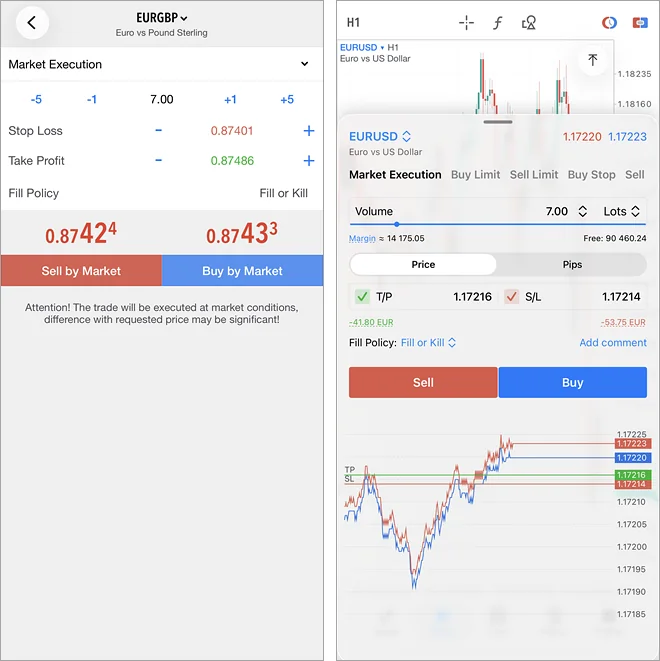
A confirmation or a rejection with the reason follows. A filled trade appears in the Trade tab; the order and its deals go to History. The app reuses your last volume, stop-loss and take-profit next time, so check them rather than trusting the defaults.
Step 2: Read the Trade Tab
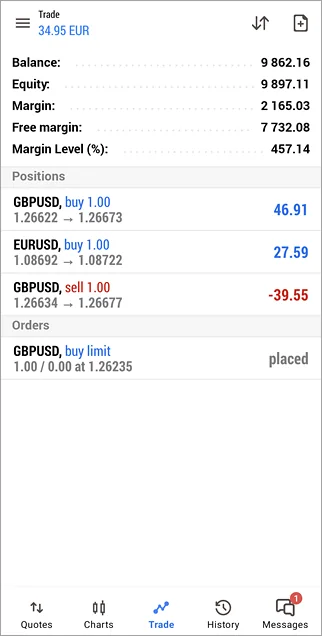
Open positions and pending orders sit under a line of account figures. Tap a row once to expand it and see the ticket, open price, swap and current profit. The account line uses five words you will meet on every platform:
- Balance: the money on the account, ignoring open positions.
- Equity: balance plus credit, minus commission, plus or minus the floating profit or loss of open positions, minus anything blocked.
- Margin: the deposit set aside to hold your open positions and pending orders.
- Free margin: equity minus margin, which is what you can still use to open new trades.
- Margin level: equity divided by margin, times 100, shown as a percentage. When it falls to the broker’s margin call level the margin fields turn red, and margin call and stop-out explains what happens next.
Step 3: Modify the Stop-Loss, Then Close the Trade
- Step 1, open the row’s commands: swipe the position from right to left. Android: tap Modify position, or long-press the row for the menu. iPhone: tap the modify icon, or tap the row and choose Modify position.
- Step 2, change the levels: enter the new stop-loss or take-profit price and confirm. The same screen adds a level you left at zero.
- Step 3, or drag it on the chart: with trading levels on in the chart settings, tap the position line and drag the stop-loss or take-profit. Android: tap Modify in the bottom panel. iPhone: slide the modify control.
- Step 4, close the position: swipe right to left again and choose Close position (Android) or the close icon (iPhone), or pick Close position from the row’s menu. To close only part of it, enter a smaller volume on the closing screen; the rest stays open.
- Step 5, in Request execution: ask for a price first; the close button stays active for only a few seconds after the quote arrives.
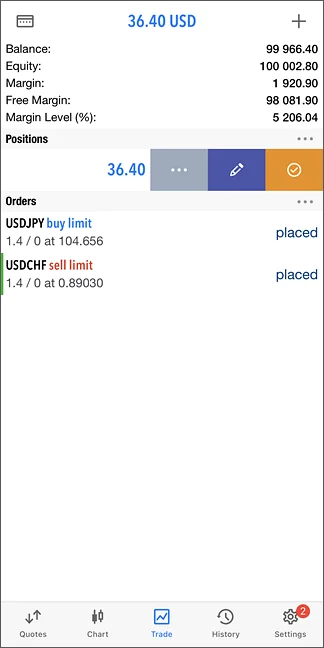
Closed trades move to the History tab, which switches between Positions, Deals and Orders and has a period button for the date range. The Deals view totals profit, swap, commission and deposits, the simplest record of how the demo is going.
Bulk Operations and Pending Orders From the Chart
Two extras save time later. The Bulk Operations icon in the Trade tab closes every position, only the profitable or losing ones, or all positions in one symbol; it needs One Click Trading on in the settings, runs without confirmation and stops if the app is minimised. On the chart, the pending order button lets you drag a level to a price: above the current price is a sell, below it a buy, and the bottom panel picks the type and adds stop-loss and take-profit lines before you tap (Android) or slide (iPhone) Continue. When each type fills is covered in pending orders in MT5.
What Bid, Ask and Execution Mean Here
A buy fills at the ask price and a sell at the bid, so a new trade starts a little in loss by the size of the spread. Your broker, not the app, sets the execution mode, the minimum volume and how close a stop may sit; the broker comparison lists those conditions. A TradingView script from the Pine Script Library can plan an entry on a browser chart but cannot send the order; only MT5 does that.
If Something Goes Wrong
- “Invalid stops” or a red field: the stop-loss or take-profit is on the wrong side of the price, or closer than the broker allows. Move it further away.
- “Price changed” and the screen returns to the order: the quote expired before you tapped. Fill in the order again and send it promptly.
- “Not enough money”: free margin cannot cover the trade. Reduce the volume.
- Buy button grey, only Sell active: you typed the stop-loss above the take-profit on a buy. Swap them.
What You Just Learned
- Three routes to New Order: Quotes, the Trade tab and the chart panel.
- The order fields: volume, stop-loss, take-profit, deviation and fill policy, and why a red field blocks the buttons.
- The account line: balance, equity, margin, free margin and margin level.
- Managing a trade: swipe to modify or close, drag levels on the chart, close part of a position.
The desktop version of these steps is placing your first trade in MT5. The next lesson sets up push notifications and the app settings so the phone tells you when a trade fills. CFDs and leveraged trading carry a high risk of losing money, so practise every step here on a demo account before any live trade.
FAQ
Can I trade on the MT5 mobile app without a desktop terminal?
Yes. The app connects straight to your broker’s server, so you can open, modify and close positions, place pending orders and read your history with no computer involved. What it cannot do is run expert advisors or custom indicators, so automated strategies still need the desktop terminal or a VPS.
How do I close only part of a position in the MT5 app?
Swipe the position from right to left in the Trade tab and choose Close position, then enter a volume smaller than the open size, for example 0.05 of a 0.10-lot trade. That part closes at the current price and the remainder stays open with the same stop-loss and take-profit.
Why are the Buy and Sell buttons greyed out in the MT5 app?
The app disables them while a field holds a value the broker will not accept. The usual causes are a volume below the minimum, a stop-loss or take-profit on the wrong side of the price or inside the broker’s stops level, or a lost connection. Fix the red field and the buttons return.
Does the MT5 app show my trade on the chart?
Yes, once trading levels are switched on in the chart settings. The open price, stop-loss and take-profit appear as lines you can tap and drag, and the bottom panel shows the profit or loss in points and money as you move them. Closed trades can also be shown as markers if trade history is enabled.