How to Use the ForexR Pine Script Library: Find & Copy Scripts

How Do You Find a Free TradingView Script in the Pine Library?
Open the ForexR Pine Script Library and type a word such as “supertrend” into the Search Pine scripts box, or narrow the list with filters for type, version, category, market and timeframe. Open a script’s page, check its stars, licence, last update and any Repaints badge, then press “Copy script”.

The Pine Script Library is free to browse and needs no sign-up. This walkthrough covers every part of it, so you can follow along in another tab. When you are ready to paste a script into a chart, how to add a Pine Script to TradingView covers that side.
What Is the Pine Library, and What Is It Not?
The library is a free directory of open-source scripts written in Pine Script, the language of the TradingView charting website. At the time of writing it lists over 10,800 scripts: indicators (lines and signals drawn on a chart), strategies (simulated trades with a performance report) and libraries (functions that other scripts import). Each entry links to the original GitHub repository, the author’s project folder on the website where programmers share code.
- New scripts: a crawler, an automatic search program, looks through GitHub every week for Pine Script files. It keeps scripts written for Pine version 4 or later in repositories with at least one star. Copies of the same code are listed once, under the most-starred repository.
- Fresh numbers: stars, update dates and licences are refreshed from GitHub every day.
- Automatic summaries: the overview and tags on each page are written by software from the script’s code and README, the front-page description.
- Not a recommendation: a listing describes what a script does. ForexR does not test or endorse any of them.
How to Search, Sort and Switch Views
- Search: try a technique such as “order block”, an indicator such as “RSI”, or an author’s name.
- Sort: Most stars is the default. Recently updated puts active projects first, Newly added shows the latest additions, and Name A-Z helps when you know the name.
- View: switch between Cards, one box per script, and Table, which fits more scripts on screen for comparing.
Most stars is a popularity sort. A star is a bookmark on GitHub, so it surfaces well-known projects, not profitable ones. Combine it with the filters below.
How to Use the Filters
Each filter option shows how many scripts match, and you can combine filters.
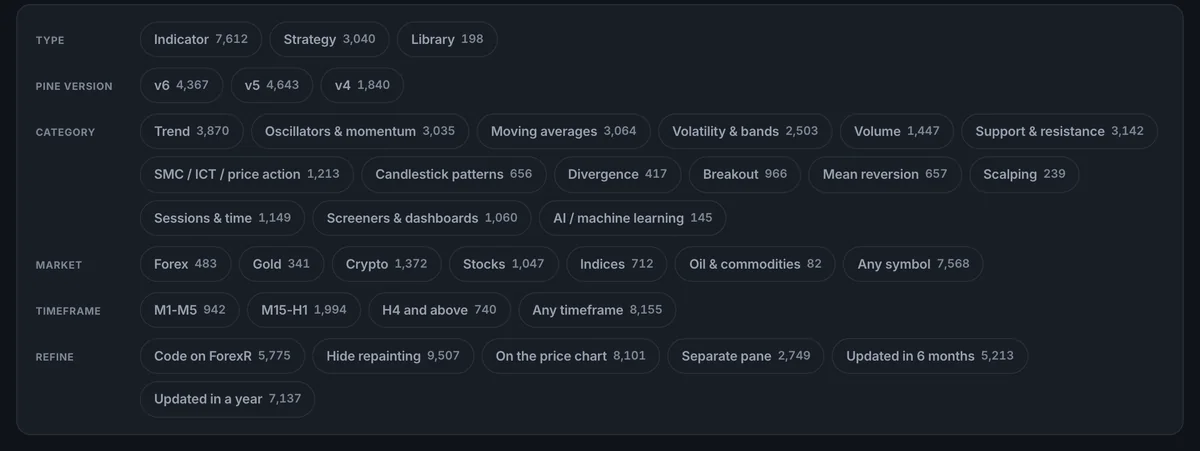
- Type: Indicator, Strategy or Library. Beginners usually start with indicators. Pine Script indicators, strategies and libraries explains the differences.
- Pine version: v6, v5 or v4. Version 6 is the current one, and the filter helps if you want newer code.
- Category: Trend, Oscillators & momentum, Moving averages, Volatility & bands, Volume, Support & resistance, SMC / ICT / price action, Candlestick patterns, Divergence, Breakout, Mean reversion, Scalping, Sessions & time, Screeners & dashboards and AI / machine learning.
- Market: Forex, Gold, Crypto, Stocks, Indices, Oil & commodities or Any symbol.
- Timeframe: M1-M5, M15-H1, H4 and above, or Any timeframe. M1 means one-minute candles; H4 means four-hour candles.
- Refine: “Code on ForexR”, “Hide repainting”, “On the price chart”, “Separate pane”, “Updated in 6 months” and “Updated in a year”.
Most scripts are tagged “Any symbol” because they work on whatever chart you open. The Market filter only picks out scripts whose code or description targets one market, so it hides many useful general scripts. Use it to narrow a long list, not as a test.
What the Refine Options Do
- Code on ForexR: shows only scripts whose code is displayed on the page, which depends on the licence (see below).
- Hide repainting: removes scripts marked Repaints.
- On the price chart / Separate pane: an on-chart script draws over the candles, such as moving averages. A separate-pane script draws in its own panel under the chart, as many oscillators do.
- Updated in 6 months / a year: leaves out projects that have gone quiet. A script last updated years ago may still work, but nobody is fixing it.
The Category Pages
Every filter combination also has a plain web address, so you can bookmark it or share it. Ready-made pages group the library by theme:
- By type: indicators, strategies and libraries.
- By version: version 6 and version 5.
- By market: gold, forex, crypto, stocks and indices.
- By idea: SMC / ICT, support and resistance, moving averages, oscillators, breakout, sessions and more.
How to Read a Script Page
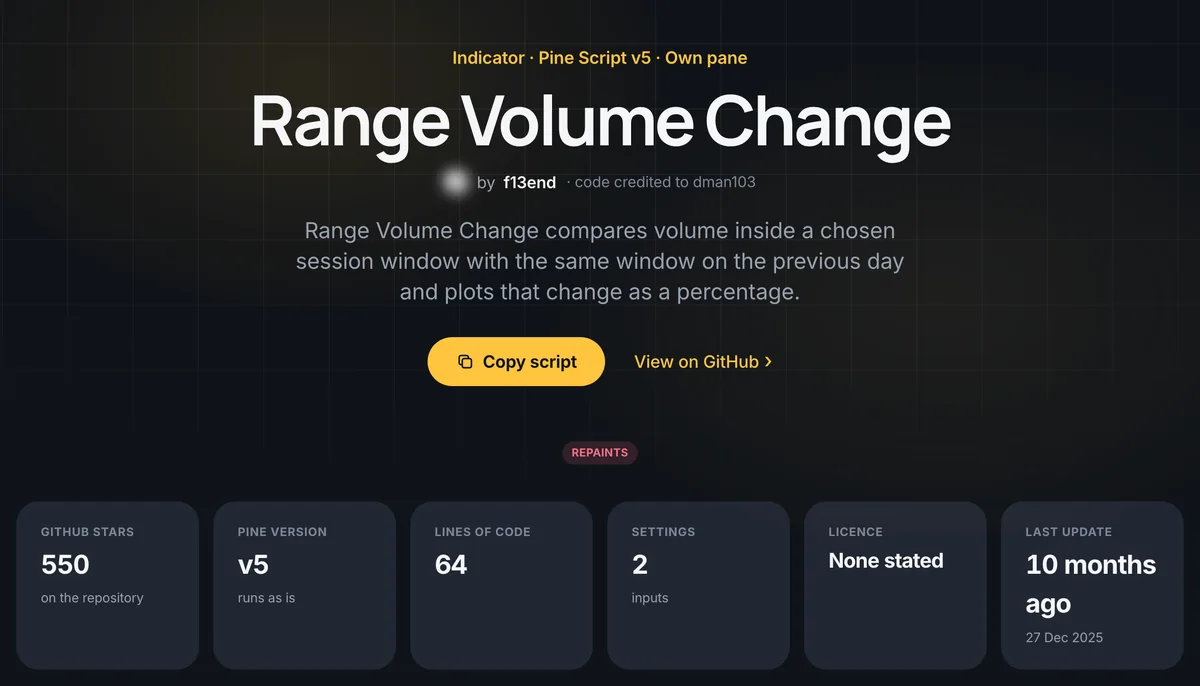
- Header: the name, the author and a line such as “Indicator · Pine Script v5 · Own pane”, with the buttons “Copy script” and “View on GitHub”. A Repaints badge appears here when the code or the author says the script can change its signals after the fact.
- Stat boxes: GitHub stars, Pine version (“runs as is” or “current”), lines of code, number of settings, licence and last update. A short script with few settings is easier to read and check.
- Add It to Your TradingView Chart: four short steps: copy the script, open the Pine Editor, paste over the template, then Add to chart.
- Source Code: either the code itself with its own copy button, or a note that it stays on GitHub.
- Overview: an automatic summary and a few bullet points.
- Details: author, any code credit in the script’s header, type, where it draws, category, markets, timeframes, and the file and repository it came from.
- Risk Notes: plain-language warnings such as signals that can change on the live bar. Some pages add notes on a strategy entering without a stop-loss or stacking several entries in one direction.
- Settings: a table of every input with its type and the author’s default value.
- Similar Pine Scripts: other scripts on the same theme, useful for comparing before you choose.
The settings table is worth reading before you copy anything. If you cannot tell what an input does, you will not know what to change when the script misbehaves.
How Licences Decide Whether ForexR Shows the Code
A licence is the author’s written permission about how others may use the code. ForexR shows the full source only when the author published it under an open licence, such as MIT, GPL or the Mozilla Public License that TradingView adds to new scripts. The page then says which licence applies and asks you to keep the author’s credit lines when you reuse it.
When the licence is “None stated” or a custom one, the page says “The code stays on GitHub”. The code is not hidden or locked: “Copy script” reads the file straight from GitHub into your clipboard, so you can still try it on your own chart. What you should not do is republish or sell it without asking the author.
What Do the Library’s Automatic Checks Mean?
Repositories that ship ready-to-run programs, hide downloads behind passwords or show signs of bought stars are left out. The Repaints badge and Risk Notes come from reading the code and README automatically.
These checks remove some common traps, but they are not a test. Nobody has run the script on an account for you, checked that its logic is sound or confirmed that its automatic summary is accurate. A missing badge does not prove a script is safe. The checks mean “this looks like readable Pine code”. They do not mean “this is bug-free” or “this will make money”.
The Copy Flow, Start to Finish
- Open a script page and read the stat boxes, Risk Notes and Settings.
- Press “Copy script”. The code goes to your clipboard, from ForexR or from GitHub depending on the licence.
- In TradingView, open the Pine Editor, create a new indicator or strategy, paste over the template, press Save, then Add to chart.
- Check it on a few symbols and timeframes before you rely on it.
The full steps and common errors are in how to add a Pine Script to TradingView.
What to Do After You Find a Script
- Check for repainting. Repainting in TradingView shows how to spot a script that looks better in hindsight.
- Backtest strategies carefully. How to backtest a Pine strategy explains the Strategy Tester and its limits.
- Plan the risk. No script knows your account size; risk management covers how much to risk per trade.
The library helps you find code; it cannot tell you whether that code suits your market, your timeframe or next month’s conditions. Indicators describe the past, and a backtest often looks better than live trading. Trading CFDs and leveraged forex carries a high risk of losing money rapidly, so only risk money you can afford to lose.
FAQ
Can I add my own Pine Script to the ForexR Pine Library?
You do not upload anything. A crawler searches GitHub every week for Pine Script files and adds scripts written for version 4 or later in repositories with at least one star. If your script is public on GitHub, it can appear after a later crawl. Its summary is written automatically from your code and README, so describe it clearly there.
Why does ForexR not show the code for some scripts?
ForexR displays the full code only when the author published it under an open licence such as MIT, GPL or the Mozilla Public License. For other scripts the code stays on GitHub, and the Copy script button reads the file from there into your clipboard so you can still try it on your own chart.
What does the Repaints badge mean on a script?
It means the script can change its signals after the fact, for example on the live bar or when it reads a higher timeframe before that bar has closed. Its history can then look better than it would have traded in real time. The Hide repainting filter leaves these scripts out.
Are the scripts in the Pine Library safe to use?
They are free and open-source, but ForexR does not write, test or endorse them. The automatic checks only remove some common traps. Read the settings, check strategies in the Strategy Tester, and watch a script on a chart or demo account before you rely on it.