How to Add a Pine Script to TradingView: Copy, Paste & Run

How Do You Add a Pine Script to TradingView?
Copy the script’s code, open the Pine Editor at the bottom of a TradingView chart, create a new indicator or strategy, select all of the template text and paste over it. Press Save, give it a name, then press Add to chart. Change its settings with the gear icon next to its name.
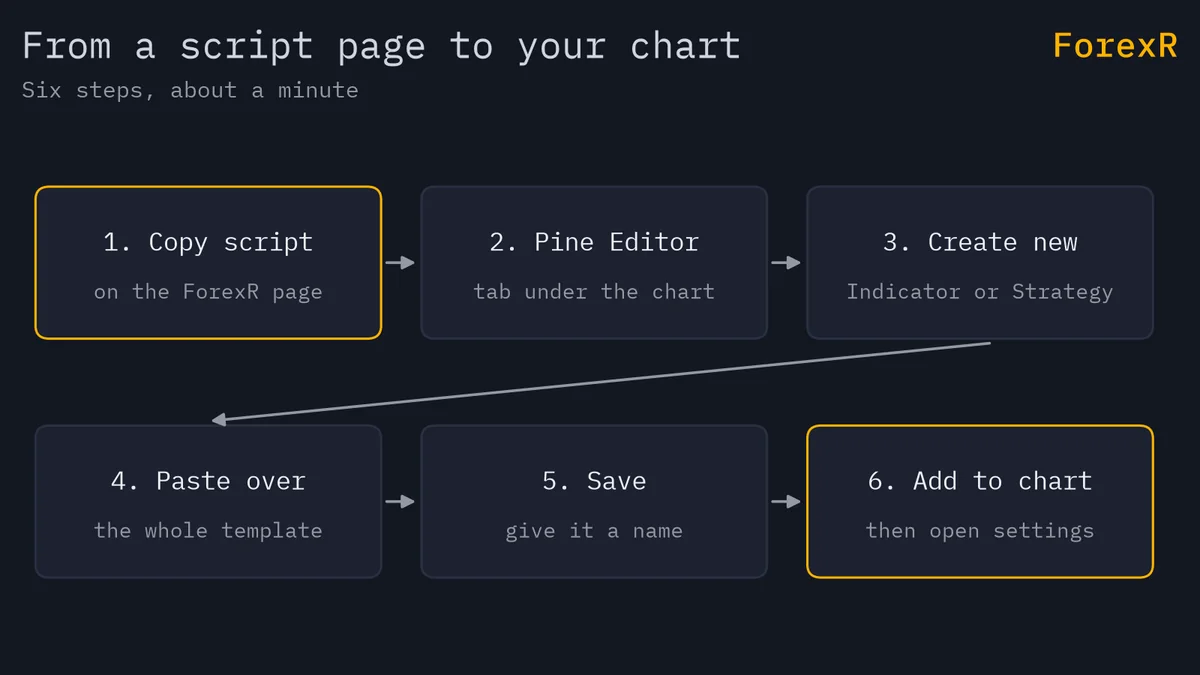
This guide walks through each step, explains the version line at the top of every script, and lists the errors beginners meet most often. If you have no script yet, the free Pine Script Library has thousands to try.
What Is a Pine Script?
Pine Script is the programming language of TradingView, the charting website. A script written in it runs on a chart: an indicator draws lines, zones or signals, a strategy places simulated trades and reports on them in the Strategy Tester, and a library holds functions that other scripts can import. Pine Script indicators, strategies and libraries explains the three kinds in more detail.
Nothing here is installed on your computer. The script is stored in your TradingView account and runs on TradingView’s servers, so it is available on any device you sign in to.
How to Copy a Script From the ForexR Pine Library
Every script in the library has its own page, and each page has the same two buttons near the top: “Copy script” and “View on GitHub”. GitHub is the website where the authors publish their code, and ForexR links back to the original repository.
- Find a script: search, or browse a category such as indicators or strategies. How to use the Pine Library covers the search box and filters.
- Press “Copy script”: the code goes to your clipboard, ready to paste.
- If the page shows the code: you can also use the copy button above the code box. ForexR shows the full code only when the author published it under an open licence such as MIT, GPL or the Mozilla Public License.
- If the code stays on GitHub: some pages say “The code stays on GitHub”. That means the author has not published an open licence, so ForexR does not display the code. “Copy script” still reads the file straight from GitHub into your clipboard so you can try it on your own chart.
Trying a script on your own chart is one thing; reusing its code elsewhere is another. Check the licence on the page and ask the author before you republish or sell anything built from it. Where a licence asks for credit, keep the author’s comment lines at the top of the code.
How to Open the Pine Editor and Paste the Code
The Pine Editor is TradingView’s built-in code editor. Follow these steps with the code still on your clipboard:
- Open a chart on TradingView and sign in. You need an account to save a script.
- Select the “Pine Editor” tab at the bottom of the chart. The editor opens in a panel under the price chart.
- Create a new script: click the dropdown arrow at the top left of the editor, beside the script name, and choose Create new, then Indicator. If the script is a strategy, choose Strategy instead.
- Paste over the template: the editor starts with a few lines of example code. Select all of it (Ctrl+A, or Cmd+A on a Mac) and paste. Do not paste below the template, or you will have two scripts mixed together.
- Save: select the script name or press Ctrl+S (Cmd+S on a Mac) and type a name you will recognise. The script is stored in your TradingView account and is visible only to you.
- Add to chart: press “Add to chart” in the editor’s menu bar. An indicator appears on the price chart or in a separate pane under it; a strategy draws its trades and fills the Strategy Tester tab.
Choose the template that matches the script: Indicator for an indicator and Strategy for a strategy. The library page names the type under the title.
How to Change a Script’s Settings
Most scripts have inputs, settings the author lets you change without touching the code, such as a period length or a colour.
- Open them: hover over the script’s name on the chart and press Settings, or double-click the name. The gear icon next to the name does the same.
- Inputs tab: the author’s options, often grouped under headings.
- Style tab: colours, line widths and which plots to show.
- Visibility tab: which timeframes the script displays on.
On each library page, the Settings table lists every input with its type and the author’s default value, so you can see the options before you add the script. Change one setting at a time and watch what happens. A default is the author’s choice, not a recommendation for your market.
What the Version Line Means (//@version=6)
The first line of almost every script looks like //@version=6. It is a compiler annotation, an instruction that tells TradingView which version of Pine Script the code was written for. Version 6 is the current one. The library lists scripts written for versions 4, 5 and 6, and you can filter by version on the version 6 page.
- Leave the line as it is. Do not change the number by hand to make an old script “newer”. The code inside was written for that version’s rules, and changing the number can create errors.
- Do not delete it. TradingView’s documentation says that when the annotation is missing, version 1 is assumed, which is far older than any script in the library.
- New templates start at version 6. When you paste over the template, your pasted line replaces theirs, which is correct.
Converting an Older Script
TradingView’s editor can convert a version 5 script to version 6. Open the editor’s “Manage script” menu and choose “Convert code to v6”. A script can be converted only if its version 5 code compiles successfully, and TradingView says some scripts need manual fixes afterwards, with the editor highlighting any errors. For a version 4 script, TradingView’s guidance is to update one version at a time, so you would convert to version 5 first. For a beginner, converting is optional. If an older script runs well, it is fine to leave it alone; if you do convert one, compare it with the original on the same chart, because a conversion can change how a script behaves.
Common Errors When You Paste a Script
- A red error message: the editor could not read the code. The usual cause is a partial paste, so select everything, delete it and copy the script again.
- Two scripts in one: you pasted under the template instead of over it. Delete everything and paste once.
- An error on the first line: something other than the code, such as a web page heading or a stray character, came across with the paste. Remove it.
- Undeclared identifier: the code uses a name the editor does not know. This often happens when only part of a script was copied, or when a library script needs another library it cannot find.
- Nothing visible after Add to chart: the indicator may be in a separate pane lower down, scaled off-screen, or hidden by its Visibility settings. A script with “Any symbol” in the library still needs a chart with enough bars of history.
- Script is a library: a library holds functions and draws nothing. You import it into another script rather than adding it to the chart.
- Version 4 or 5 script behaves oddly: keep its //@version line and compare it with the original. Do not guess at fixes.
If the error persists, press “View on GitHub” on the library page and compare the code with the original file.
How to Remove a Script From the Chart
Hover over the script’s name in the chart’s legend and open its menu (the three dots) to find the remove option. The script stays saved in your account, so you can add it again later from the Pine Editor. Removing an indicator never affects other scripts on the same chart.
What to Check Before You Rely on a Script
A script that loads without errors is only a script that loads. Before you let it influence a trade:
- Look for the Repaints badge. A repainting script can change its signals after the fact, so its history looks better than it would have traded live. Repainting in TradingView explains how to spot it. Each library page also lists Risk Notes.
- Read the code or summary. The library’s overview is written automatically from the code, so it can be wrong. ForexR did not write, test or endorse any script.
- Test strategies in the Strategy Tester. A strategy’s results are a simulation on past data and tend to flatter. How to backtest a Pine strategy covers fees, slippage and sample size.
- Watch it live first. Keep the script on a chart and compare what it shows with what price does next, before any real money is involved. A demo account is the safest place to practise acting on it.
- Size your risk separately. A script cannot know your account. Risk management covers how much to risk per trade.
Indicators describe the past. They do not predict the future, and a strategy that looked good in a backtest can lose money live. Trading CFDs and leveraged forex carries a high risk of losing money rapidly, so only risk money you can afford to lose.
FAQ
Why does my Pine Script show an error when I paste it?
Most paste errors come from copying only part of the code, pasting below the template instead of over it, or including extra text from a web page. Select everything in the Pine Editor, delete it, copy the script again and paste once. If the error remains, compare your code with the original file on GitHub.
Do I need a paid TradingView account to add a Pine Script?
You need a free TradingView account to save a script. Some limits, such as how many indicators you can have on one chart, depend on your plan, so check TradingView’s own pricing and help pages for the current limits.
Can I use a Pine Script written for version 4 or 5?
Yes, you can paste it in as it is. Keep its //@version line unchanged, because it tells TradingView which version of the language the code expects. TradingView’s editor can convert a version 5 script to version 6 from the Manage script menu, but converting is optional and can need manual fixes.
Why can’t I see the indicator after I press Add to chart?
Many indicators draw in a separate pane below the price chart, so scroll down or enlarge the chart area. Also check the script’s Visibility settings and make sure the chart has enough bars of history. A library script draws nothing, because it only holds functions for other scripts.