What Is Pine Script? TradingView's Chart Language Explained

What Is Pine Script?
Pine Script is the programming language of TradingView, the charting website. You write a short script, and TradingView runs it on its own servers and draws the result on your chart. Scripts can draw indicators, simulate trades to test a strategy, and trigger alerts. You install nothing on your computer.
Traders use it because it is small and built for charts. A moving average that takes many lines in other languages takes one line in Pine. This guide explains what the language is, what it can and cannot do, and where to go next. If you want to paste a script right away, see how to add a Pine Script to TradingView.
What Does a Pine Script Look Like?
Here is a complete script. It draws a 20-bar simple moving average, the average of the last 20 closing prices, as a blue line on the price chart:
//@version=6
indicator("Simple Moving Average", overlay=true)
length = input.int(20, "Length", minval=1)
avg = ta.sma(close, length)
plot(avg, "SMA", color=color.blue, linewidth=2)
Read it line by line:
- Line 1:
//@version=6tells TradingView which version of the language the script uses. The next guide, Pine Script v4, v5 and v6, explains it. - Line 2:
indicator()is the declaration. It says this script is an indicator and gives it a name.overlay=truemeans “draw on the price chart, not in a separate pane”. - Line 3: an input is a setting you can change without editing the code. Here it is the length, 20 by default, and it cannot go below 1.
- Line 4:
ta.sma(close, length)works out the simple moving average. With a length of 20 and closes that add up to 2,000 over 20 bars, the result is 2,000 / 20 = 100. - Line 5:
plot()draws the value on the chart, one point per bar.
Notice that there is no loop over the bars. Pine runs the script once for every bar on the chart, from the oldest to the newest, and then again on each new price tick of the live bar. That one idea explains most of how the language behaves.
Where Does Pine Script Run?
Pine Script is cloud-based. TradingView’s documentation says it lets traders “create their own trading tools and run them on our servers”. Your script is saved in your TradingView account and runs inside the chart in your browser or app, so it is there on any device you sign in to.
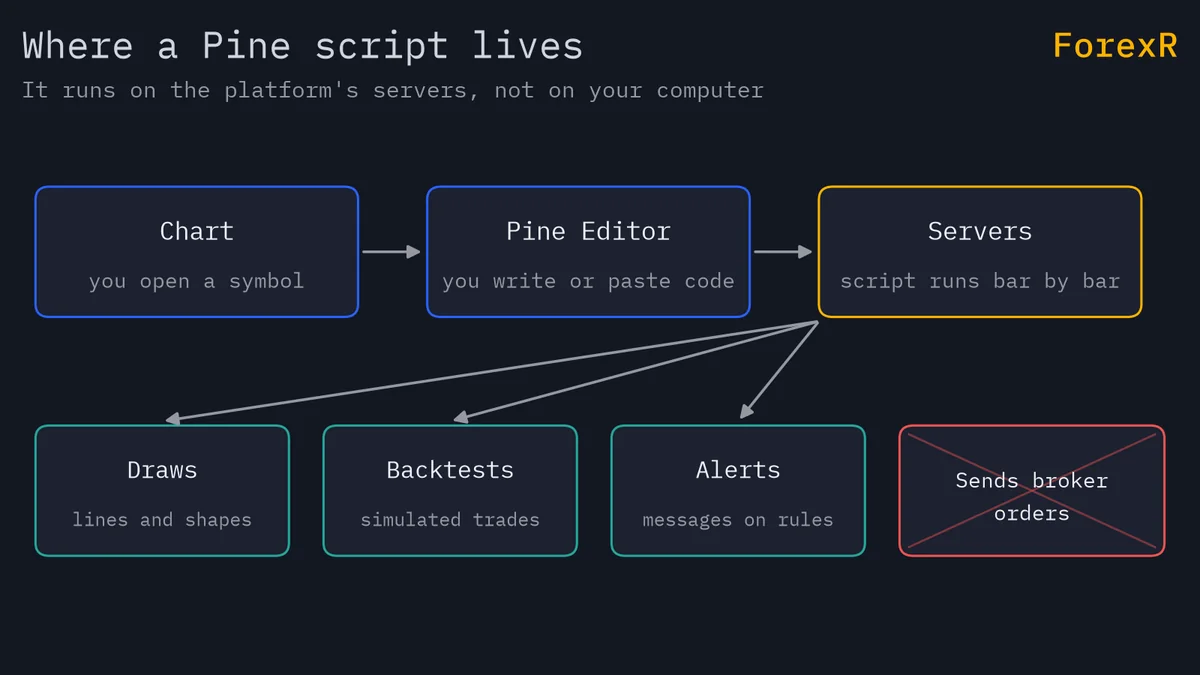
This is different from a program you install. Nothing is compiled on your machine. TradingView also sets limits on things such as how much data a script requests, how long it may run, its memory use and its size.
What Can Pine Script Do?
- Draw indicators: lines, histograms, shapes, coloured bars and background shading. The indicators in the Pine Script Library are examples.
- Draw objects: lines, labels, boxes and tables, for example to mark the previous day’s high and low.
- Backtest a strategy: a strategy script places simulated trades on past bars, and the Strategy Tester shows the results. See how to backtest a Pine strategy.
- Fire alerts: a script can define conditions that trigger a TradingView alert, when a rule you wrote becomes true. The Pine Script alerts guide covers this.
- Use other symbols and timeframes: a script can request data from another chart symbol or a higher timeframe, within TradingView’s limits.
What Can’t Pine Script Do?
Knowing the limits saves time and money.
- It cannot send orders to your broker on its own. A strategy trades only inside TradingView’s simulator. To trade for real from a script, you need alerts plus another program that receives them. How to send TradingView alerts to MT4 or MT5 shows that chain and why it can fail.
- It cannot predict the market. An indicator describes past prices. A good-looking line on history says nothing about the next bar.
- It cannot be a general-purpose program. It is a chart language, not a tool for building apps or programs that run on your own computer. The documentation itself says it is not likely to become a full-fledged language, so it stays focused on charts and trading tools.
- It cannot make a backtest honest. A strategy test can look better than live trading, especially if the script repaints, which means its signals change after the fact. Repainting in TradingView explains the trap.
What Are the Three Kinds of Pine Script?
Every script declares what it is on its first lines. An indicator shows information, a strategy also simulates trades, and a library holds functions that other scripts can import. The full comparison, with a table, is in Pine Script indicators, strategies and libraries, so we will not repeat it here.
Which Pine Script Versions Exist?
TradingView has released several versions of the language, and the current one is version 6. Older scripts written for versions 4 and 5 still run, and many scripts you find online use them. The version changes some names and rules, so code written for one version can fail in another. The ForexR library lets you filter by version 6 if you want only the newest syntax.
Who Is Pine Script For?
It suits traders who already use TradingView charts and want a custom tool without learning a large programming language. It is a reasonable first language, because you see the result on a chart straight away. It is less suited to a trader who wants a robot that places orders at a broker without extra tools. For that job, many people look at MetaTrader instead; Pine Script vs MQL5 compares the two.
Where Can You Get Pine Scripts?
You can write your own, copy one from a book or forum, or use open-source code from GitHub. The ForexR Pine Script Library is a free directory of open-source TradingView scripts published on GitHub, with thousands of indicators, strategies and libraries. It links to each original repository. ForexR does not test or recommend any script, so treat every script as unproven until you have checked it. The library has a search box, filters and a Copy script button on every page, so you can find a script by type, version or category.
What Is a Good Learning Path?
- Run other people’s scripts first. Add two or three from the library and change their settings.
- Read before you write. Open the code of a short indicator and match each line to what you see on the chart.
- Write the first indicator. Pine Script basics: write your first indicator takes you through it step by step.
- Add inputs, then alerts, then a simple strategy. Test each one on a demo chart before you trust it.
Pine Script is a tool for drawing and testing ideas, not a source of profit. Backtests flatter, and indicators fail in ranging markets and around news. Leveraged forex and CFD trading carries a high risk of losing money quickly, so only risk money you can afford to lose.
FAQ
Is Pine Script free to use?
You need a TradingView account to save and run scripts, and a free account is enough to start. Some limits, such as how many indicators sit on one chart, depend on your plan, so check TradingView’s own pages for current limits. Reading and learning the language costs nothing.
Is Pine Script hard to learn for a beginner?
It is one of the easier languages to begin with, because scripts are short and you see the result on the chart at once. You still need to learn how it runs once per bar and how history is read. Start by changing small things in working scripts, then write a simple indicator.
Do I need to know programming before I learn Pine Script?
No. Many traders learn Pine as their first language. It helps to understand what a variable and a function are, but guides and examples explain these as you go. Basic chart knowledge, such as what a moving average is, matters more than prior coding.
Can Pine Script trade automatically for me?
Not by itself. A Pine strategy only simulates trades inside TradingView. A script can send an alert, and another program can read that alert and place an order, but that adds delay and more points of failure. Test any such setup on a demo account first.