MT5 101: Install MetaTrader 5 and Open a Demo Account

How Do You Install MT5 and Open a Demo Account?
Download MetaTrader 5 from your broker’s website, run the installer, then choose File and Open an Account to create a demo account with virtual money. The whole job takes about ten minutes. By the end of this lesson you will have MT5 running on your computer and a connected demo account whose login, password and investor password are saved somewhere safe.
MetaTrader 5 is free: the broker pays for the licence. The overview in how to use MT4 and MT5 shows the whole screen in one pass; this series goes slower and does one thing per lesson, all on a demo account with virtual money and live prices.
What You Need
- A Windows computer. MT5 is a Windows program first; for a Mac, check what your broker provides.
- A broker that offers MT5. The platform only shows the prices and conditions of the broker you connect to. The independent broker comparison lists which brokers run MT5 and on what terms, and how to choose a forex broker explains the checks that matter.
- An email address and a phone number. The demo form asks for both.
Not sure MT5 is the right version? MT4 vs MT5 compares the two, but for a beginner with no existing tools MT5 is the sensible default.
Step 1: Download and Install MetaTrader 5
- Step 1, get the installer: download MT5 from your broker’s website rather than from a search result. The broker’s installer already contains its server list, so the right server appears in the account forms later.
- Step 2, run it: accept the agreement and let it finish. The installer adds a program group to the Start menu and a shortcut on the desktop.
- Step 3, launch it: open MT5 from the desktop shortcut. It is not connected to any account yet.
Step 2: Open a Demo Account
- Step 1, open the account window: choose File, then Open an Account. You can also right-click in the Navigator window and pick the same command.
- Step 2, pick the server: find your broker in the list. If it is missing, type the company name and click “Find your broker”. Select the company and click Next.
- Step 3, choose demo: pick the option for a demo account. All trading on it uses virtual money.
- Step 4, enter your details: first name and surname (at least two characters each), an email address and a phone number in international format, for example +44 followed by the number.
- Step 5, set the account parameters: tick “Use hedge in trading” for a hedging account, which can hold several positions in one symbol, including opposite ones; leave it unticked for netting, one position per symbol. Then choose the account type, deposit and leverage. The options depend on your broker.
- Step 6, accept and register: tick the box to accept the broker’s terms and data policy, then click Next. The account is created on the broker’s server.
- Step 7, save your details: the registration screen shows three things. Login is your account number. Password is the master password, which allows trading. Investor is a read-only password that lets someone view the account and analyse prices but not trade. A QR code for the mobile app also appears. Copy all three somewhere safe.
- Step 8, finish: click Finish and MT5 connects; the account appears under Accounts in the Navigator. Cancel still creates the account but does not connect it.
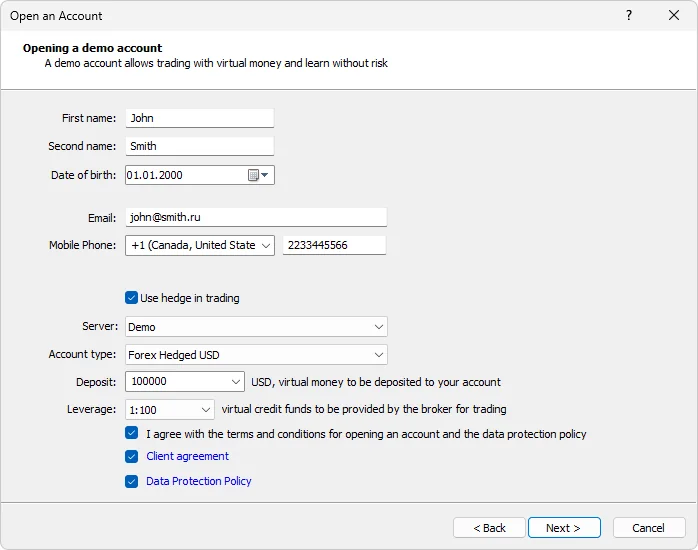
Choose a demo balance and leverage close to what you would really use; a six-figure demo teaches habits that do not survive a small live account. Leverage and margin explains what the leverage number does to your risk, and forex demo account covers how to practise properly.
Step 3: Log In to an Existing Account
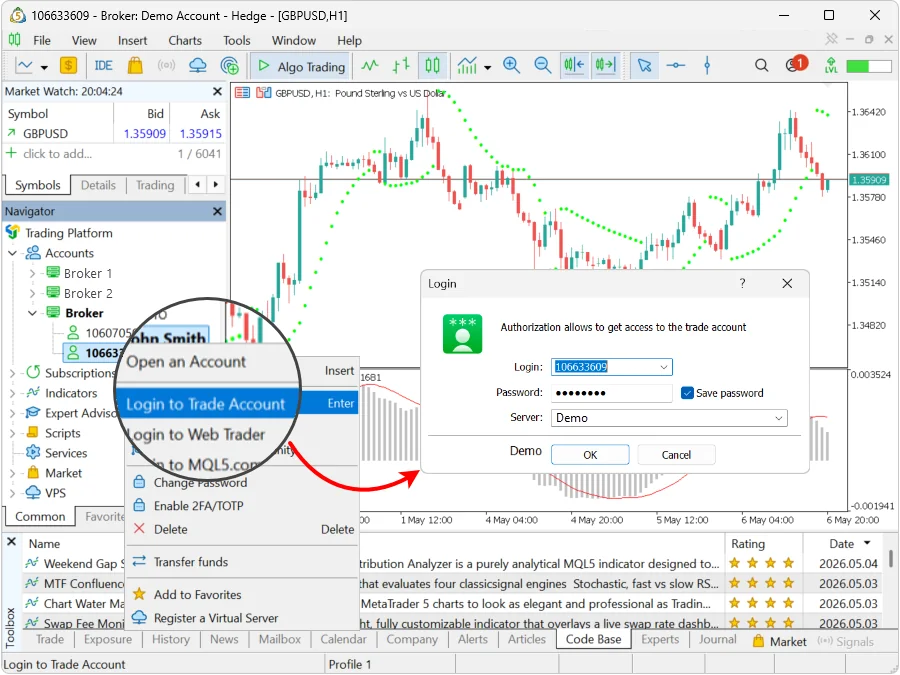
- Step 1, open the login window: choose File, then Login to Trade Account.
- Step 2, enter the three fields: Login is the account number, Password is the master or investor password, and Server is the broker’s server, picked from the list or typed exactly as the broker wrote it.
- Step 3, save the password: tick Save password so MT5 reconnects to this account every time it starts, then click OK.
- Step 4, check the connection: prices in Market Watch should start moving, and the connection indicator in the bottom-right corner of the status bar should show traffic figures rather than “No connection”.
- Step 5, change the password if asked: some brokers force a change on first login. Enter the current master password, then the new one twice. It must meet the required length, contain four character types (lower case, upper case, a number and a special character) and differ from the old one.
- Step 6, add a passkey if offered: in builds from July 2026, a broker that supports passkeys may ask you to add one, a second login check that protects against phishing. Store it on your phone by scanning the QR code (Bluetooth on for both devices) or on a USB security key. Every later login asks for it. Right-click the account in the Navigator and choose Passkey Manager to remove it.
Master, Investor and Hedging: What You Just Chose
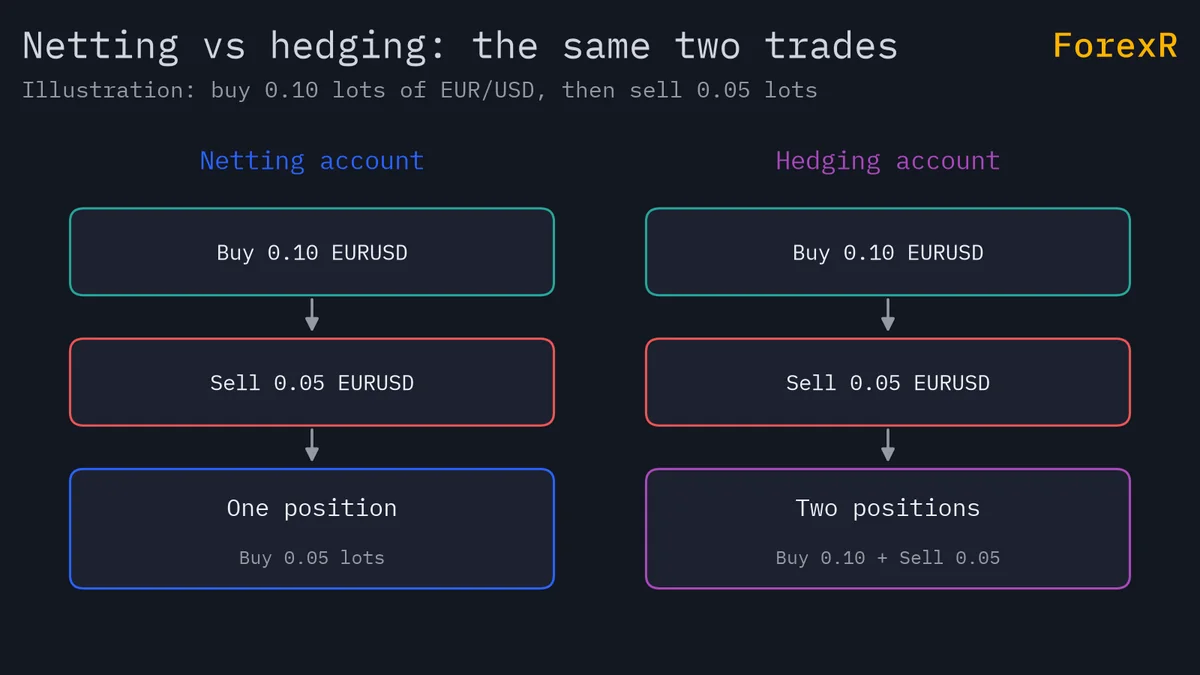
The master password trades; the investor password only watches, so it is the one you could share with a mentor, never the master. Hedging and netting change how MT5 treats a second trade in the same symbol: on netting a second buy adds to the position and a sell reduces it, while on hedging each trade is its own position. Your broker decides which types it offers.
One more point: scripts from the Pine Script Library are written for TradingView, the browser-based charting platform, and do not run in MT5, which uses its own MQL5 language.
If Something Goes Wrong
- “No connection” in the bottom-right corner. The server name is wrong or the broker’s server is down. Re-type the server exactly as the broker gave it, or pick it from the list.
- “Invalid account”. The login number or password does not match that server. Check for a copied space at the end of the password, and make sure you chose the demo server, not the live one.
- Your broker is not in the server list. Download the installer from the broker’s own site, or type the company name into the search box on the server page and click “Find your broker”.
- The registration form rejects your phone number. It needs the international format with the country code and no spaces.
- MT5 will not start a second copy. Two copies cannot run from one folder. Install the second one in a different directory.
What You Just Learned
- MT5 is free and comes from your broker, whose installer carries the server list.
- File, then Open an Account creates a demo in eight steps; save the login, master and investor passwords as soon as they appear.
- Hedging or netting is chosen at registration and depends on your broker.
- File, then Login to Trade Account connects any existing account; moving prices mean you are in.
- A passkey, where your broker supports it, is a second login check stored on your phone or a USB key.
Next lesson: MT5 101: Market Watch, Navigator, chart and Toolbox walks through the four windows you are now looking at. CFDs and leveraged trading carry a high risk of losing money, which is why every step in this series is practised on a demo account first.
FAQ
Is MetaTrader 5 free to download?
Yes. MT5 is free for traders because the broker pays the developer for its licence. Download it from your broker’s website so the installer carries the broker’s server list. A demo account is also free and uses virtual money. You only pay when you trade a live account, through the spread, any commission and overnight swap fees.
How long does an MT5 demo account last?
The platform sets no limit; the broker does. Some demos run indefinitely, others expire after a set period or after weeks without a login, so check your broker’s terms. If a demo expires, you can normally open a new one in a minute with File, then Open an Account.
What is the difference between the master and investor password in MT5?
The master password gives full rights, including placing and closing trades. The investor password connects to the same account in read-only mode: you can see the balance, positions and history and analyse charts, but not trade. Share the investor password with a mentor or a verification service; never share the master password.
Should I choose hedging or netting for a demo account?
Choose the mode you expect to use on a live account, because it changes how a second trade in the same symbol behaves. Hedging lets opposite positions coexist; netting merges every trade in one symbol into a single position. The account types on offer depend on your broker, and the mode is chosen when the account is opened.