Open-Source Forex EAs on GitHub: Licences, Compiling & Editing

What is an open-source forex EA?
An open-source forex EA is an expert advisor whose source code is published, usually on GitHub, under a licence that lets you read, use and change it. You get the .mq4 or .mq5 file, the readable text of the program, so you can check what it does before it trades your money.
The ForexR EA Library lists such EAs and links each to its original GitHub repository.
.mq4 and .mq5 source files vs .ex4 and .ex5 files
The source file (.mq4 for MT4, .mq5 for MT5) is plain text in MQL4 or MQL5, MetaTrader's programming languages, and opens in MetaEditor, the code editor that comes with MetaTrader. The compiled file (.ex4 or .ex5) is the machine-ready version the platform runs, and there is no practical way back to the text.

That is why source code is safer. With only a compiled file, you trust the seller's word. With the source, you or a friend who codes can see how it sizes trades, whether it sets a stop-loss and whether it connects to anything outside MetaTrader. An MT4 EA will not run on MT5; see MT4 vs MT5.
How to read a GitHub repository without coding
A repository, or repo, is a project folder on GitHub. On its main page, check:
- README: the description below the file list. Good ones explain the strategy and settings; treat profit claims as marketing.
- File list: look for .mq4 or .mq5 files, plus .mqh include files, shared code the EA pulls in. Be wary of repos holding only compiled files, .exe or .dll files, or password-protected archives.
- Last commit: a commit is a saved change; the latest one's date shows when the code was last touched.
- Issues: where users report bugs. Read how the author replies.
- Stars and forks: a star is a bookmark; a fork is someone's copy to change. They show interest, not profit, and stars can be bought.
- Releases: packaged versions. Check what one contains before downloading it.
- Archived: a banner saying the owner archived the repository means it is read-only, with no more fixes and no new issues.
Each EA's library page shows its stars, forks, last update, licence and latest release, plus an “Archived by its author” badge where it applies.
Open-source licences explained in plain words
- Permissive (MIT, BSD, Apache-2.0): you may use, change, share and even sell the code, as long as you keep the copyright and licence notice. Apache-2.0 also asks you to mark files you changed.
- Share-alike (GPL-2.0, GPL-3.0): you may use and change the code, but if you share a changed version, you must share its source under the same licence. Changes you keep for your own trading need not be published.
- No licence: all rights reserved by default. In general terms, you may read it and run it for yourself, but you should not share copies or your changed versions without the author's permission.
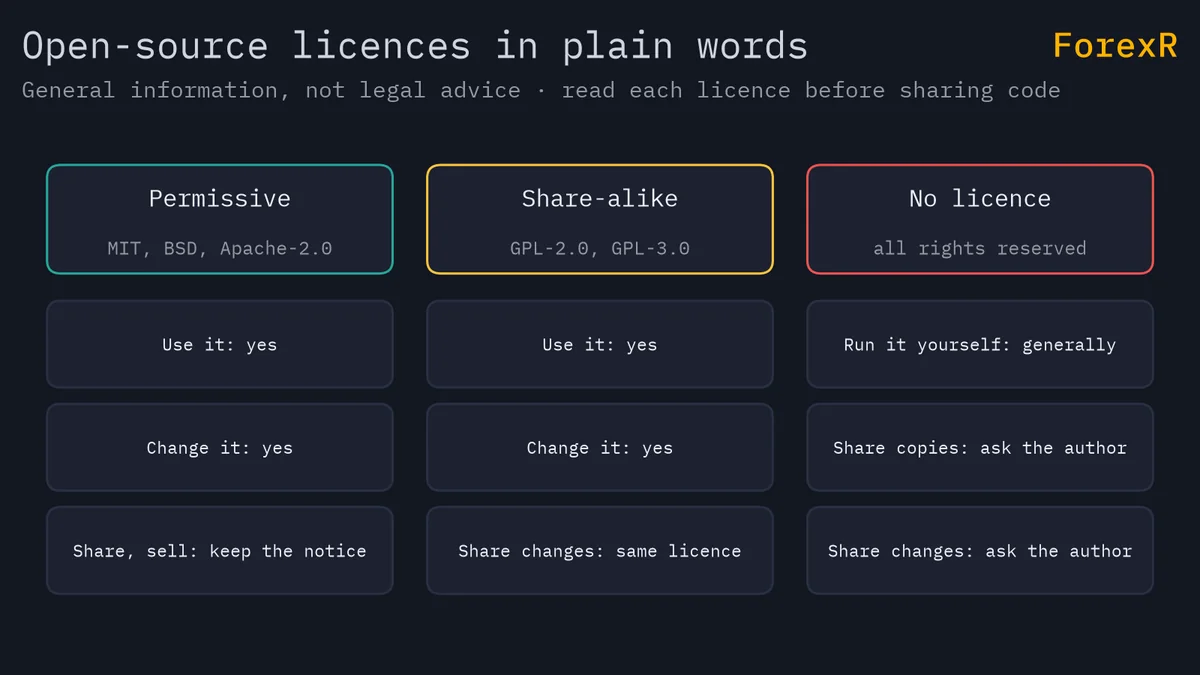
This is general information, not legal advice; before sharing or selling an EA, read its licence and check local rules. Fewer than half the EAs in the library carry an open-source licence, and you can list only EAs with an open-source licence.
How to download an EA's source code
- From the EA Library: press “Download source (.zip)” on the EA's page. The file comes from the original repository; ForexR never hosts files.
- From GitHub: on the repo's main page, press Code, then Download ZIP.
Extract it and keep the original zip as a backup. Copy the .mq4 or .mq5 file into MQL4/Experts or MQL5/Experts (File > Open Data Folder) and any .mqh files into the Include folder the code expects; our guide on how to install an EA in MT4 and MT5 has each step.
How to compile an mq4 or mq5 file in MetaEditor
Press F4 in MetaTrader to open MetaEditor, open the EA's file, and press F7 to compile. The Errors tab in the Toolbox at the bottom lists every error and warning, then a summary count. With zero errors, an .ex4 or .ex5 file appears next to the source, and the EA shows in MetaTrader's Navigator (right-click and choose Refresh if not). Common problems:
- A missing include file: the compiler cannot open an .mqh file. An #include line with the file name in angle brackets looks in the Include folder; one with the name in quotes looks next to the EA first. Put the file where the line expects it.
- MQL4 code in MT5: renaming an .mq4 file to .mq5 just produces a long list of errors, because the trading functions differ. Find an MT5 version or treat it as a rewrite.
- Deprecated functions: code for much older builds may use functions or syntax the compiler rejects or flags as deprecated, meaning out of date; big fixes need a programmer.
- Warnings are not errors: a warning such as “return value of 'OrderSend' should be checked” still compiles. It hints that the code may not check whether its orders worked.
A reader's guide to MQL code
Open the source in MetaEditor and search with Ctrl+F.

- The settings: lines starting with input (or extern in older MQL4) are the inputs you can change on the chart. For example, input double Lots = 0.10; sets a default of 0.10 lots. Our guide to EA settings explained covers the common ones.
- OnInit, OnTick and OnDeinit: OnInit runs once when the EA starts, to set things up. OnTick runs on every new price tick and holds the trading logic. OnDeinit runs once when the EA is removed or the terminal closes. Old MQL4 code may use init, start and deinit instead.
- Trade calls: search for OrderSend (MQL4 and MQL5), or calls such as trade.Buy and trade.Sell in MQL5 code using the standard trade library. Each opens a trade; check whether a stop-loss value goes with it.
- Lot multipliers: search for names like Multiplier or LotExponent, or lines such as lots = lots * 1.5, where the lot grows at each step, the mark of a martingale. A multiplier of 1.5 sounds gentle, but the tenth trade is 1.5 multiplied by itself nine times, about 38 times the first; see martingale and grid trading.
How to change an EA's default input safely
Usually you just change inputs in the Inputs tab when you attach the EA. Edit the code only for a new default, such as a smaller lot.
- Keep the original: use File > Save As in MetaEditor and give the copy a new name, such as MyEA_small.mq5.
- Change one value: input double Lots = 0.10; becomes input double Lots = 0.01; and nothing else.
- Compile: press F7 and confirm zero errors.
- Test: run both versions in the Strategy Tester and compare them, as in our guide on how to backtest an EA.
If you find a bug, open an issue on GitHub that explains how to repeat it. If you can fix it, fork the repo, make the change and send a pull request, a proposed change the author can accept.
Security: DLLs, web requests and files to avoid
- Never run .exe files: a real EA is an .mq4, .mq5, .ex4 or .ex5 file. An “installer” can do anything on your computer, and so can a download that asks you to switch off antivirus.
- Be wary of #import: an #import line naming a .dll file loads a DLL, a Windows code library that runs outside MetaTrader's limits and can read files or send data anywhere. It only runs if you tick “Allow DLL imports”; leave that off unless you know what the DLL does.
- Check web requests: search for WebRequest. An EA can only reach a website listed in Tools > Options > Expert Advisors. Ask what it sends and why.
- Guard your logins: no EA needs your trading password or email login typed into its settings. Fake “free robots” are a common route for forex scams.
Next, demo test the EA with your broker's conditions, and compare brokers if yours are poor for automated trading. Our checklist on how to choose a safe forex EA covers the rest.
Reading and compiling the code tells you what an EA does, not whether it will make money, and an open licence is no promise of quality. Automated trading of forex and CFDs carries a high risk of loss, so only risk money you can afford to lose.
FAQ
Can I convert an MQ4 EA to MQ5?
Not by renaming the file. MQL4 and MQL5 handle orders, positions and indicators differently, so moving an EA across is closer to a rewrite than a conversion. Simple EAs are fairly quick work for an experienced programmer, while complex ones take much longer. First check whether the author, or someone who forked the project, has already published an MT5 version.
Can I decompile an EX4 or EX5 file?
You should not try. Decompiling someone else's compiled EA usually breaks the author's rights and the terms it came with, and files built with current MetaTrader versions are designed to resist it. Tools that promise to do it are often malware. If you need to know what an EA does, ask for the source code or choose an open-source EA instead.
Can I sell an EA I modified from GitHub?
It depends on the licence. Permissive licences such as MIT generally allow it if you keep the original copyright notice. GPL licences allow it only if you also share your full source under the same licence. With no licence, you need the author's permission. This is general information, not legal advice, so read the licence and check your local rules.
Why does my compiled EA not appear in the Navigator?
Right-click Expert Advisors in the Navigator and choose Refresh first. If it still does not appear, you probably compiled it in a different data folder, which happens when you have several MetaTrader installs, or saved it outside the Experts folder. Open the data folder from the terminal you trade with, move the file into Experts and compile again.