MT5 101: Alerts, Push Notifications and Key MT5 Settings

How Do You Set a Price Alert and Push Notification in MT5?
Open the Alerts tab in the Toolbox, press Insert, set a condition such as Bid above a price, choose Sound and Notification as actions, then click OK. By the end of this lesson you will have a price alert on gold that rings on your PC and arrives on your phone as a push notification.
What you need: MT5 on a demo account, with Market Watch showing gold, as in the previous lesson on one-click trading and trade levels. You also need the MT5 app on your phone, logged in to any account. The gold symbol is named by your broker, often XAUUSD; see the live price on the XAUUSD rate page.
Step 1: Create the Alert on the Desktop
- Step 1, open the tab: press Ctrl+T if the Toolbox is hidden, then click the Alerts tab.
- Step 2, start a new alert: right-click in the tab and choose Create, or press Insert. You can also right-click a chart at a price and choose Alert.
- Step 3, pick the symbol and condition: choose gold. Conditions are Bid, Ask or Last, each greater or less than a value, plus Volume, and Time, which fires at a clock time you type as HH:MM.
- Step 4, type the Value: choose a price a little above the current Bid and set the condition to Bid greater than it.
- Step 5, choose the action: Sound plays a .wav or .mp3 file, File runs a program, Email sends a message, and Notification sends a push message to your phone. Pick Sound for now.
- Step 6, set repeats: fill in the time between repetitions and the maximum number of repetitions, so the alert does not ring forever.
- Step 7, test it: click Test to hear the sound, then OK. The alert appears in the list with its condition.
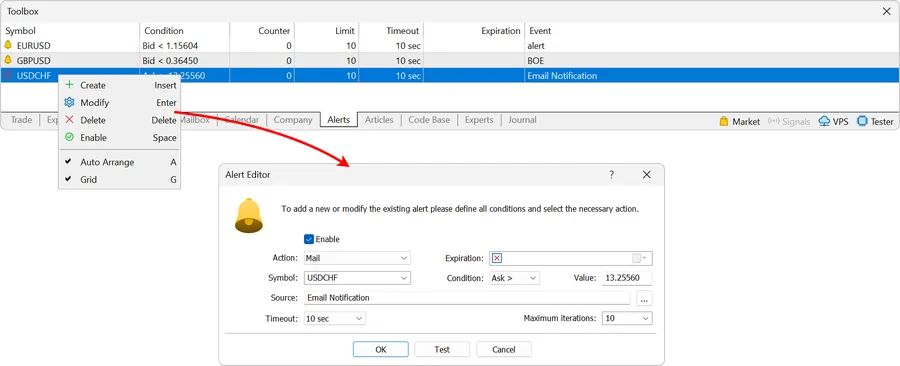
An alert made from a chart expires on its own after a period set by the chart’s timeframe; an M1 alert lasts an hour. Alerts made in the tab can carry an expiry time too.
Step 2: Find Your MetaQuotes ID on the Phone
A push notification is a short message sent to your phone. It needs a MetaQuotes ID, a code unique to each device.
- Android: open the MT5 app, go to Messages, and tap MQID on the top panel. The ID is shown and can be copied. A Google account must be set up on the device.
- iPhone: open the app, go to Settings, then Messages, and read the MetaQuotes ID.
- Send it to the computer: email or message the ID to yourself, so you can paste it on the PC.
Step 3: Switch On Push Notifications on the Desktop
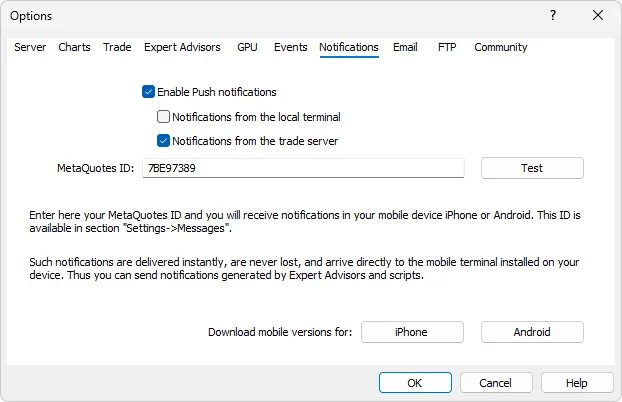
- Step 1, open the options: Tools, then Options, then the Notifications tab.
- Step 2, enable: tick Enable Push Notifications.
- Step 3, paste the ID: you can enter up to four MetaQuotes IDs, separated by commas.
- Step 4, optional trade messages: Notifications from the local terminal sends a message for each successful trade or balance operation while MT5 runs. Notifications from the trade server comes from the broker, so it works with the PC off where the broker allows it. Price alerts need neither, so leave both off for now.
- Step 5, test: click Test. A test message should arrive on the phone. Click OK.
Step 4: Add Push to the Gold Alert
- Edit the alert: in the Alerts tab, select your gold alert and open it for editing from its right-click menu.
- Change the action: choose Notification and type a short message, up to 255 characters, such as “Gold above target”.
- Click Test, then OK: the PC should sound and the phone should buzz.
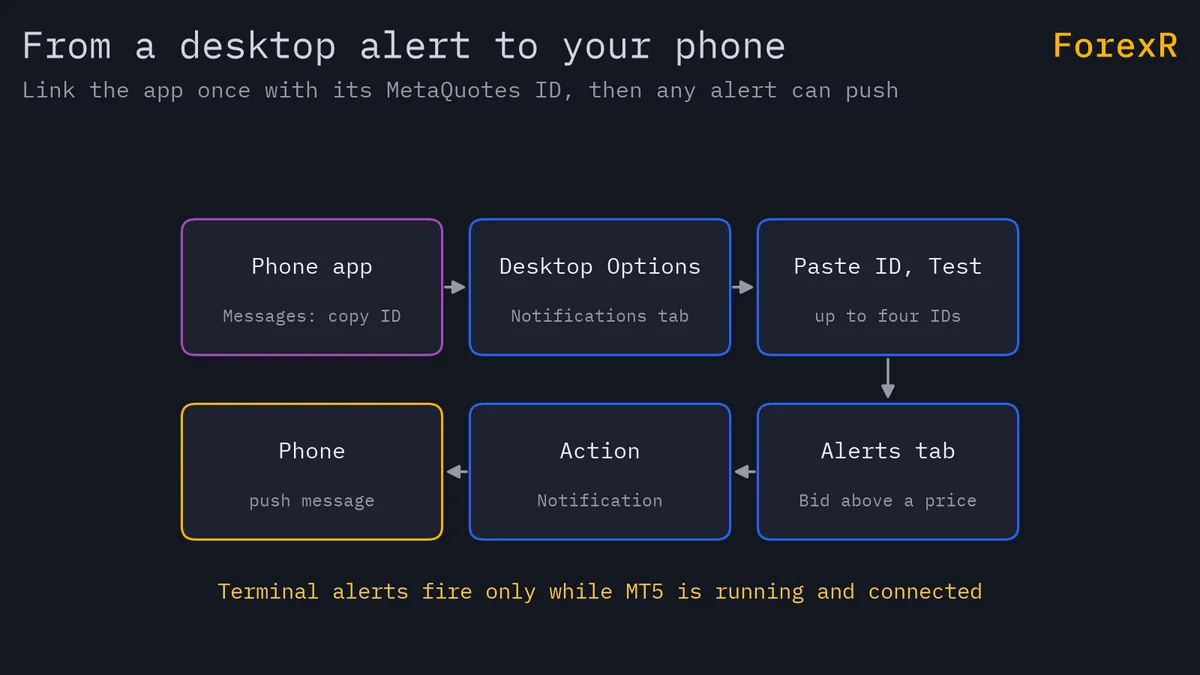
Alerts you create in the terminal are checked by the terminal, so MT5 must be running. Alerts set up on the broker’s server work when the PC is off, but whether that is offered depends on your broker.
The Settings Worth Knowing
- Events tab: tick Allow to play sounds for system events such as connecting to and disconnecting from the server.
- Server tab: leave the connection settings alone; MetaQuotes’ help advises changing them only with a special reason. Options here include keeping personal settings and data at startup, and the news languages.
- Community tab: your MQL5.community login goes here and opens services such as the Market and Signals. The MetaQuotes ID does not go here.
- AI Assistant: an optional helper in builds from July 2026, which this lesson does not cover.
Why Alerts Matter Around News and Sessions
Price often moves fastest around scheduled news and at session opens. An alert lets you leave the chart without staring at it. The economic calendar guide shows how to find release times, and forex trading sessions explains when gold is most active.
An alert only tells you; it never places a trade. TradingView scripts in the Pine Script Library do not run in MT5, so their alerts stay on TradingView. Push delivery is one more thing to check when you pick a platform, and the broker comparison lists brokers that offer MT5.
If Something Goes Wrong
- “The alert never fires”: the terminal must be running and connected, the alert Enabled, and the condition must use the same price (Bid or Ask) you are watching.
- “No push arrives”: check that Enable Push Notifications is ticked, the MetaQuotes ID has no typos, and the phone has an internet connection. Click Test again.
- “The sound is silent”: check the file type and your PC volume, then click Test in the alert window.
- “The alert vanished”: an alert made from a chart expires after a time set by the timeframe. Create it in the Alerts tab for more control.
- “No connection” in the Journal: open the Journal tab in the Toolbox to read the exact message, then check your internet and server name.
What You Just Learned
- The Alerts tab holds price, volume and time alerts with a sound, file, email or push action.
- A MetaQuotes ID links the desktop to the phone, and Tools, Options, Notifications uses it.
- Terminal alerts need MT5 running, and Test checks them.
- The Journal tab records connection messages and errors.
The next lesson, installing the MT5 app and logging in, moves to the phone. Leveraged trading in forex and CFDs carries a high risk of losing money, so practise everything here on a demo account first.
FAQ
How do I set a price alert in MT5?
Open the Alerts tab in the Toolbox, right-click and choose Create, or press Insert. Choose the symbol, a condition such as Bid greater than a price, the value, and an action such as Sound or Notification. Click Test to check it, then OK. A chart right-click also offers an Alert command.
Where do I find my MetaQuotes ID?
In the MT5 app. On Android, open Messages and tap MQID on the top panel. On iPhone, open Settings, then Messages. Each device has its own unique ID. Paste it into Tools, Options, Notifications on the desktop, where up to four IDs can be entered, separated by commas.
Do MT5 alerts work when the computer is off?
Alerts created in the terminal are checked by the terminal, so MT5 has to be running and connected. If your broker offers alerts on its own server, those can keep working while your PC is off. Whether that exists depends on your broker, so check with them before relying on it.
Why does my MT5 alert disappear after a while?
Alerts made from a chart expire automatically after a period set by the chart’s timeframe; an M1 alert, for example, lasts one hour. An alert made in the Alerts tab can have its own expiry time, so create it there when you want to watch a level for longer.