MT5 Mobile vs Desktop: What the Phone App Cannot Do

What Can the MT5 Mobile App Not Do?
The MT5 app cannot run expert advisors, custom indicators, the Strategy Tester, purchases from the Market or the AI Assistant. Everything else a beginner needs, from quotes and charts to orders, history and notifications, it does well. By the end you will have a written routine that puts planning on the desktop and monitoring on the phone.
This is the last lesson in the series. If you skipped the mobile lessons, installing the app and logging in is the place to start, and the previous lesson, push notifications and settings, is what makes the routine below work.
What You Need
Nothing new: the MT5 desktop terminal and the app, both logged in to the same demo account, with the notification link between them already tested. The routine is written on paper or in a note on the phone.
What the App Has
The two apps are near twins of each other and of the desktop terminal in the parts that matter for manual trading:
- Quotes and symbol details: bid, ask, spread, the day’s range, contract specification and Depth of Market where the broker provides it.
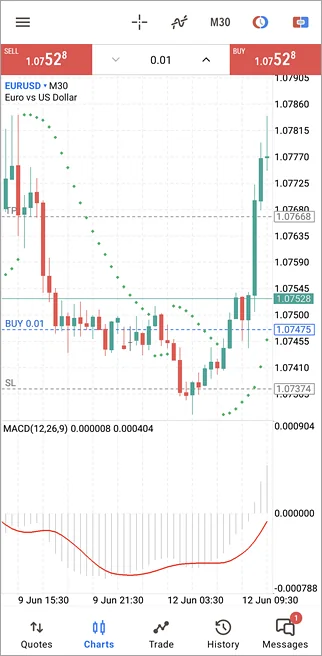
- Charts: 21 timeframes, four chart types including Heikin Ashi, the built-in indicators and drawing objects, a crosshair that measures, and a data window.
- Trading: market and pending orders, stop-loss and take-profit, one-click trading from the chart, dragging levels on the chart, partial close, Close By on hedging accounts and bulk close.
- Records: a History tab with positions, deals and orders, plus a visual trading report on iPhone.
- Messages: push notifications, broker mail, news, MQL5.community chat and, through the Tradays app, an economic calendar.
- Account security: screen lock, a one-time password generator, QR code login from the desktop, and the same master and investor passwords.
What the App Lacks
- Expert advisors: trading robots run only in the desktop terminal. The app shows the trades an EA opens, and can close them, but it cannot start, stop or configure one. How to install an EA in MT4 and MT5 is a desktop job from start to finish.
- Custom indicators and scripts: only the built-in set is available on the phone. An indicator you downloaded or bought stays on the desktop chart.
- The Strategy Tester: back-testing and optimisation need the desktop, as described in how to backtest an EA.
- The Market and the AI Assistant: buying or renting apps from the Market, and the AI Assistant added to the desktop terminal in July 2026, are desktop features.
- Trailing stops: the desktop trailing stop runs inside the terminal, not on the broker’s server, so it moves only while the terminal is open, whichever device you watch the trade on.
- Templates, profiles and alerts: saved chart layouts and the Alerts tab live on the desktop. The phone receives the alerts; it does not create them.
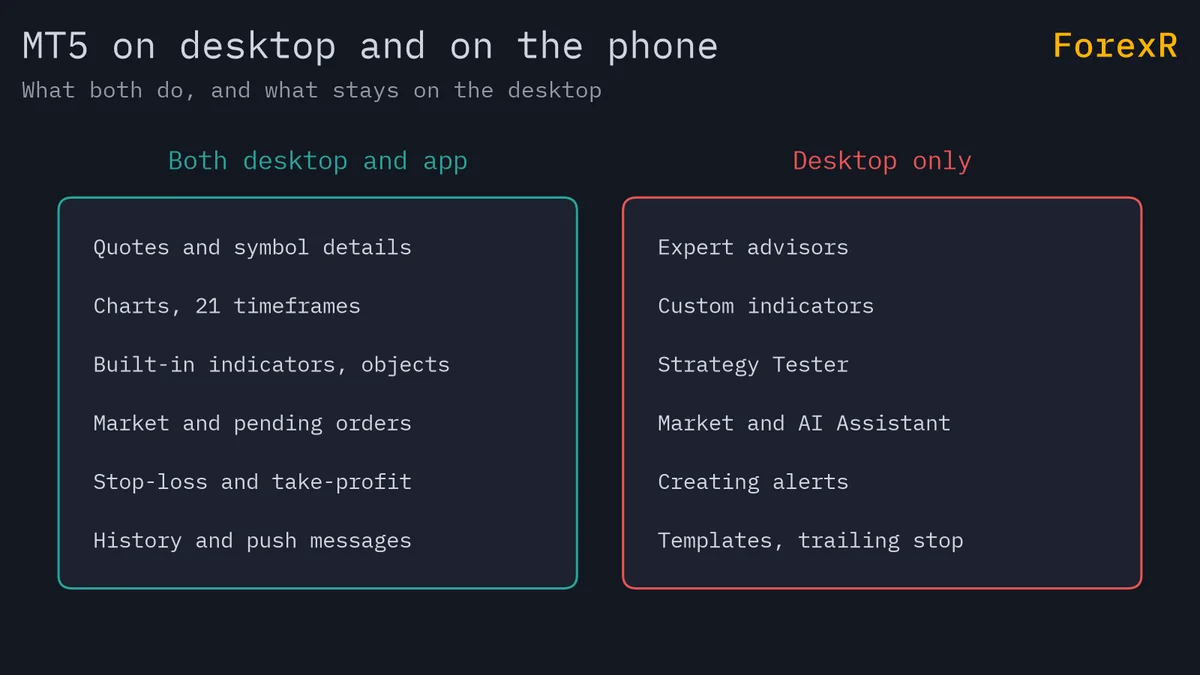
The gaps are deliberate. The phone is built to watch and act on positions that were planned elsewhere, not to replace the terminal.
Step 1: Write the Desktop Half of the Routine
- Step 1, choose a fixed time: once a day, before the session you trade, at the desktop. The market hours tool shows when your pairs are busy.
- Step 2, do the analysis on the big screen: open the saved template, mark the levels that matter, and decide the trades you would take, with the stop-loss, take-profit and lot size for each.
- Step 3, place what can be placed: pending orders for entries at a level, with stop-loss and take-profit attached, so the broker’s server holds the plan even when every device is off.
- Step 4, set the alerts: one desktop alert per level you want to be told about, with Notification as the action. Server-side trade notifications cover fills and closes without the desktop.
- Step 5, leave the terminal running or not: if an EA or a trailing stop is in use, the terminal must stay on, which is what a VPS is for. For manual trading with pending orders and server notifications, it can be shut down.
Step 2: Write the Mobile Half
- Step 1, answer notifications, not noise: when a push arrives, open the Trade tab, check the position against the written plan, and act only if the plan says so.
- Step 2, manage, do not re-plan: move a stop-loss to the planned level, take a partial profit that was decided in advance, or close a trade that hit its invalidation. New ideas wait for the next desktop session.
- Step 3, keep one-click trading off: a confirmation screen is cheap insurance on a small screen. Common forex trading mistakes lists what mis-taps have cost other traders.
- Step 4, review the day in History: switch the History tab to Deals, set the period to today and read the totals. Note anything that departed from the plan.
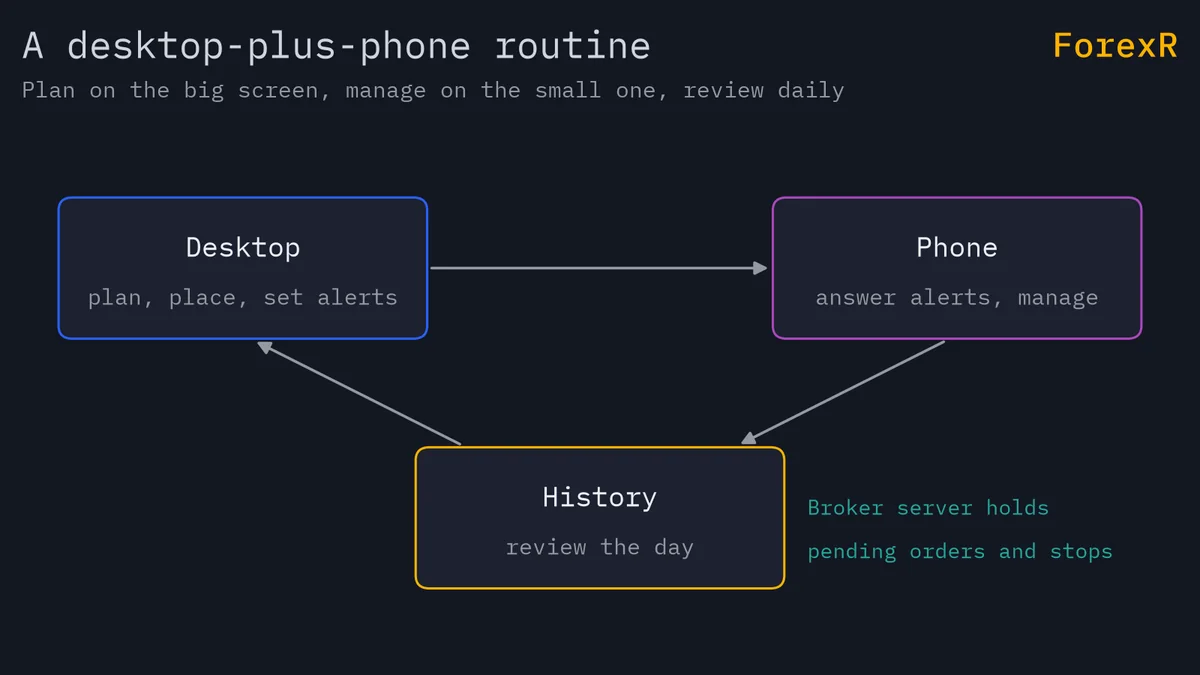
Written out, the routine fits on an index card: desktop to plan and place, phone to answer alerts and manage, History to review. That order stops the phone becoming the place where impulsive trades start.
Where the Web Terminal and TradingView Fit
MT5 also has a web terminal, a browser version that trades and charts without installing anything, useful on a computer that is not yours; the broker comparison shows which brokers offer MT5. TradingView is a different platform again: scripts from the Pine Script Library draw on its browser charts and do not run in MT5 or its app, though some traders analyse there and execute in MT5. Whatever the mix of screens, the plan comes first and the rules of risk management apply on every one of them.
If Something Goes Wrong
- “Why did my EA stop trading?”: the desktop terminal closed or the computer slept. The app cannot restart it; use a VPS or keep the machine awake.
- “The trailing stop did not move”: same cause. A trailing stop only runs while the terminal is open, so consider a fixed stop-loss moved by hand at planned points instead.
- “My custom indicator is missing on the phone”: it always will be. Note the levels it gives you on the desktop and draw them as horizontal lines on the mobile chart.
- “The phone and the desktop show different open prices”: both read from the broker’s server, so check that both are logged in to the same account number and server, not a demo on one and a live account on the other.
What You Just Learned
- The app’s strengths: quotes, charts, orders, history, messages and security on a phone.
- The app’s limits: no EAs, custom indicators, Strategy Tester, Market, AI Assistant, templates, alerts or trailing stops.
- A routine: plan and place on the desktop, answer alerts and manage on the phone, review in History.
- What keeps running without you: pending orders, stop-loss and take-profit, and the broker’s server notifications; not the terminal’s own tools.
That closes the MT5 101 series. From here, forex robots and expert advisors explains what automation can and cannot do before you install one. CFDs and leveraged trading carry a high risk of losing money, and every routine here is practised on a demo account before it touches real funds.
FAQ
Can I run an expert advisor on the MT5 mobile app?
No. Expert advisors, custom indicators and scripts run only in the desktop terminal, which must stay open for them to work. The app can see and close the positions an EA opens, but it cannot start, stop or change one. Traders who need an EA running all day usually rent a VPS and manage the results from the phone.
Does a trailing stop work if I close MT5 on my computer?
No. The MT5 trailing stop runs inside the desktop terminal, not on the broker’s server, and it is updated at most once every ten seconds while the terminal is open. When the terminal closes, the stop-loss stays where it was last moved. A fixed stop-loss and take-profit are held by the server and work with everything switched off.
Is the MT5 mobile app enough to trade forex on its own?
For manual trading, yes: it places market and pending orders with stop-loss and take-profit, edits them on the chart, closes positions and keeps a full history. It lacks the Strategy Tester, custom indicators and automation, so most traders plan on the desktop and use the app to monitor and manage, which is the routine this guide sets out.
Is the MT5 web terminal the same as the mobile app?
No. The web terminal runs in a browser on a computer and is useful when you cannot install software. The mobile app is a separate program for phones and tablets with its own layout and push notifications. Both connect to your broker’s server and show the same account, so a position opened in one appears in the other.