MT5 101: Market Watch, Navigator, Chart and Toolbox Explained

What Are the Main Parts of the MT5 Screen?
The MT5 screen is built from a menu, three toolbars and four main windows: Market Watch for prices, Navigator for accounts and tools, the chart area, and the Toolbox for your trades. By the end of this lesson you will have a tidy workspace showing only the pairs you trade, with the four windows where you want them.
What you need: MT5 installed and connected to a demo account, which installing MT5 and opening a demo account covers. Moving prices in Market Watch mean you are connected.
Name the Parts of the Window
- Main menu: across the top: File, View, Insert, Charts, Tools, Window and Help. The View menu is where the windows are switched on and off.
- Toolbars: three of them: Standard, Line Studies and Periodicity. Each holds buttons for commands you would otherwise find in the menus, and you can customise them to keep only the ones you use.
- Market Watch: a list of symbols with live prices, usually on the left.
- Navigator: your accounts and the tools you can attach to a chart, such as indicators and Expert Advisors, below or beside Market Watch.
- Chart area: the large middle space. Along its bottom edge is the chart switch bar, with a tab for each open chart, and a fast navigation bar for jumping through the history.
- Toolbox: the panel under the charts that holds your open trades and logs.
- Status bar: the bottom strip. It shows the server connection, and the name of the active template and profile.
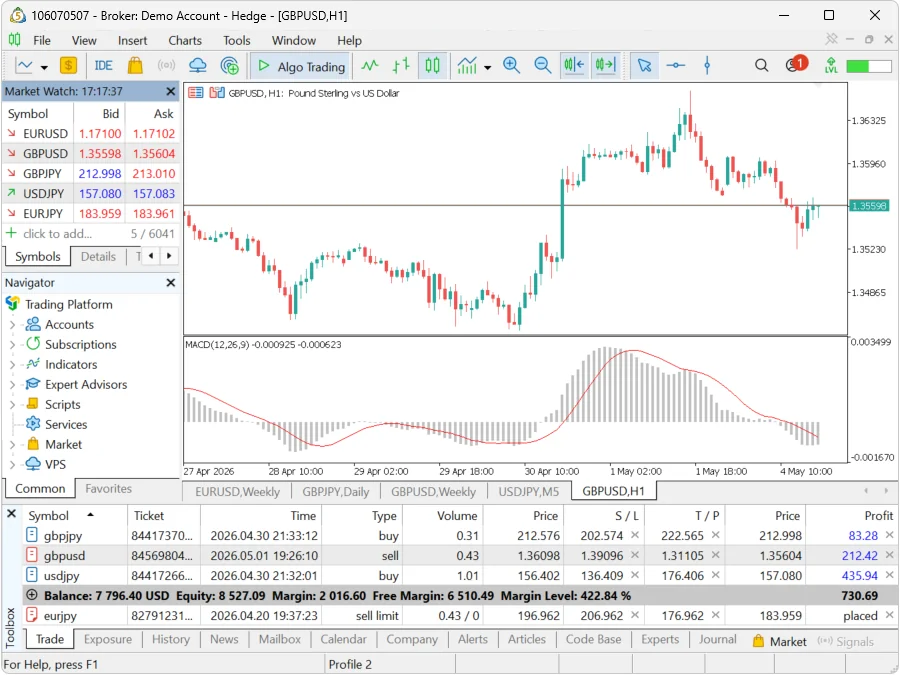
Every one of these can be hidden, moved or switched back on, so the screen shows only what you use. The next steps do exactly that.
Step 1: Trim Market Watch to Your Pairs
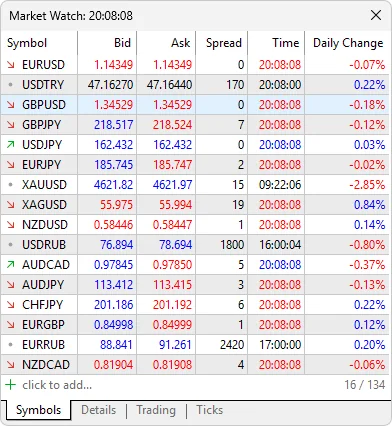
Market Watch lists symbols, which are the tradable instruments such as EUR/USD. Brokers offer hundreds, and a long list is hard to read.
- Step 1, open the Symbols window: right-click anywhere in Market Watch and choose Symbols. It lists every symbol your broker provides.
- Step 2, hide what you do not trade: double-click a symbol name to show or hide it, or select it and use the Show and Hide buttons. The filter at the top finds symbols by the first letters of the name or description.
- Step 3, add one quickly: click the + below the Market Watch list and type the name. Matching symbols appear as you type.
- Step 4, keep a short list: aim for four to six pairs, for example EUR/USD, GBP/USD, USD/JPY and gold. A symbol with an open position, a pending order or an open chart cannot be hidden until you close those.
Step 2: Read the Columns and the Specification
- Default columns: Bid (the price you sell at), Ask (the price you buy at) and Spread (the gap between them, explained in spreads and pips). Right-click the list to choose other data fields, such as Time, High and Low, if you want them.
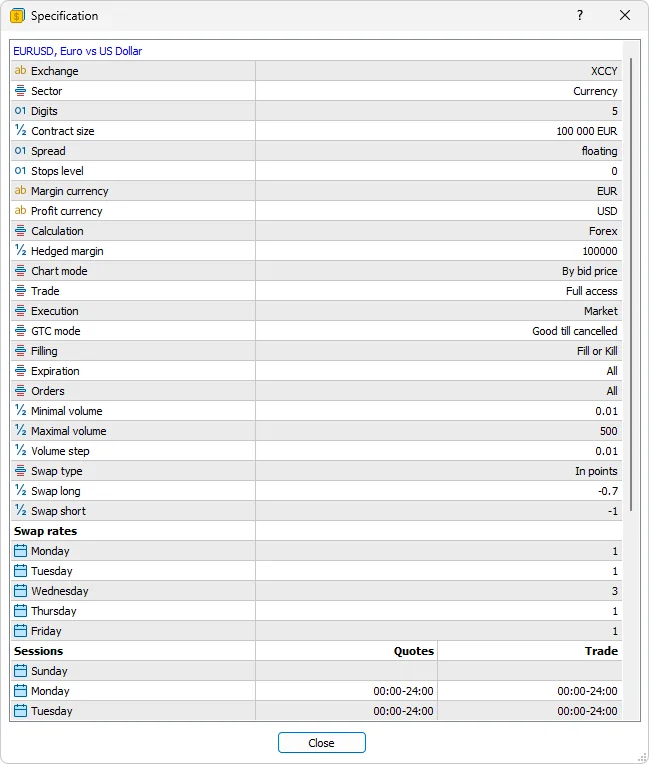
- Specification: right-click a symbol and choose Specification. It shows the contract details your broker set: digits, spread, stops level, contract size, volume limits, swaps and trading sessions. The swap figures are explained in forex swap fees, and the sessions in forex trading sessions.
- Ticks: MT5 stores up to 2,000 of the latest ticks for each symbol, and Market Watch holds up to 5,000 instruments in all.
Step 3: Save Your List as a Symbol Set
- Step 1, build the list: arrange the symbols and columns the way you want them.
- Step 2, save it: open the right-click menu and choose Symbol Sets, then Save as. Type a name such as “Majors” or “Gold”.
- Step 3, switch sets later: the saved set appears in the same Symbol Sets menu, so you can swap watchlists in one click.
Step 4: Arrange the Four Windows and Read the Toolbox
- Show or hide a window: use the View menu. Close any window you do not need, and the chart area grows to fill the space.
- Move a window: drag its title bar to the edge you prefer, or leave it floating over the chart. Keep Market Watch on one side and the Toolbox along the bottom.
- Trade tab: your open positions, with an account line below them: Balance, Equity, Margin, Free margin and Margin level.
- History tab: the positions you have closed.
- Other tabs: News, Mailbox, Calendar, Alerts, Journal and Experts. The Journal records every action and error message, so it is the first place to look when something fails.
Why a Tidy Layout Matters
Every price on Market Watch updates on each tick, so a long list is noise, and a crowded screen is how traders click the wrong symbol. A short list of pairs you understand, with the spread visible, makes it easier to notice when a cost jumps around news or at the daily rollover. The platform also shows tips for its dialogs on the toolbar, which you can click to jump to the dialog they describe.
Market Watch, spreads and swaps are all set by your broker, so the broker comparison is the place to see how they differ. If you also use TradingView, the scripts in our Pine Script Library run on TradingView only; they do not load into MT5. For a wider tour of both MetaTrader versions, see how to use MetaTrader.
If Something Goes Wrong
- “A window disappeared”: open the View menu and switch it back on. Closing a window only hides it.
- “I cannot hide a symbol”: it has an open position, a pending order or an open chart. Close those first, then hide it.
- “Prices are not moving”: check the status bar for the connection indicator. If there is no connection, the Journal tab gives the reason. Weekends also freeze prices because the market is closed.
- “A symbol I want is missing”: open Symbols from the right-click menu and search for it. Brokers offer different lists, and some symbols have suffixes in the name.
What You Just Learned
- The screen has a menu, three toolbars, Market Watch, Navigator, the chart area, the Toolbox and a status bar.
- Right-click, then Symbols shows or hides instruments, and a symbol in use cannot be hidden.
- Specification shows the spread, stops level, contract size and sessions the broker applies.
- Symbol Sets, Save as keeps a watchlist you can switch back to.
- The Toolbox Trade tab shows positions and the account line, History shows closed trades and the Journal shows errors.
The next lesson, charts and timeframes in MT5, opens a chart from your tidy list. Leveraged trading in forex and CFDs carries a high risk of losing money, so practise every step on a demo account first.
FAQ
How do I add or remove symbols in MT5 Market Watch?
Right-click Market Watch and choose Symbols, then double-click a symbol to show or hide it, or use the Show and Hide buttons. You can also click the plus sign below the list and type a name. A symbol with an open position, pending order or open chart cannot be hidden.
What is the Toolbox in MT5?
The Toolbox is the panel under the charts. Its Trade tab lists your open positions with the account line (balance, equity, margin, free margin and margin level), History lists closed trades, and further tabs cover news, mailbox, calendar, alerts, the Journal and Experts. It is where you check what your account is doing.
How do I see the spread and contract size of a symbol in MT5?
Right-click the symbol in Market Watch and choose Specification. The window lists the digits, spread, stops level, contract size, volume limits, swaps and trading sessions set by your broker. The Spread column in Market Watch also shows the live gap between bid and ask for each symbol.
Can I save different watchlists in MT5?
Yes. Set up the symbols and columns you want, right-click Market Watch, choose Symbol Sets and then Save as, and give the set a name such as Majors or Gold. The saved set appears in the same Symbol Sets menu, so you can switch between lists whenever you like.