MT5 Mobile 101: Build Your Watchlist in the Quotes Tab

How Do You Build a Watchlist in the MT5 App?
The Quotes tab is your watchlist: a price list with a bid and an ask for every symbol on it. You add symbols with the plus or search button, hide the ones you do not trade, and switch to the detailed view to see the spread and the day’s range. By the end you will have a six-symbol watchlist that shows everything you need before a trade.
What You Need
Just the MetaTrader 5 app connected to a demo account, which the previous lesson set up. Prices only move while the app is connected, so check for the platform icon next to your account number first. If the words bid, ask and spread are new to you, spreads and pips explains them in five minutes.
Step 1: Add the Symbols You Trade
A fresh account usually shows a handful of symbols chosen by the broker. Build your own list instead, starting with the pairs you intend to practise on.
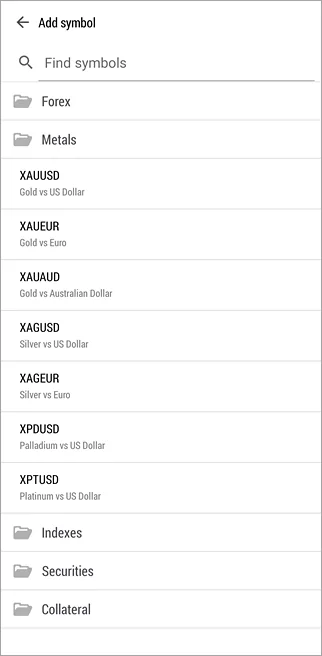
- Step 1, open Quotes: Android: tap Quotes in the bottom panel or the side panel. iPhone: tap the Quotes tab at the bottom.
- Step 2, start a search: Android: tap the Add (+) button at the top. iPhone: tap the search box at the top of the screen.
- Step 3, pick a group, then type: symbols are sorted into groups the broker defines, such as majors, metals or indices. Choose a group, then type the first letters of the symbol; the list filters as you type.
- Step 4, add it: Android: tap the symbol’s line. iPhone: tap the add icon next to it, then Done. Repeat for six symbols, for example EUR/USD, GBP/USD, USD/JPY, AUD/USD, gold (XAU/USD) and one more you follow.
Keep the first list short. Currency pairs explained describes why the majors are the usual starting point: tighter spreads and plenty of free analysis.
Step 2: Remove the Rest and Put Them in Order
- Step 1, enter edit mode: tap Modify at the top of Quotes on either platform.
- Step 2, hide what you do not use: Android: tap Delete symbols, tick the symbols to remove (or Select all), then tap Delete symbols again. iPhone: tap the hide icon on each symbol, or the select-all icon, then the delete icon. On iPhone you can also swipe left on a symbol and tap delete.
- Step 3, reorder: tap and hold the Move handle on a symbol and drag it to its new place. Put the pair you trade most at the top.
Two rules apply on both platforms. You cannot hide a symbol that has an open position, a pending order or, on iPhone, an open chart. And hiding unused symbols is not just tidiness: it saves mobile data, because the app stops streaming their prices.
Step 3: Switch On the Detailed View
The default list shows only the symbol name with its bid and ask. The detailed view adds the spread, the time of the last quote and the day’s low and high, which is exactly what you want to glance at before placing an order.
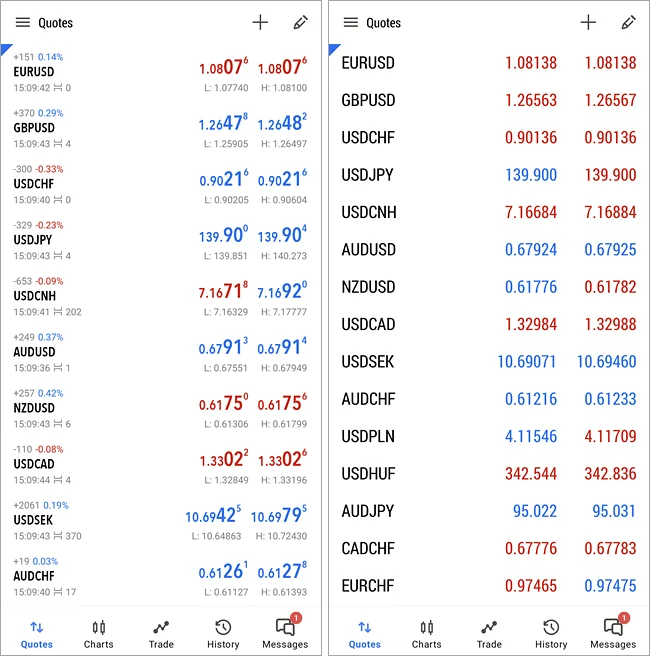
- Android, per symbol: tap a symbol to open its menu and choose Advanced view mode. Or switch every row at once with the Advanced mode setting in Settings.
- iPhone, table view: tap the display mode button on the top panel to switch from the phone layout to the table view that matches the desktop platform. Then tap Columns to choose which figures to show, drag them into order with the Move icon, and tap a column name to sort by it (once ascending, twice descending, a third time back to the default).
For most symbols the high and low are the bid’s high and low; exchange symbols that chart the last-traded price show that price’s range instead.
Step 4: Read a Symbol’s Properties Before You Trade It
Every symbol carries a set of broker-defined terms, and a quick look saves surprises later.
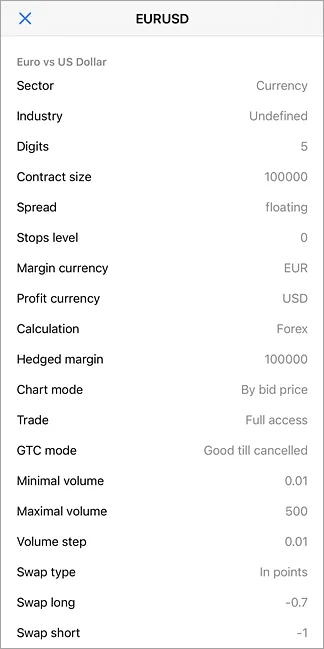
- Open the menu: tap the symbol once, then tap Properties.
- What to read: Digits (how many decimal places the price has), Spread, Stops level (how close to the price a stop-loss may sit), Contract size (100,000 units for a standard forex lot), the volume limits (the smallest and largest trade, usually 0.01 lots upward), the swap settings and the trading sessions.
- The other menu items: Chart opens the symbol’s chart; Trade (iPhone) or New order (Android) opens the order screen and is hidden while the app is offline; Statistics shows the day’s figures; Depth of Market appears only where the broker supplies it.
Swap is the overnight charge or credit on a position held past the broker’s rollover time, explained in forex swap fees explained. The desktop platform shows the same terms under Specification, covered in the Market Watch lesson.
What the Numbers Mean
Each row has two prices because every trade has two sides. The bid is the price you sell at and the ask is the price you buy at; the ask is always a little higher, and that gap is the spread, the first cost of every trade. A spread of 1.2 on EUR/USD means 1.2 pips, or about $12 on a standard lot and $0.12 on a 0.01-lot micro trade. The spread cost calculator turns any spread into money for your lot size.
Spreads are set by the broker, not by MetaTrader, and they widen outside the main sessions and around news. If your list shows a pair with a spread far wider than the others, that is a reason to compare conditions on the broker comparison rather than a fault in the app. Session timing scripts for TradingView, a different platform, are in the Pine Script Library; they do not run inside MT5, but they show the same busy and quiet hours.
If Something Goes Wrong
- “Symbol not found” or the pair is not in any group: your broker does not offer it on this account type. Try the broker’s name for it, for example GOLD instead of XAUUSD, or ask support.
- A symbol will not delete: it has an open position, a pending order or, on iPhone, an open chart. Close those first.
- Prices are frozen: the app has lost the connection, or the market is closed. Look for the spinning indicator next to the account number, and check the symbol’s sessions in Properties.
- The New order or Trade item is missing from the menu: the app is not connected, or you logged in with the read-only investor password.
- Columns vanished on iPhone: you are in the table view with few columns selected. Tap Columns and tick the ones you want back.
What You Just Learned
- Quotes is the mobile Market Watch: a watchlist you build with the Add or search button and prune with Modify.
- The detailed view (Advanced view mode on Android, the table view on iPhone) adds spread, quote time and the day’s range.
- Properties lists the broker’s terms for a symbol: digits, spread, stops level, contract size, volume limits, swaps and sessions.
- Bid is the sell price, ask is the buy price, and the gap between them is your first trading cost.
Next lesson: charts, timeframes, indicators and the ruler. Forex and CFDs are leveraged products and carry a high risk of losing money, so everything in this series is practised on a demo account first.
FAQ
Why can I not find gold or an index in the MT5 app?
Each broker decides which symbols an account type can see, and names them its own way: gold may appear as XAUUSD, GOLD or Gold, and an index under a ticker of the broker’s choosing. Search inside the right group, try the broker’s own name for it, and if it is still missing the symbol is not offered on that account.
How many symbols should a beginner keep in Quotes?
Five to eight is plenty. A short list is quicker to scan, uses less mobile data and keeps you focused on pairs whose behaviour you are learning. Most beginners start with the major pairs and perhaps gold, then add a symbol only when they have a reason to follow it.
What does the spread column in Quotes show?
The current gap between the ask (buy) price and the bid (sell) price, in points, which is what you pay to open and close a trade. It changes all day: tight in the busy London and New York hours, wider in the Asian session and around news releases. A persistently wide spread is set by the broker, not the app.
Does hiding a symbol close my trades on it?
No, and the app will not let you hide a symbol that has an open position or a pending order at all. Hiding only removes it from the Quotes list and stops the app streaming its prices. You can add it back at any time with the Add or search button.