MT5 101: Pending Orders in MT5, Limit, Stop and Stop Limit

How Do Pending Orders Work in MT5?
A pending order tells MT5 to buy or sell only when the price reaches a level you choose, so you need not watch the screen. Press F9, pick limit, stop or stop limit in the side panel, enter the price and click Buy or Sell. By the end of this lesson you will have placed a Buy Limit and a Sell Stop that expire today, moved one and deleted both.
What you need: a demo account connected in MT5 and one completed market trade, which your first trade in MT5 walks through. Open a EUR/USD chart and note the current price before you start.
The Six Pending Order Types
Every pending order is placed on one side of the current price and fills when the market reaches it. Limit orders wait for a better price; stop orders join a move once it has started.
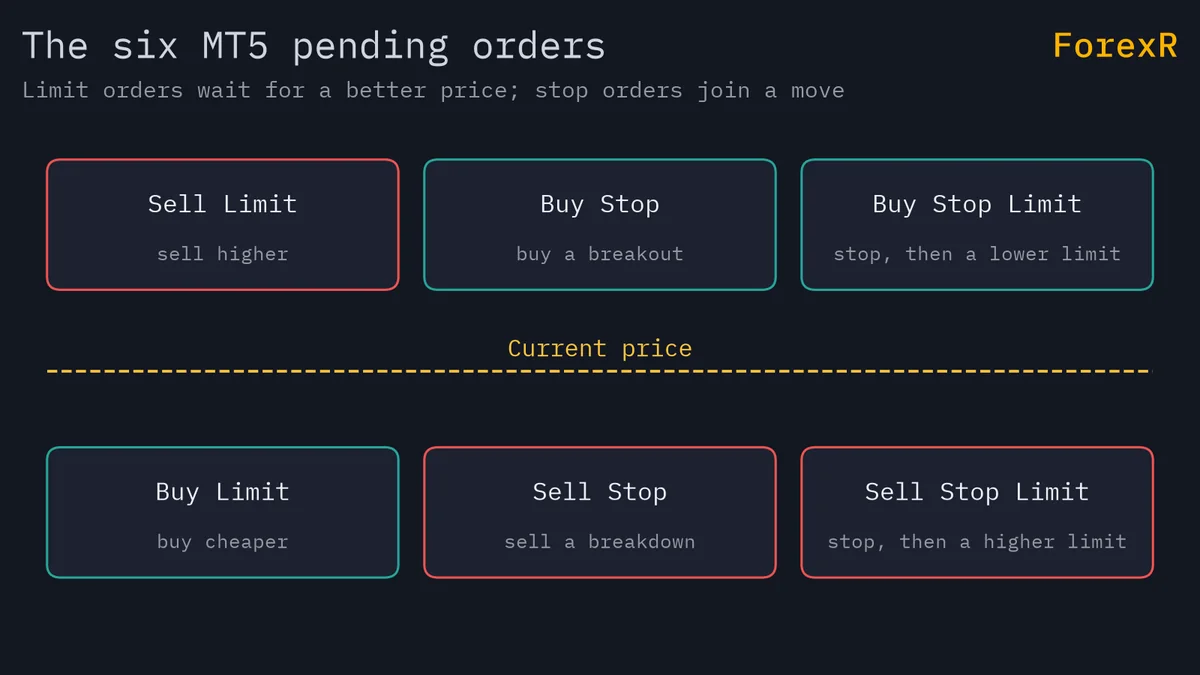
- Buy Limit: placed below the current price. Fills when the ask falls to your price. Use it to buy cheaper, for example at a support level.
- Sell Limit: placed above the current price. Fills when the bid rises to your price. Use it to sell higher, for example at resistance.
- Buy Stop: placed above the current price. Fills when the ask rises to your price. Use it to join a breakout upwards.
- Sell Stop: placed below the current price. Fills when the bid falls to your price. Use it to join a breakdown.
- Buy Stop Limit: a stop above the ask that, once reached, places a Buy Limit at a second, lower price you set.
- Sell Stop Limit: a stop below the bid that, once reached, places a Sell Limit at a second, higher price.
The last two are rare for beginners and do not exist in MT4. The lot sizes and order types guide covers the first four in more depth, and support and resistance explains where limit orders usually go.
Step 1: Place a Buy Limit Below the Price
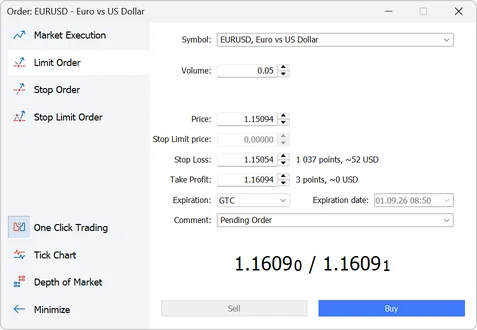
- Step 1, open the order window: press F9. In builds from April 2026 the order type is chosen in the side panel on the left. Older builds have a Type field instead: choose Pending order there, then Buy Limit.
- Step 2, choose the type: click Limit Order in the side panel and check that the Symbol is EURUSD. The Buy button turns it into a Buy Limit.
- Step 3, set the volume and price: enter 0.01 in Volume and, in Price, a level about 20 pips below the current ask. Only Stop Limit orders use the Stop Limit price field.
- Step 4, add protection: enter a Stop Loss below your entry price and a Take Profit above it. Both are optional on a pending order, but make a habit of filling them.
- Step 5, set the expiry: under Expiration choose Today. The other choices are Good Till Cancelled (stays until you delete it), Specified (a date and time you enter) and a plain date, which expires at midnight.
- Step 6, click Buy: with the price below the market, Buy places the Buy Limit and Sell stays grey. Older builds have a Place button, which stays grey until every field is valid. After it is placed, the order appears in the Trade tab below your positions, and a line marks its price on the chart when trade levels are shown.
Step 2: Place a Sell Stop and Compare
- Step 1, repeat with a Sell Stop: press F9, click Stop Order in the side panel, set a price about 20 pips below the current bid and keep Volume at 0.01 and Expiration on Today. Click Sell to place the Sell Stop.
- Step 2, look at the chart: both orders sit below the price but do different jobs. The Buy Limit buys if the market dips to it; the Sell Stop sells if the market falls through it.
- Step 3, try the chart menu: right-click the chart above the market and open the Trading submenu. MT5 offers only the order types that make sense at that level.
Trade signals often arrive as pending orders like these. How to copy a trade signal shows how to place one as three orders, one per target.
Step 3: Modify and Delete Pending Orders
- Drag it on the chart: with Show trade levels switched on in the platform settings, left-click the order’s line and drag it to a new price. The modification window opens so you can confirm the exact figure.
- Use the dialog: right-click the order in the Trade tab and choose Modify or delete. Change the price, the stop levels or the expiry, then click Modify.
- Delete one order: in the same window click Delete, or right-click the order’s line on the chart and choose Delete. Deleted orders show as Cancelled in the History tab.
- Delete several at once: the Trade tab context menu has group operations that delete all pending orders, or all of one type or symbol. They run without confirmation, so they only work when one-click trading is enabled, which the next lesson covers.
What Happens When an Order Triggers
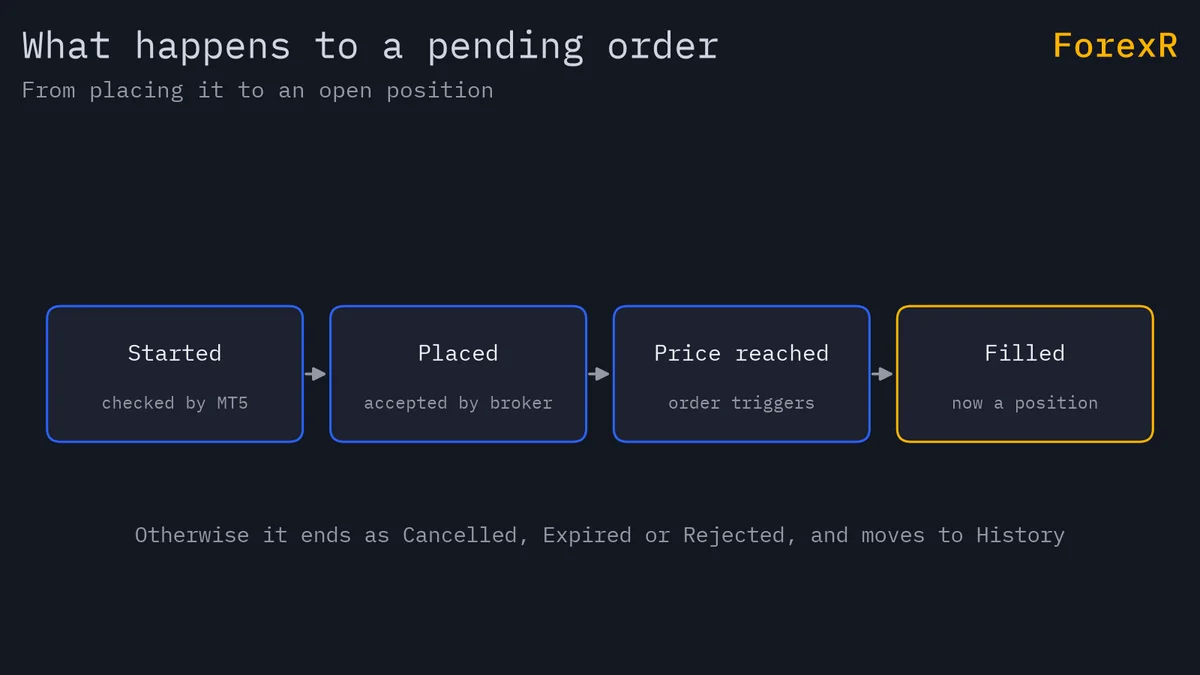
Each order moves through states: Started (checked but not yet accepted), Placed (accepted by the broker), Partially filled, Filled, Cancelled, Rejected or Expired. When the price reaches your level, MT5 turns the order into a market deal and the result appears as a position in the Trade tab, carrying the stop-loss and take-profit you set. If the account cannot cover the margin at that moment, the order is rejected and moves to History. The stop-loss and take-profit on a pending order protect the position it creates, not the order itself, so a Buy Limit that never fills never loses money.
Where to place the level is a strategy question. Breakout traders put stop orders just beyond a range, as breakout trading describes, and the risk-reward calculator shows whether the stop and target make sense before you place anything. The spread between bid and ask matters here because buys fill on the ask and sells on the bid; the broker comparison lists typical spreads. If you plan on TradingView, the free breakout scripts in our Pine Script Library mark levels on its charts, but a Pine script cannot place orders in MT5.
If Something Goes Wrong
- Place stays grey: a field is invalid. The usual cause is a price on the wrong side of the market, such as a Buy Limit above the ask. Move it to the correct side or switch the type.
- “Invalid price” or “Invalid stops”: the level is inside your broker’s minimum distance from the current price, the stops level shown in the symbol’s Specification. Move it further away.
- The order vanished overnight: it expired. Today orders are removed at the end of the trading day; use Good Till Cancelled if you want it to wait longer.
- It filled at a different price: stop orders become market orders when triggered, so in a fast market the fill can be a few pips past your level.
- It is not in the Trade tab: look in History; rejected, expired and cancelled orders are listed there with their state.
What You Just Learned
- Limit orders wait for a better price; stop orders join a move. MT5 has six types, two of them stop-limit orders that MT4 lacks.
- A pending order is placed with F9, an order type in the side panel, a price, an expiry and then Buy or Sell.
- Orders are modified by dragging the line on the chart or through Modify or delete, and deleted singly or in groups.
- Stop levels on a pending order protect the position it creates, and an order that never fills costs nothing.
The next lesson, one-click trading and managing trades on the chart, makes all of this faster and shows where the speed becomes a danger. Leveraged trading in forex and CFDs carries a high risk of losing money; keep every exercise in this series on the demo account.
FAQ
What is the difference between a limit order and a stop order in MT5?
A limit order waits for a better price than the market offers now: a Buy Limit sits below the price and a Sell Limit above it. A stop order waits for the market to move through a level: a Buy Stop sits above the price and a Sell Stop below it. Limits aim to buy low or sell high; stops aim to join a move once it has started.
Do pending orders in MT5 work when my computer is off?
Yes. A pending order is stored on the broker’s server, so it triggers whether or not MT5 is running on your computer. The same is true of the stop-loss and take-profit attached to it. A trailing stop is the exception, because it runs inside the platform and stops moving when the terminal is closed.
How long does a pending order last in MT5?
It depends on the Expiration you choose. Good Till Cancelled keeps the order until you delete it, Today removes it at the end of the trading day, and Specified or a plain date removes it at the time you enter. A plain date expires at midnight, or at the nearest trading time if the market is closed then.
Why was my pending order rejected when it triggered?
The most common reason is insufficient free margin at the moment the order fired, often because other positions were open or the account had shrunk. A triggered order that cannot be executed is rejected and moves to the History tab with its state. Check Free Margin in the Trade tab and reduce the volume if needed.