How to Copy a Trade Signal Into MT5, cTrader or TradingView

How Do You Copy a Trade Signal Into Your Platform?
Match the signal’s symbol and price to your broker’s, work out the lot size from the stop, and split it into three equal orders, one per take-profit target. Place them as the same order type at the same entry and stop, with the signal’s expiry, then move the stops to the entry once the first target is hit.
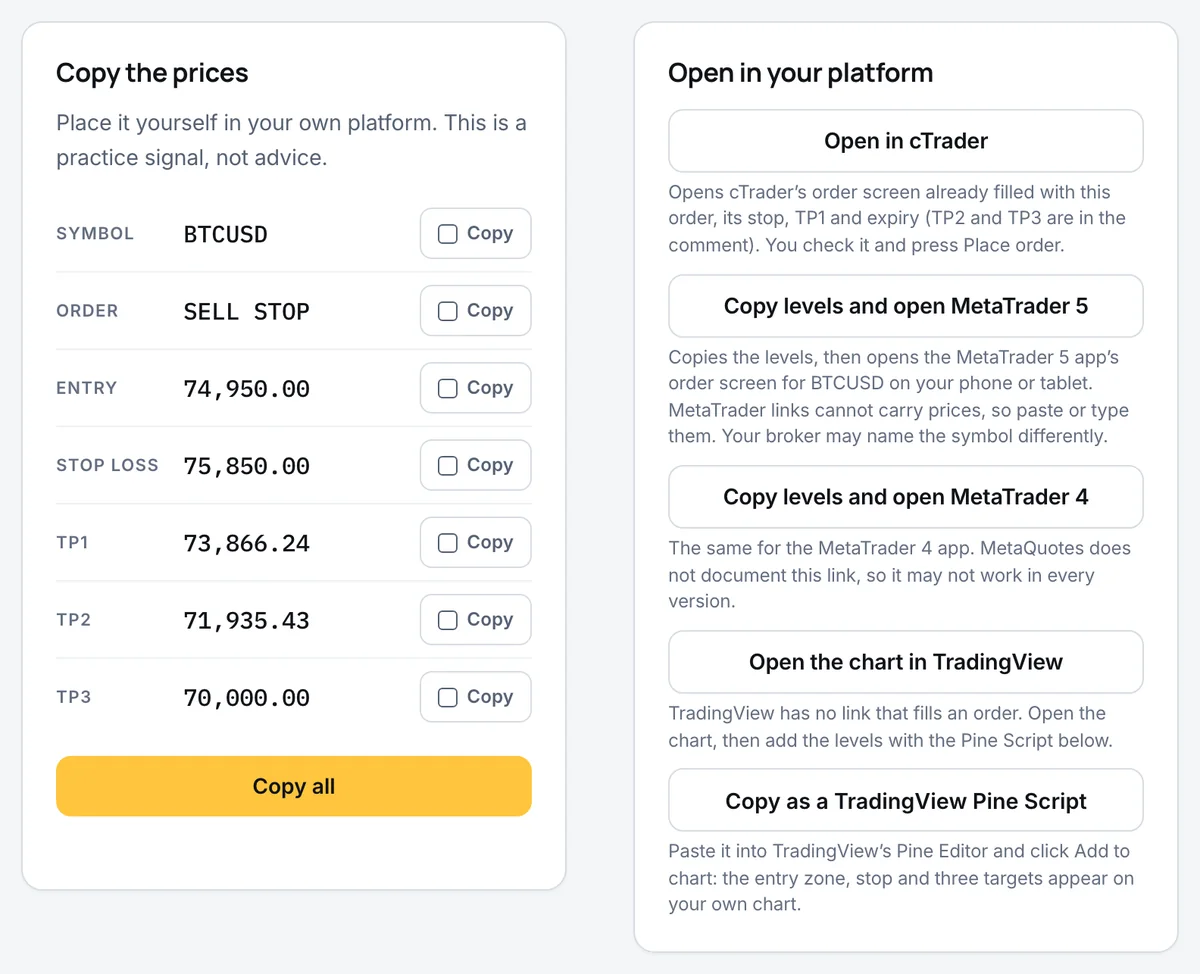
What you need: a demo account in MT5, cTrader or TradingView’s Paper Trading, and a signal in the Waiting for entry tab of ForexR Signals. The method works for any signal that gives an entry, a stop and targets, but the buttons described here are the ones on a ForexR signal page.
If you have not read a signal before, start with how to trade forex signals. It explains the levels, the reason and the management rules that this guide puts into practice.
Before You Start: Match the Symbol and the Price
Brokers name instruments differently. Gold may be XAUUSD, GOLD or XAUUSD.m; the Nasdaq 100 may be US100, NAS100 or USTEC; WTI crude may be XTIUSD, USOIL or WTI. Search your platform’s symbol list for the name your broker uses, then open its specification to check the contract size and the smallest lot step.
Next, compare prices. The signal page shows the price now from its tracking feed. On forex majors and gold your broker should be within a few points of it. On indices, oil and crypto the gap can be wider, because brokers price their CFDs from different sources. If your price is steadily higher or lower, shift the entry, the stop and all three targets by the same amount, so every distance stays as published.
Split the Trade Into Three Orders
A ForexR signal closes one third at each target, but MT5, MT4 and most platforms give a position only one take profit. The simple answer is three orders with the same entry and stop and a different target each. The total lot size must then split into three equal parts, so round it down to a multiple of three lot steps.
Take a $5,000 account that risks 1%, or $50, on a EUR/USD buy limit with a 20-pip stop. One standard lot is worth $10 a pip, so the stop costs $200 per lot and the full size is $50 ÷ $200 = 0.25 lots. Rounded down to a multiple of three, that is 0.24 lots, which puts $48 at risk:
- Order 1: buy limit, 0.08 lots, at the entry, with the signal’s stop and the take profit at TP1.
- Order 2: the same, with the take profit at TP2.
- Order 3: the same, with the take profit at TP3.
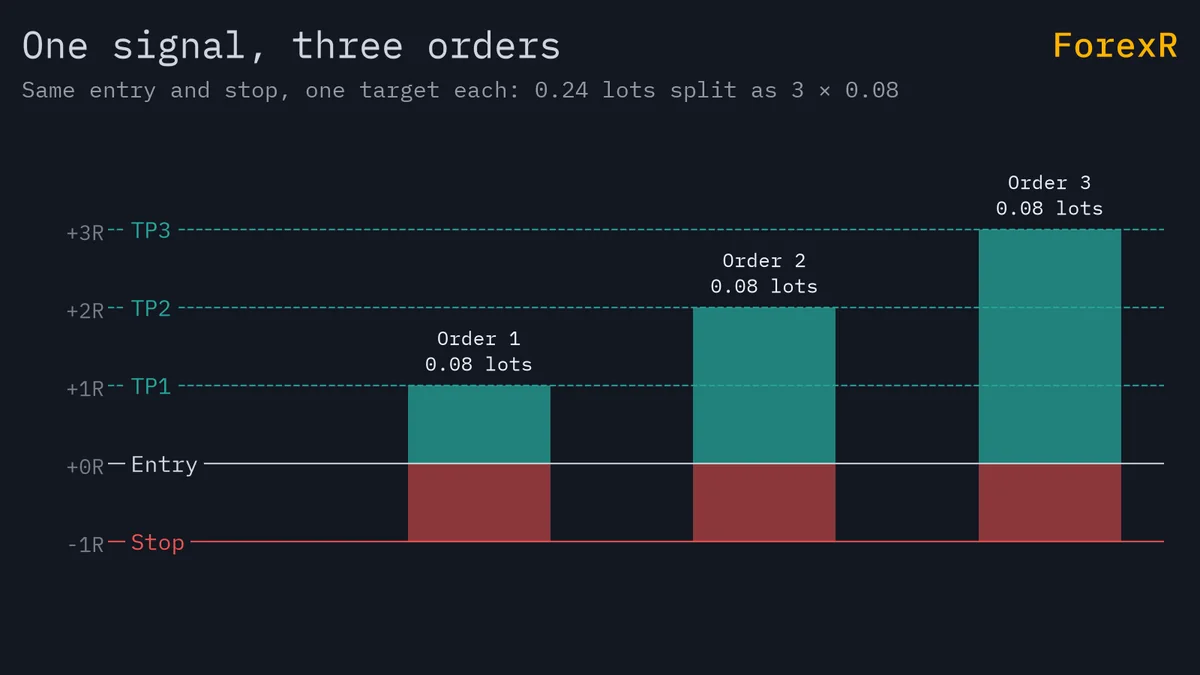
If the full size comes to less than 0.03 lots, you cannot split it. Place one order and choose its target in advance, usually TP2, or skip the signal; either way your result will differ from the published one. The position size calculator works out the full size for any stop and account currency.
Step 1: Place It in MetaTrader 5 on a Computer
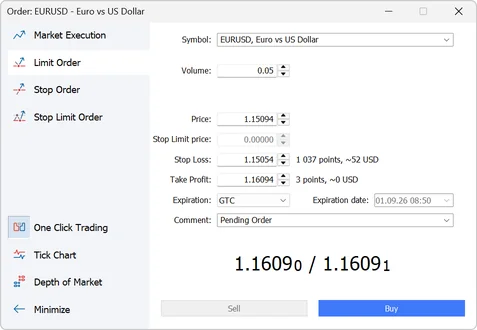
On a desktop, three pending orders take a couple of minutes. Each field is explained in pending orders in MT5; this is the short version for a signal:
- Open the order window: press F9, or double-click the symbol in Market Watch.
- Choose the type: click Limit Order for a buy limit or sell limit, Stop Order for a buy stop or sell stop. The Buy or Sell button sets the direction.
- Fill in the fields: Volume 0.08, Price at the signal’s entry, Stop Loss at its stop and Take Profit at TP1.
- Set the expiry: choose Specified under Expiration and enter the signal’s expiry time, converted to your broker’s server time.
- Place it: click Buy or Sell. Then repeat twice, with TP2 and with TP3.
Signals marked “at market” have already entered. Copy one only if the price is still inside its entry zone, using Market Execution with the same stop and targets; otherwise wait for the next signal.
Step 2: Use the MetaTrader Button on a Phone
On a phone or tablet with the MetaTrader 5 app installed, press Copy levels and open MetaTrader 5 on the signal page. The levels go to your clipboard and the app opens its order screen for the symbol. MetaTrader links cannot carry prices, so you choose the order type and paste or type the entry, stop and target yourself, once for each of the three orders.
If your broker names the symbol differently, the app may open a different instrument, so pick the right one before you fill anything in. A second button does the same for MetaTrader 4, but MetaQuotes does not document that link and it may not open in every version. The order screen is covered in your first trade on MT5 mobile.
Step 3: Open It in cTrader
For a waiting signal, Open in cTrader uses cTrader’s own signal link. Its New Order screen opens with the symbol, side, order type, entry price, stop loss, TP1 and expiry already filled in, and TP2 and TP3 written in the comment. Check every field, set the volume to one third of your size and press Place order.
The other two thirds need an order each: open a new order on the same symbol with the same order type, copy the entry and stop from the signal page and set the take profit to TP2, then repeat with TP3. The button only appears while a signal is waiting; once it is live there is nothing left to place at the published price.
Step 4: Draw the Levels on a TradingView Chart
TradingView has no link that fills in an order, so the signal page offers two things instead. Open the chart in TradingView opens the instrument’s chart. Copy as a TradingView Pine Script copies a short indicator with the signal’s levels written into it.
Open the Pine Editor below the chart, clear it, paste the script and click Add to chart. The entry zone appears as a shaded band, with the entry, the stop and the three targets as labelled lines. How to add a Pine Script to TradingView shows the editor step by step, and the Pine Script library holds thousands of free scripts that load the same way.
The lines only mark the levels. Place the orders through the Trading Panel if you have connected a broker, or in Paper Trading, with the same three-order split.
Step 5: Manage the Three Positions
- When TP1 is hit: order 1 closes on its own. Move the stop loss of the other two to the entry price. In MT5, right-click each position in the Trade tab, choose Modify and set Stop Loss to the open price.
- When TP2 is hit: order 2 closes, and the last third runs to TP3 or back to the entry.
- When the signal closes early: some data rules close the last part on their own exit, and every signal has a maximum holding time. When the page shows Closed, close whatever you still hold.
- When a waiting signal expires or is cancelled: delete all three pending orders. A signal is cancelled when the price reaches TP1 or the stop before the entry fills.
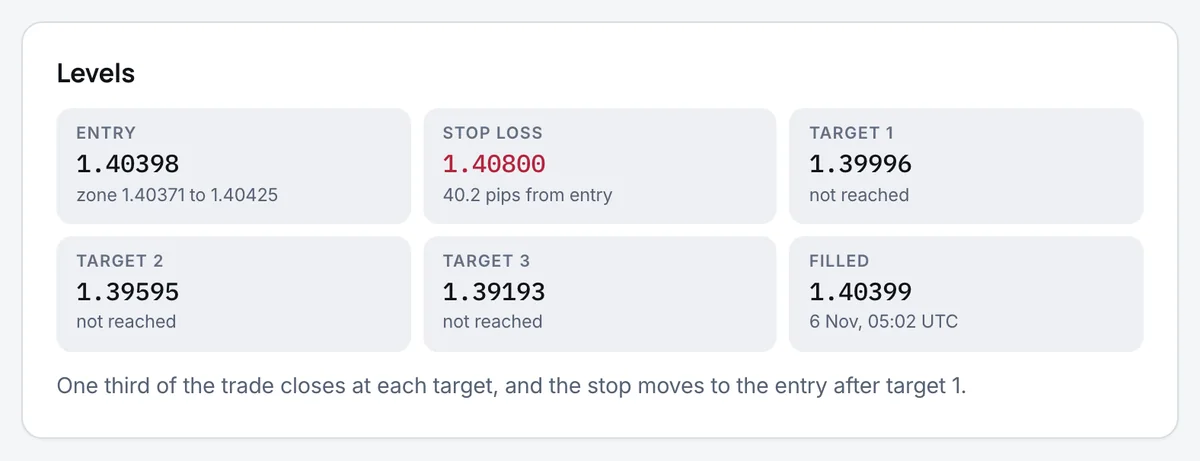
Moving the stop to the entry only after TP1 is deliberate: earlier, normal noise turns good trades into scratches. Stop-loss strategies explains the hidden cost of break-even stops set too soon.
If Something Goes Wrong
- Invalid stops: the stop or target is on the wrong side of the price for that order type, or closer than your broker allows. Check that you chose limit or stop correctly; a sell stop must sit below the current bid.
- Invalid volume: the lot size is below the broker’s minimum or not a multiple of its step. Round it to the step shown in the symbol specification.
- Market closed: forex, gold, oil and indices close at the weekend, while crypto keeps trading. Wait for the open, and check the signal has not expired in the meantime.
- Your order filled but the signal still says Waiting: your broker’s price touched the entry and the tracking feed’s did not. Keep the same stop and targets; the published record follows the feed, not your account.
- The cTrader link asks you to log in or opens the wrong symbol: log in, select your broker’s name for the instrument and type the levels in by hand.
What You Just Learned
- Find your broker’s name for the symbol, and shift every level if its price is steadily different.
- Split the size into three equal orders, one per target, rounded down to a multiple of three lot steps.
- In MT5, use Limit Order or Stop Order with the signal’s entry, its stop, one target per order and a specified expiry.
- cTrader opens filled in, the MetaTrader buttons copy the levels, and TradingView gets them as a Pine Script.
- Move the stops to the entry after TP1, and delete pending orders when a signal expires or is cancelled.
Need an account with MT5, cTrader or TradingView? Compare brokers by platform, then practise the routine on demo until it takes you two minutes.
FAQ
Can MT5 set three take profits on one trade?
Not on one position. MT5 and MT4 give each position one take profit and one stop loss. To follow three targets, open three positions of equal size with the same entry and stop and a different take profit each, or use a trade-manager expert advisor that closes part of a position at each level.
Why did my copied order fill when the signal did not?
Your broker and the signal’s tracking feed quote slightly different prices, and their spreads differ too. A level touched on one can be missed on the other by a fraction of a pip. Keep the same stop and targets and manage the trade on its own terms; the published record only follows the tracking feed.
What if my lot size cannot be split into three?
Below 0.03 lots, place one order and choose its target before you enter, usually TP2, or skip the signal. An uneven split such as 0.02 and 0.01 also works but changes the result. Whatever you choose, keep the stop at the signal’s level and never raise the size just to make the split possible.
Is there an automatic copier for ForexR Signals?
No. ForexR publishes the levels and the platform buttons described in this guide, and you place each trade yourself. With the copy buttons that takes a couple of minutes per signal, and it keeps every decision with you, including which signals to skip and how much to risk.
See these strategies traded live
ForexR Signals publishes each trade before the entry, with its stop and three targets, and tracks it against live prices. Every win and loss stays on the record. Practice trades with no real money, not advice.