MT5 101: One-Click Trading and Managing Trades on the Chart

How Does One-Click Trading Work in MT5?
One-click trading sends a buy or sell from a small panel on the chart, with no confirmation window. Right-click the chart, choose One Click Trading and accept the terms once. By the end of this lesson you will have opened a demo trade from the panel, dragged its stop-loss on the chart, and set the default volume so a slip of the finger cannot open a full lot.
What you need: a demo account in MT5 and the habit of placing orders with F9, from your first trade in MT5. Open a EUR/USD chart, and if a pending order is still sitting there from the pending orders lesson, leave it: you will use it.
Step 1: Switch On the Chart Trading Panel
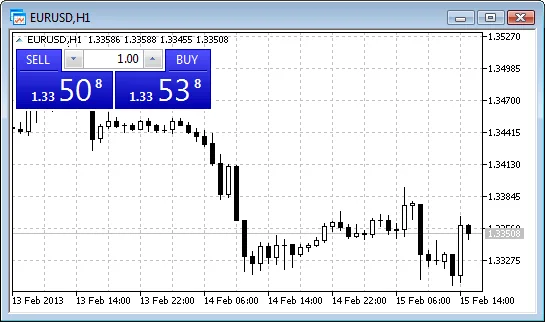
- Step 1, open the panel: right-click anywhere on the chart and choose One Click Trading. A panel with Sell and Buy buttons and a volume box appears at the top left of the chart. The small arrow beside the open, high, low and close figures shows or hides it.
- Step 2, accept the terms: the first time you trade from the panel, MT5 shows its terms for one-click trading. Accept them with I Accept these Terms and Conditions. From then on the panel sends orders at once.
- Step 3, know the second switch: in builds from April 2026 the New Order window also has a one-click switch in its side panel, so you can turn the feature on or off without leaving the dialog. Before that build the only switch was in the platform settings.
Step 2: Place a Trade From the Panel
- Step 1, set the volume: type 0.01 in the panel’s volume box.
- Step 2, read the two prices: the Sell button shows the bid and the Buy button shows the ask. The difference is the spread, which spreads and pips explains.
- Step 3, click Buy: the order goes straight to the broker and the position appears in the Trade tab without any confirmation window.
- Step 4, notice what is missing: a one-click order has no stop-loss and no take-profit. That is the trade-off for speed, and the next step fixes it.
Step 3: Drag the Stop-Loss and Take-Profit on the Chart
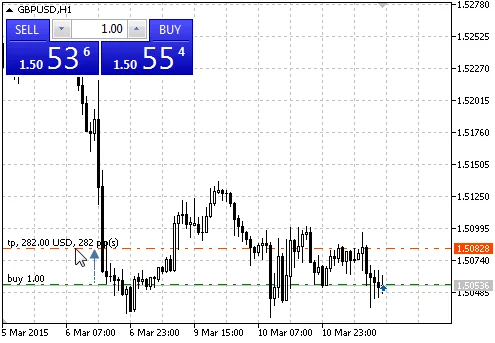
- Step 1, show the trade levels: open Tools, then Options, then the Charts tab and tick Show trade levels. Your position’s open price now appears as a line on the chart, as does any pending order.
- Step 2, drag a level: left-click the position’s line and drag it up or down. A tooltip shows the profit or loss at that level in your deposit currency and in pips. MT5 works out from the direction of the trade and of the drag whether you are setting a stop-loss or a take-profit, and asks you to confirm.
- Step 3, set both: for the buy you just opened, drag one line below the price for the stop-loss and one above for the take-profit. Both levels now show in the Trade tab’s S/L and T/P columns.
- Step 4, move the pending order: if an order from the last lesson is still on the chart, drag its line to a new price. The modification window opens so you can confirm the exact figure.
- Step 5, guard against accidents: back in the Charts tab, choose the option that requires the Alt key to drag trade levels, so a stray click cannot move a stop. Disable dragging of trade levels turns dragging off altogether.
Step 4: Set Safe Defaults in Options
Open Tools, then Options, then the Trade tab. Four settings decide what a quick click does.
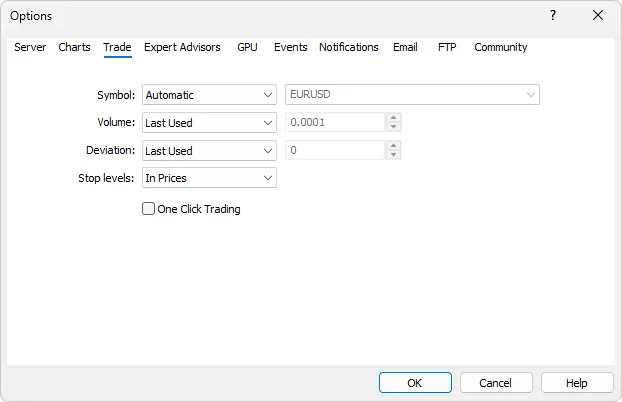
- Volume: choose a fixed default, 0.01 while you learn, rather than Last used. If the last trade was a careless 1.00 lots, Last used repeats the mistake.
- Deviation: the slippage you accept in Instant mode. A small number means more requotes in fast markets; a large number means fills further from the price you saw.
- Stop levels: default stop-loss and take-profit distances in points, or as fixed prices. Set them and every F9 order starts with protection filled in; one-click orders still ignore them.
- One click trading: the master switch and the terms agreement. Untick it when you stop practising and the panel asks for confirmation again.
Where One Click Is Dangerous
Three places in MT5 act instantly once one-click trading is on, and none of them asks first. In Market Watch, the Trading tab shows Buy and Sell buttons for the selected symbol; when its execution mode is Instant, Market or Exchange, clicking one sends an order at once. In the Toolbox’s Trade tab, the small cross in the Profit column closes a position immediately, and the cross in the S/L or T/P column deletes that level. The group operations in the same tab, which close every position or delete every pending order at once, also rely on one-click being enabled.
Speed is useful for a scalper who has practised for months, and a liability for a beginner. Forex trading mistakes lists the mis-click, the wrong lot size and the missing stop among the most common losses, and margin call and stop-out shows what a full-lot accident does to a small account. Work out every real position with the position size calculator first and type the result, rather than trading the number already in the box. Execution speed and slippage differ between brokers, which the broker comparison sets out. If you mark levels on TradingView with a script from our Pine Script Library, remember that it draws there only; the trade itself still has to be placed in MT5.
If Something Goes Wrong
- The panel does not appear: right-click the chart and check that One Click Trading is ticked, then click the small arrow beside the OHLC figures to unhide it.
- Clicking Buy opens the order window instead: the terms have not been accepted, or the one-click option in Options is off. Accept the terms once; the panel then trades directly.
- The stop-loss will not drag: Show trade levels is off, dragging has been disabled, or the Alt-key option is on and you did not hold Alt.
- I closed a position by mistake: the cross in the Profit column acts at once. Check the History tab; the close is final, but the exercise cost nothing on a demo.
- The order filled away from the price I saw: that is slippage within your deviation setting. Lower the deviation, or avoid one-click trading around news releases.
What You Just Learned
- Right-click the chart and choose One Click Trading to show the panel; the first order asks you to accept the terms.
- One-click orders carry no stop-loss or take-profit, so you add them by dragging lines on the chart with Show trade levels on.
- Options, Trade sets the default volume, deviation and stop levels; a fixed 0.01 default is the safest start.
- Market Watch buttons, the crosses in the Trade tab and the group operations all act without confirmation.
The next lesson, alerts, push notifications and settings, lets MT5 tell you when a price is reached instead of watching for it. Leveraged trading in forex and CFDs carries a high risk of losing money, and one-click trading makes an error faster, so keep it switched off on any live account until the demo routine is second nature.
FAQ
Does one-click trading in MT5 set a stop-loss automatically?
No. An order sent from the chart panel or the Market Watch buttons has no stop-loss or take-profit, even if default stop levels are set in Options. Those defaults fill in the F9 order window only. After a one-click trade, add the levels by dragging lines on the chart or through Modify or delete in the Trade tab.
How do I turn off one-click trading in MT5?
Open Tools, then Options, then the Trade tab and untick the one-click trading option, or right-click the chart and untick One Click Trading to hide the panel. In builds from April 2026 the New Order window also has a switch in its side panel. Once it is off, every order opens a confirmation window again.
Why can I not drag my stop-loss on the MT5 chart?
Trade levels are hidden or locked. Open Tools, Options, Charts and tick Show trade levels, then make sure Disable dragging of trade levels is unticked. If the option that requires the Alt key is on, hold Alt while you drag. Dragging a level opens the modification window, where you confirm the exact price.
Is one-click trading safe for beginners?
It is fast, and that is the risk: a mis-click opens or closes a position with no confirmation and no stop. Practise it on a demo with a fixed 0.01-lot default and the Alt-key rule for dragging levels, and keep it off on a live account until the routine is automatic, or switch it on only for a session.