MT5 101: Place, Modify and Close Your First Trade (F9)

How Do You Place a Trade in MT5?
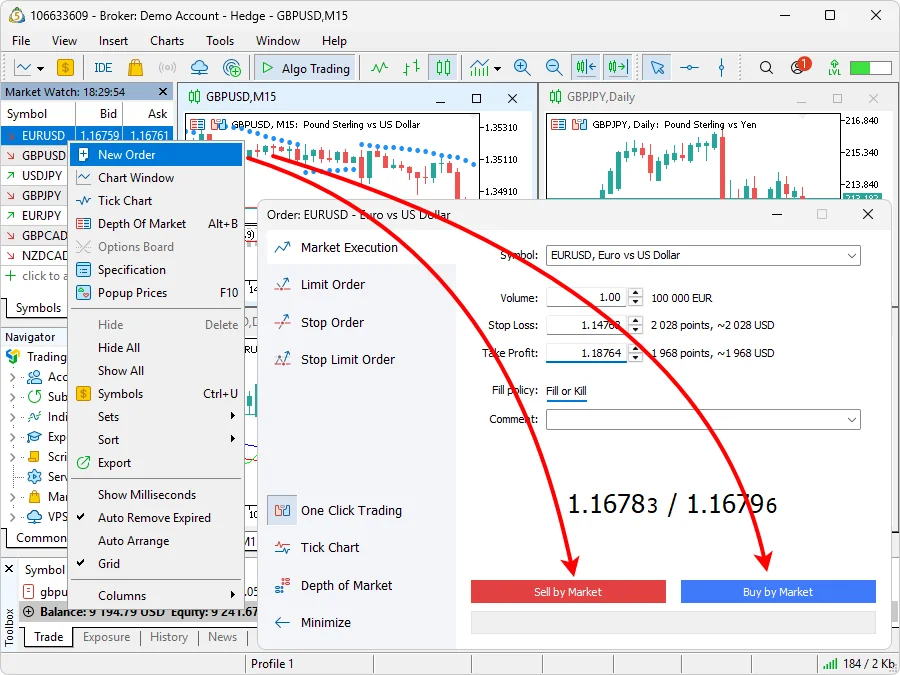
Press F9 to open the New Order window, choose the symbol, enter a volume of 0.01 lots, type a stop-loss and a take-profit, then click Buy or Sell. The position appears in the Trade tab of the Toolbox. By the end of this lesson you will have opened one small demo trade with both protective levels, moved them, and closed the trade on purpose.
What you need: MT5 installed and connected to a demo account, which the lesson on installing MT5 and opening a demo account covers, and a chart of EUR/USD open on the screen, as set up in charts and timeframes. Nothing here is done with real money.
Step 1: Open the New Order Window
- Step 1, press F9: the New Order window opens with the symbol of the active chart already filled in. You can also double-click a symbol in Market Watch, or right-click it and choose New Order.
- Step 2, look at the layout: in builds from April 2026 the order type sits in a side panel, a one-click trading switch lives in the same panel, and a small Depth of Market is built in. Older tutorials show a plainer dialog; the fields are the same.
- Step 3, leave the type on a market order: the top item of the side panel, or the Type field in older builds, shows your broker’s execution mode (Instant, Request, Market or Exchange). Any of those fills at the current price.
Step 2: Fill In the Order and Press Buy or Sell
- Volume: type 0.01, the smallest size most brokers allow. One lot is 100,000 units of the base currency, so 0.01 lots is 1,000 units. The lot sizes and order types guide explains what that is worth per pip.
- Stop Loss and Take Profit: enter a price for each, or a distance in points if your platform settings use points. The stop-loss closes the trade if price moves against you; the take-profit closes it at your target. Leave a field empty to skip it, but for this exercise fill both.
- Comment: optional, up to 31 characters.
- Deviation: Instant mode only: the biggest price change you accept without a requote.
- Fill policy: shown in Market and Exchange modes. Fill or Kill fills the whole order or nothing; Immediate or Cancel fills what it can. If the field is grey, your broker has fixed it.
- Buy or Sell: a buy fills at the ask price and a sell at the bid; the gap between them is the spread, covered in spreads and pips. In Request mode click Request first; the quote stays valid for only a few seconds, then click Buy or Sell.
- Read the result: a message confirms the fill or gives the reason for a rejection.
Step 3: Read Your Position in the Trade Tab
Open the Toolbox with Ctrl+T and click the Trade tab. Each open position is one row: Ticket, Symbol, Time, Type (Buy or Sell), Volume, Price (your open price), S/L, T/P, the current price, Swap and Profit, which updates on every tick. Long and short positions explains why a sell can show a profit when price falls.
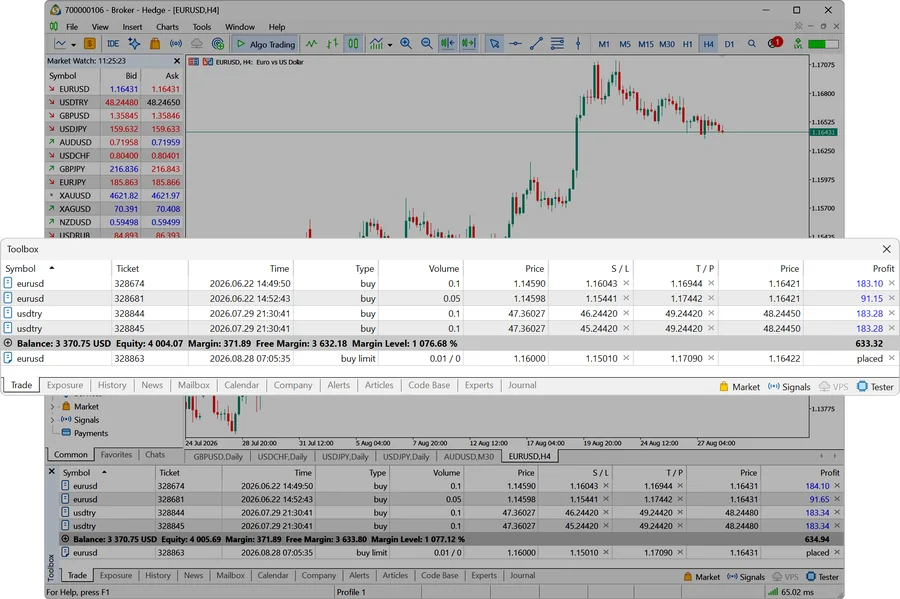
The grey line under the positions, above any pending orders, is your account: Balance (money on the account, ignoring open trades), Equity (balance plus or minus the floating result), Margin (the deposit held against your open positions), Free Margin (equity minus margin, what you can still use) and Margin Level (equity divided by margin, as a percentage). On a 0.01-lot trade these numbers barely move.
Step 4: Modify the Stop-Loss and Take-Profit
- Option A, the dialog: right-click the position in the Trade tab and choose Modify or delete. Enter the new Stop Loss and Take Profit, or set them as points from the open price, and click Modify. The button stays grey until both levels are valid.
- Option B, drag on the chart: with Show trade levels switched on in the platform settings, left-click the S/L or T/P line on the chart and drag it to a new price. The modification window opens so you can fine-tune the figure.
- Trailing stop: right-click the position to set a trailing stop, which moves the stop-loss behind price as the trade gains. It runs inside the platform, not on the server, so it stops when MT5 is closed.
Step 5: Close the Position
- Close in full: double-click the position in the Trade tab, or right-click it and choose Close Position, then click the Close button. The trade moves to the History tab.
- Close part of it: in the same window, type a smaller volume before clicking Close. The stop-loss and take-profit stay on the rest.
- Netting accounts: there is one position per symbol, so you close by trading the opposite volume, which reduces or closes it.
- Hedging accounts: each trade is a separate position, so use Close Position for each. Close By lets you close one position against an opposite one on the same symbol and saves one spread.
- Check the History tab: switch between positions, orders and deals, and click Show on Chart to see your entry and exit on the price chart.
Orders, Deals and Positions: What the Words Mean
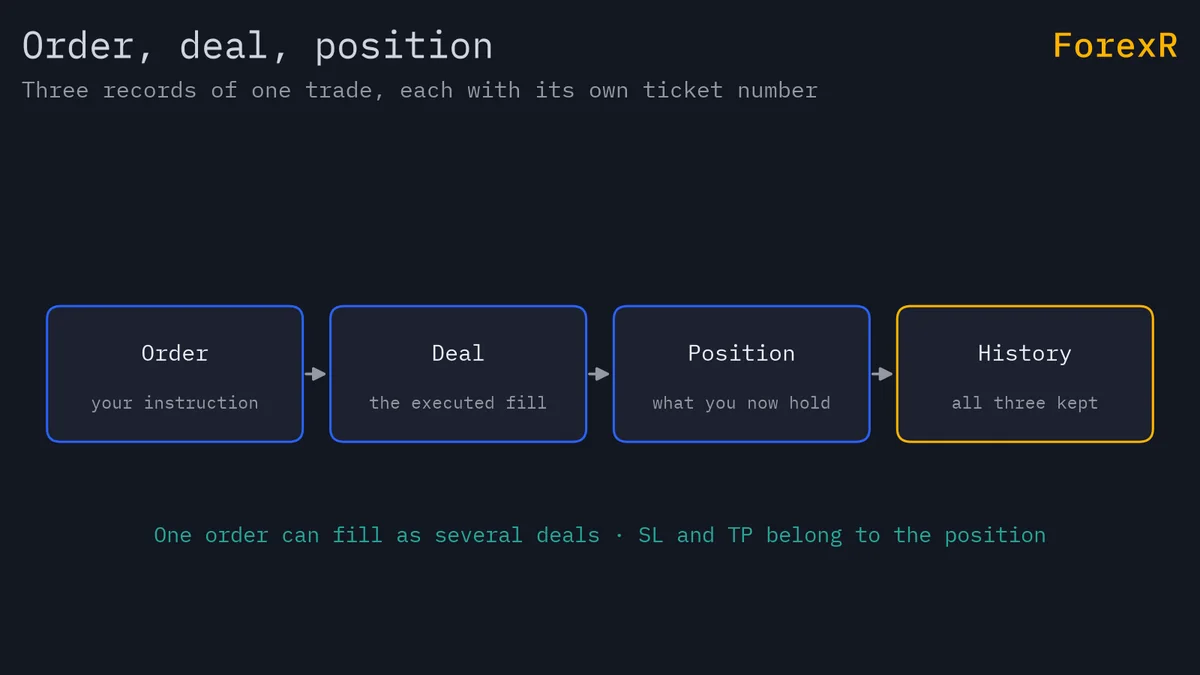
MT5 separates three things. An order is your instruction to buy or sell. A deal is the executed fill; one order can produce several deals. A position is the holding that results, and it carries the stop-loss and take-profit. Each has a ticket number, which is why the History tab can show the same trade three ways.
Size every real position from the account, not from the lot field: the position size calculator turns a stop distance and a risk percentage into lots, and risk management explains why 1 or 2 per cent per trade is the usual ceiling. Spread, swap and execution are set by the broker, not by MT5; the broker comparison shows those costs side by side. If you also chart on TradingView, the free scripts in our Pine Script Library draw on TradingView only; they cannot place orders in MT5.
If Something Goes Wrong
- “Invalid stops”: the stop-loss or take-profit is on the wrong side of the price, or too close to it. A buy needs its stop below the ask and its target above; swap them, or move them further away.
- “Not enough money”: free margin cannot cover the trade. Reduce the volume, or check that you typed 0.01 and not 1.00.
- “Market closed”: the symbol is outside its trading hours. Right-click it in Market Watch and open Specification to see the sessions.
- Buy and Sell are grey: a field is invalid, usually the volume or a stop level.
- A requote appears: in Instant mode the price moved more than your deviation. Accept the new price or let it lapse.
What You Just Learned
- F9, a double-click in Market Watch or right-click and New Order all open the same order window.
- A market order needs a volume, and should always carry a stop-loss and a take-profit.
- The Trade tab shows every open position and the account line: balance, equity, margin and free margin.
- Stops can be changed from the dialog, by dragging on the chart or from the chart menu, and a trade can be closed in full or in part.
The next lesson, pending orders in MT5, places orders that wait for a price instead of filling now. Leveraged trading in forex and CFDs carries a high risk of losing money, so practise every step on the demo until it is automatic before you consider a live account.
FAQ
What is the smallest trade size in MT5?
Most brokers allow 0.01 lots, which is 1,000 units of the base currency, so a one-pip move on EUR/USD is worth about ten US cents. Some accounts allow smaller sizes and some set a higher minimum. Right-click the symbol in Market Watch and open Specification to see the minimum volume and the step size your broker uses.
Why did MT5 reject my stop-loss with Invalid stops?
The level sits on the wrong side of the price or inside the broker’s minimum distance, called the stops level. For a buy, the stop-loss must be below the current ask and the take-profit above it; for a sell the reverse. Move the level further from the price, or check that you did not swap the two fields.
Does a trailing stop keep working when I close MT5?
No. In MT5 the trailing stop runs inside the platform on your computer, not on the broker’s server. When the terminal is closed or loses its connection, the stop-loss stays at the last level it reached and stops following the price. Traders who rely on trailing stops keep the platform running, often on a virtual private server.
What is the difference between netting and hedging in MT5?
Netting keeps one position per symbol: a second buy adds to it, and a sell reduces, closes or reverses it. Hedging keeps every trade as a separate position, so a buy and a sell on the same pair can be open at once. The mode belongs to the account and is chosen when the account is opened, from the types your broker offers.