MT5 Mobile 101: Install the App and Log In on Android or iPhone

How Do You Install and Log In to the MT5 Mobile App?
Install MetaTrader 5 from Google Play or the App Store, open it, and either log in to an account you already have or open a demo inside the app. The quickest login is to scan the QR code the desktop platform shows for your account. By the end you will have the app connected to a demo account with its four working tabs ready to use.
The Android and iPhone apps look alike, so this lesson covers both. Where a button sits somewhere different, the step shows each.
What You Need
- A phone or tablet. Android 5.0 or later, or an iPhone or iPad on iOS 15 or later.
- An internet connection. The app only works while it can reach your broker’s trading server, over Wi-Fi or mobile data.
- A demo account, ideally. If you followed the first desktop lesson you already have one, and its login details are the same on the phone. If not, Step 3 opens one from the app. New to demos? The demo account guide explains why you practise there first.
Step 1: Install the App
- Step 1, find the right app: search for “MetaTrader 5” in Google Play or the App Store. The publisher is MetaQuotes Software Corp. Some brokers publish a branded copy; use that only if your broker tells you to. The app is free.
- Step 2, install and open it: tap Install, then tap the MetaTrader 5 icon on your home screen. Leave automatic updates on; new versions add features and fix bugs.
- Step 3, choose a start option: the first screen offers three choices: open a demo account, log in to an existing account, or open a real account. Pick the second if you already have a login, or go to Step 3 below to create a demo.
Step 2: Log In to an Existing Account, or Scan the QR Code
You need the login (your account number), the password and the server name, from your broker’s email or from the registration window the desktop platform showed when the account was created.
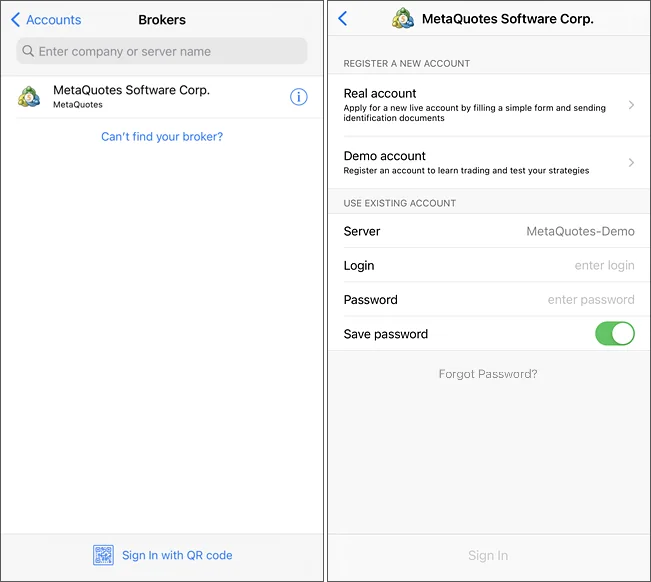
- Step 1, open the account screen: choose the option to log in to an existing account. If you are already using the app, Android: open the side panel and tap the add-account button at the top. iPhone: go to the Settings tab, then your accounts, and add a new one.
- Step 2, find your broker: type the broker’s name in the search bar. The list does not show every server by default, so results appear after the first three letters. If the broker is still missing, ask it for the exact server name.
- Step 3, enter the details: type the login and password and connect. Use the master password if you want to trade. The investor password is read-only: you can watch the account and study charts, but every trade button stays off.
- Step 4, or scan instead of typing: the desktop registration window shows a QR code for a new account, and an account already in the app shows its own code under the QR button. Scan it with the phone you want to connect, and the account is added without typing a login or password, so there is no mistyped server name.
- Step 5, confirm you are connected: a spinning indicator next to the account number means the app is not connected to the server. A platform icon next to the number means the connection is live, and the prices in Quotes start moving.
Step 3: Open a Demo Account Inside the App
With no account at all, the app can create a practice account with virtual money. The exact fields depend on your broker.
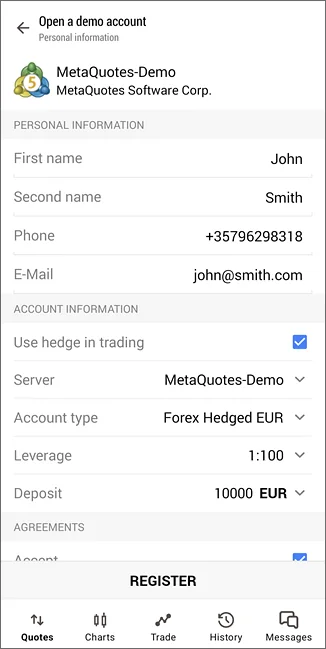
- Step 1, start: choose the demo option on the start screen, or tap New Account on the accounts screen. Search for your broker, tap its server, then tap Demo account. The broker comparison shows which brokers offer MT5 if you have not picked one yet.
- Step 2, fill in the form: first and last name (at least eight characters in total), a mobile number in international format, your email, then Use hedge (on for a hedging account, off for netting), Account Type, Leverage and Deposit. Pick a deposit close to what you would really trade with.
- Step 3, register and save the details: tap Register and wait for the account to be allocated. The app then shows the Login, the Password (the master password, which can trade) and the Investor password. Use Copy to clipboard and store them somewhere safe. Tap Start to connect.
A real account follows the same path plus identity documents, and the broker contacts you to finish. Do that only once this series feels routine on the demo.
Finding Your Way Around the App
On iPhone a bar along the bottom holds five tabs: Quotes, Chart, Trade, History and Settings. On Android the same four working tabs sit in the bottom panel next to Messages, and a side panel, opened with the Menu button, holds the rest.
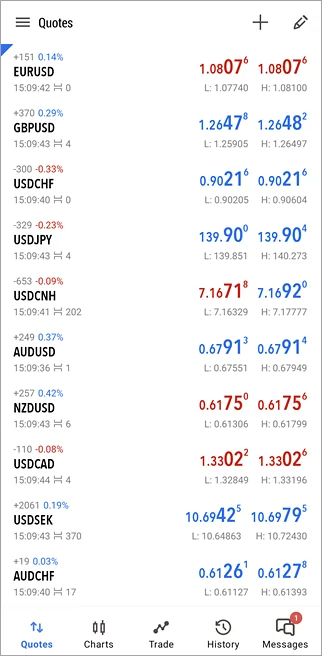
- Quotes: the price list, with a bid and an ask for each symbol.
- Chart: the price chart, with indicators and drawing tools.
- Trade: your balance, equity and margin, plus every open position and pending order.
- History: closed trades, deposits and withdrawals.
- Settings and the side panel: accounts, Mailbox (broker messages, including demo details), News, Messages (push notifications), the Economic calendar (it opens the Tradays app), Journal (the app’s log) and About.
The layout mirrors the desktop windows in how to use MT4 and MT5: Quotes is Market Watch, Trade is the Toolbox Trade tab. The app cannot run expert advisors or custom indicators, and TradingView scripts from the Pine Script Library belong to a different platform altogether.
Passwords and Security Settings
- Master and investor passwords: the master password trades; the investor one only watches, so it is the one to share.
- Screen Lock: in Settings, ask for a PIN, fingerprint or face each time the app opens. It uses the phone’s own lock, so set one first.
- Switching accounts: Android: accounts are listed in the side panel; tap one to switch, long-press to delete. iPhone: the same list is under Settings.
If Something Goes Wrong
- “Invalid account” or the app will not connect: the login, password or server does not match. Check the server name letter for letter, or scan the QR code instead.
- You can see prices but every trade button is off: you logged in with the investor password. Log in again with the master password.
- Your broker is not in the list: type at least three letters of its name. If it still does not appear, ask the broker for the exact server name.
- The spinning indicator never stops: the app cannot reach the server. Check your connection, then read the Journal for the error text.
What You Just Learned
- The MetaTrader 5 app is free and runs on Android 5.0 or iOS 15 and later.
- An existing account logs in with login, password and server, or in seconds by scanning its QR code.
- The app can open a demo account on its own, and shows you the master and investor passwords when it does.
- Quotes, Chart, Trade and History are the four working tabs; Settings or the side panel hold everything else.
Next lesson: build your watchlist in the Quotes tab. Forex and CFDs are leveraged products and carry a high risk of losing money, so every lesson in this series is practised on a demo account before any real money is involved.
FAQ
Is the MetaTrader 5 mobile app free?
Yes. The app is free on Google Play and the App Store, and a demo account costs nothing. You only pay your broker when you trade on a real account, through the spread, any commission and overnight swap fees. Be cautious of look-alike apps from unknown publishers; the genuine one is published by MetaQuotes Software Corp.
Can I log in to the MT5 app with my MT4 account?
No. Each account is created for one platform, so an MT4 login is rejected by the MT5 app and the reverse is also true. If your broker gave you an MT4 account, install the MetaTrader 4 app instead, or ask the broker to open an MT5 account alongside it.
Why does the app say my broker is not found?
The server list does not show every broker by default. Type at least three letters of the broker’s name and wait for the results. If it still does not appear, ask the broker for the exact server name, or scan the account’s QR code from the desktop registration window, which connects without typing anything.
Is it safe to save my password in the app?
Saving the password is convenient, so protect the phone instead. Turn on Screen Lock in the app’s settings so it asks for a PIN, fingerprint or face each time it opens, keep your phone’s own lock on, and never share the master password. Give others the investor password, which can view but not trade.