Pine Script Inputs: How to Make Script Settings Adjustable

What Are Pine Script Inputs?
Inputs are settings that a script lets you change without editing its code. You write an input.int() or similar call, store the result in a variable, and TradingView adds a field for it in the script’s Settings window, on the Inputs tab. Change the value and the script re-runs on the whole chart with the new number.
This guide shows each kind of input, how to label and limit them, and how they show up on TradingView and in the Settings table on a ForexR library page. It assumes you have written a short script, as in Pine Script basics: your first indicator.
Which Input Functions Does Pine Script Have?
There is one function per kind of value. TradingView’s documentation also lists others, such as input.symbol(), but these six groups cover most scripts:
| Function | What the user sets | Example |
|---|---|---|
input.int(), input.float() | A whole number or a decimal | A length of 14, a multiplier of 2.0 |
input.bool() | True or false | Show arrows: on or off |
input.string() | Text, or a pick from a list with options | Average type: SMA or EMA |
input.source() | Which price series to use | close, open, hl2 |
input.timeframe(), input.session() | A timeframe or a time-of-day range | 60, or 0800-1600 |
input.color() | A colour | The colour of an arrow |
Every input call needs a default value as its first argument. That default is what the user sees when the script is first added.
How Do Inputs Appear in the Settings Window?
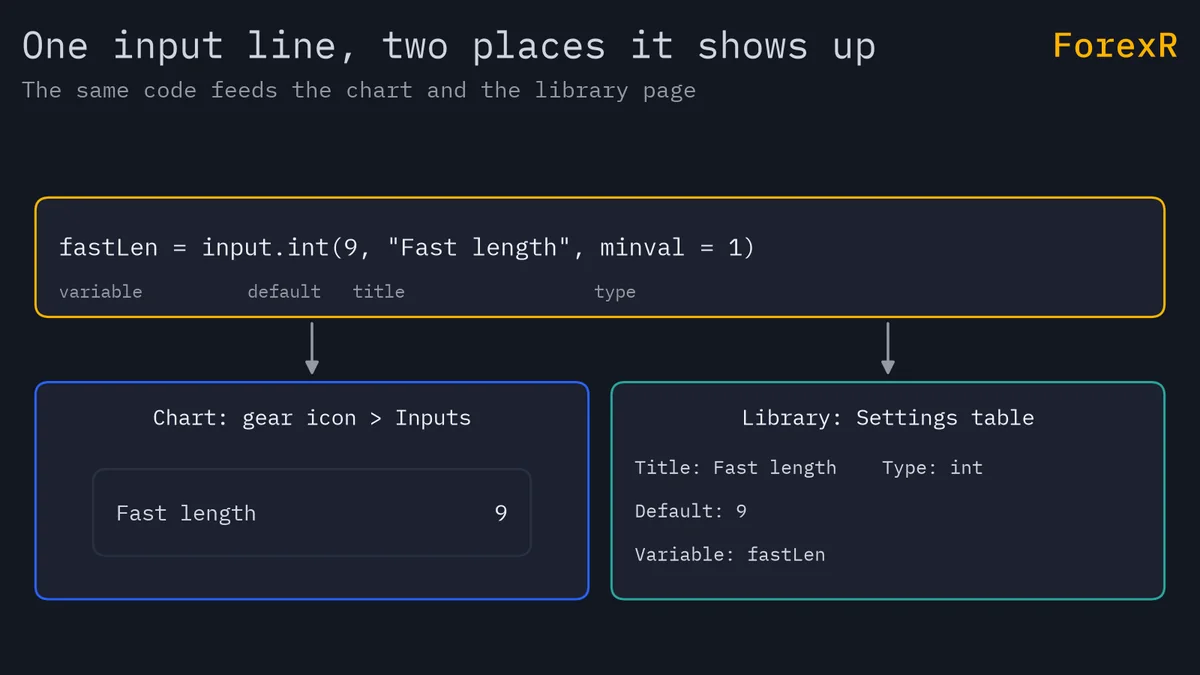
Open a script’s settings with the gear icon next to its name. The Inputs tab lists your inputs in the order the calls appear in the code. The label for each is the title argument. If you leave the title out, TradingView shows the variable name, which is less friendly. Plot colours and line widths live on a separate Style tab, and the Visibility tab controls the timeframes; neither needs an input from you. How to add a Pine Script to TradingView shows where these tabs are.
If you change several settings and want the author’s values back, the Defaults dropdown at the bottom of the Settings window has a “Reset settings” choice. That is why a clear default matters: it is the one setting every user can return to.
How Do You Limit, Label and Group Inputs?
The input functions share a few arguments. Learn these and your settings window will be easy to read:
- title: the label shown next to the field.
- minval, maxval, step: for
input.int()andinput.float(), these set the lowest value, the highest value and how much the arrow buttons move it. A length of zero would break most averages, sominval = 1is a good habit. - options: a list that turns the field into a dropdown. The default must be one of the items. You use
optionsor the min/max/step set, not both. - tooltip: adds a small question-mark icon that shows your text when the user hovers over it.
- group: inputs that share the same group text appear together under a heading. The text is case-sensitive, so “Display” and “display” make two groups.
- inline: inputs that share the same inline text sit on one line.
- confirm: when true, the input is shown in a “Confirm inputs” box when the script is added to the chart.
Worked Example: From Hard-Coded Numbers to Inputs
A hard-coded value is a number typed straight into a formula. This is how a first script often looks:
fastMa = ta.ema(close, 9)
slowMa = ta.ema(close, 21)
To change 9 or 21 you must open the editor. Make the 9 an input and the settings window does the job:
fastLen = input.int(9, "Fast length", minval = 1)
fastMa = ta.ema(close, fastLen)
Do the same for the slow length, add an input for the price source and two for display, and you get the full script below. It is complete and compiles as written.
//@version=6
indicator("Adjustable EMA Cross", overlay = true)

// Settings
fastLen = input.int(9, "Fast length", minval = 1, group = "Moving averages")
slowLen = input.int(21, "Slow length", minval = 1, group = "Moving averages", tooltip = "Keep this larger than the fast length.")
src = input.source(close, "Source", group = "Moving averages")
showArrows = input.bool(true, "Show arrows", group = "Display")
upColour = input.color(color.green, "Arrow colour", group = "Display")

fastMa = ta.ema(src, fastLen)
slowMa = ta.ema(src, slowLen)
crossUp = ta.crossover(fastMa, slowMa)

plot(fastMa, "Fast EMA", color.orange)
plot(slowMa, "Slow EMA", color.blue)
plotshape(showArrows and crossUp, "Cross up", shape.triangleup, location.belowbar, upColour, size = size.small)
The Inputs tab will show two headings, “Moving averages” and “Display”. Hover over the slow length to read the tooltip. Untick “Show arrows” and the triangles vanish without any code change. The variable names (fastLen, slowLen) never appear to the user; only the titles do.
What Other Inputs Are Useful?
maType = input.string("EMA", "Average type", options = ["SMA", "EMA"])
htf = input.timeframe("60", "Higher timeframe")
sess = input.session("0800-1600", "Session")
A string with options gives a dropdown. A timeframe input lets the user pick a higher timeframe, which you would then pass to request.security(); see multi-timeframe data in Pine Script before you do, because that call is a common source of false history. A session input holds a time range and is the base of any London or New York shading. An unchecked bool is a cheap way to add a feature that is off until the user wants it.
How Do Inputs Map to the Library’s Settings Table?
Each page in the ForexR Pine Script Library has a Settings table. It lists every input the code declares: the title, the type, the default and the variable name. All of that is read from the script’s input.*() calls. The Settings count in the page’s stat boxes is simply the number of inputs found.
Use the table before you add the script. Open a few scripts from the trend category and compare their Settings counts. Many inputs mean many ways to tune a script, and a script with a dozen numbers is easy to over-fit. An input titled “Lookback” with a default of 500 tells you the script reads a long history. A script with no inputs has fixed numbers in its code, which you can see in the reading guide. The table is built automatically, so it can miss inputs created in unusual ways. For how the whole page fits together, see how to use the Pine Library.
Why Is Tuning Inputs Until the Past Looks Perfect a Trap?
Inputs make it easy to try 200 combinations in an afternoon. Suppose you try fast lengths from 5 to 20 and slow lengths from 20 to 60. That is 16 × 41 = 656 pairs. Some pair will look wonderful on past data purely by chance. That is curve fitting: shaping a script to fit history, not to find something that will repeat.
A few habits help. Prefer round, ordinary values (9, 14, 20, 50) that many traders use. Change one input at a time and keep notes. Test the setting on a period you did not tune on, and watch it forward on a demo account. How to backtest a Pine strategy covers out-of-sample tests, and the same thinking applies to EA settings on MetaTrader.
The author’s defaults are not advice either. They are the values that looked reasonable to the author, on one market and timeframe. Inputs let you adjust a script; they cannot make it suit the market you trade. Leveraged forex and CFD trading carries a high risk of losing money quickly, so only risk money you can afford to lose.
When you are ready to change the code itself, not just the settings, read how to edit a Pine Script.
FAQ
Where do I change a Pine Script’s inputs on TradingView?
Hover over the script’s name on the chart and press the gear icon, or double-click the name. The Inputs tab lists the settings the author exposed. Colours and line widths are on the Style tab. If you want the author’s values back, use the Defaults dropdown at the bottom of the window.
What is the difference between input.int and input.float?
input.int accepts whole numbers only, such as a length of 14, and is used for periods and counts. input.float accepts decimals, such as a multiplier of 2.5 or a percentage of 0.75. Both can take a minimum, a maximum and a step, so users cannot enter a value that would break the maths.
Can I hide or reorder inputs in a Pine Script?
Inputs appear in the order their calls appear in the code, so you reorder them by moving the lines. The group argument collects them under a heading and inline puts several on one row. There is also an active argument that dims a field. To hide an option completely, remove the input and use a fixed value.
Why does changing an input make my script recalculate everything?
The script runs on every bar of the chart’s history, and a new input value changes the result on every one of them. TradingView therefore runs the whole script again with the new value. On a very long history or a heavy script, that can take a moment, which is normal.