Pine Script Basics: Write Your First TradingView Indicator

How Do You Write Your First Pine Script Indicator?
Open the Pine Editor on a TradingView chart, start a new indicator and replace the template with a version line, an indicator() declaration, a calculation and a plot() call. Save it, press Add to chart, and the line appears. A first working indicator is about ten lines long, and you can write it in one sitting.
This guide builds one step by step: two moving averages and a marker when they cross. If you are new to the language, start with what Pine Script is. If you only want to paste someone else’s code, how to add a Pine Script to TradingView covers the copy-and-paste steps.
What Does the Top of a Pine Script Do?
Every script starts with two things. The first is the version line, //@version=6. It is a compiler annotation, a note that tells TradingView which version of the language you wrote. TradingView’s documentation says the annotation is not mandatory, but when it is left out, version 1 is assumed. Version 1 is far older than the code in this guide, so always write the line.
The second is the declaration statement, a call to indicator(), strategy() or library(). Each script needs exactly one. It sets the script’s type and its properties, such as its name. For an indicator, the first argument is the title that shows on the chart. The argument overlay = true asks for the drawing to sit on the price chart. The longer story is in Pine Script indicators, strategies and libraries.
How Do Variables and Comments Work?
A variable is a name that holds a value. You make one with a single equals sign: fastMa = ta.ema(close, 9) creates a variable called fastMa. Pine works out the type of value by itself. TradingView’s documentation adds that a variable’s type cannot change after it is first set, so a name that starts as a number cannot later hold text.
To change an existing variable, use := instead of =. You will not need it in this first script, but it is the fix when the editor complains that you are making a second variable with the same name.
A comment is a note for people that the computer ignores. It starts with two slashes (//) and can sit on its own line or after code. In the Pine Editor, Ctrl + / comments or uncomments the selected lines. Write comments for your future self, because you will forget what a line was for.
How Do You Calculate a Moving Average With ta.ema()?
A moving average is the average of the last few prices, recalculated on every bar, so it follows the market with a delay. Pine gives you ready-made functions in the ta namespace, a group of technical-analysis tools. ta.sma(close, 20) is the simple average of the last 20 closes. ta.ema(close, 9) is the exponential version, which weights recent bars more. Our guide to moving averages in forex explains the difference.
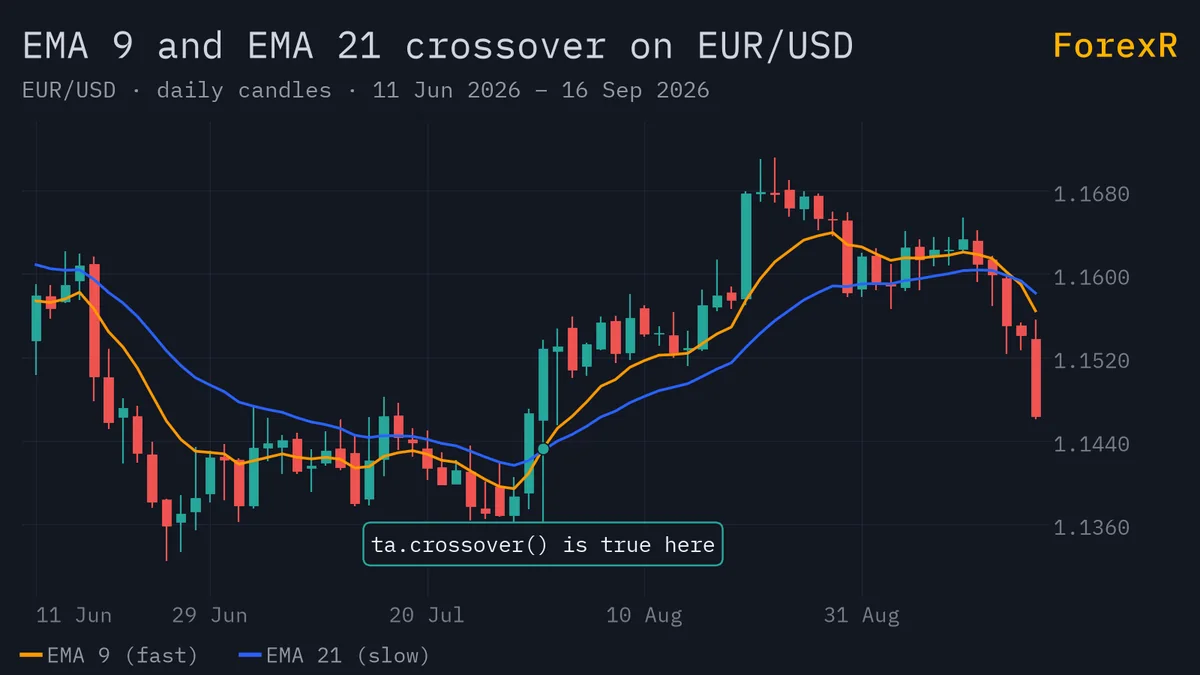
The names close, open, high and low are built in. Each is a series, a value that has one entry per bar. The number after the comma is the length. With a length of 9, the EMA looks at roughly the last nine bars.
How Do plot() and plotshape() Draw on the Chart?
plot() draws a line. It takes the value to draw, then optional arguments. Three matter most at the start:
- title: the name that shows in the Data Window and in the Style tab of the settings. It must be fixed text, known before the script runs.
- color: the line colour, such as
color.orange. It can even be worked out bar by bar. - linewidth: the thickness. For a line, the unit is pixels.
plotshape() draws a small symbol on bars where a condition is true. In the script below it marks the crossover with a triangle: shape.triangleup is the style, location.belowbar puts it under the candle, and size.small keeps it tidy. The condition must be true or false, which is why we feed it the result of ta.crossover().
The Complete First Indicator
Here is the whole script. It is complete, so you can paste it as it is.
//@version=6
indicator("My First Indicator", overlay = true)

// Two moving averages of the closing price
fastMa = ta.ema(close, 9)
slowMa = ta.ema(close, 21)

// True only on the bar where the fast line crosses above the slow line
crossUp = ta.crossover(fastMa, slowMa)

plot(fastMa, "Fast EMA", color = color.orange, linewidth = 2)
plot(slowMa, "Slow EMA", color = color.blue, linewidth = 2)
plotshape(crossUp, "Cross up", shape.triangleup, location.belowbar, color.green, size = size.small)
Read it in order. Line 1 sets the version, line 2 declares an indicator, lines 5 and 6 build the two averages, and line 9 asks one question: did the fast average just cross above the slow one? ta.crossover(a, b) is true on the bar where a moves from below b to above it, and false on every other bar. The last three lines draw the results. Add it to a chart and you will see two coloured lines and green triangles under the bars where the fast line crossed up.
A word of caution. A crossover is a description of the past. The triangle shows that the averages crossed, not that price will keep going. Crossovers also lag, and in a sideways market they fire often and lose money. Use this script to learn the language, not as a trading rule.
The script runs once for every bar on the chart, from the oldest to the newest, which is why a single line of code produces a whole line on screen. How Pine Script runs covers what happens on the live bar.
Overlay or Own Pane: What Does overlay Change?
The overlay argument decides where the drawing goes. With overlay = true, the plots sit on the price chart, which suits moving averages because they share the price scale. Without it, TradingView puts the script in its own pane under the chart, which suits indicators with their own scale, such as RSI. According to the documentation, a plot normally displays in the same pane in which the script runs.
Try the other choice. This three-line script draws an RSI of 14 bars in a separate pane:
//@version=6
indicator("RSI test")
plot(ta.rsi(close, 14), "RSI", color = color.purple)
If you draw a moving average in a pane, it looks like a flat line at the bottom or top, because its numbers are in the thousands while the pane expects a scale like 0 to 100. If you draw an RSI on the price chart, it is squashed against the axis. Wrong overlay is the commonest beginner puzzle, and the fix is one word. The library marks each script as “On the chart” or “Own pane”, and you can browse moving-average scripts to see real examples of both.
What Mistakes Do Beginners Make First?
- No version line: the script is read as version 1 and most modern code fails. Put
//@version=6on line 1. - Wrong overlay: a line that seems missing is often drawn in the wrong place. Check the pane and the overlay setting.
- Misspelt names:
ta.Emais notta.ema. Pine is case-sensitive, and the editor reports an undeclared identifier, meaning a name it does not know. - Type changes: if
count = 1is followed later bycount := "high", the editor refuses, because a variable’s type cannot change. - Mixing up = and :=: use
=to create and:=to change. - Pasting under the template: two declarations in one script is an error. Replace the template.
When the editor shows an error, read the message, find the line it points to and fix that one thing first. Later errors are often caused by the first. Make small changes and add the script to the chart again after each.
What Should You Learn Next?
The lengths 9 and 21 are written into the code, so changing them means editing the script. Pine Script inputs shows how to put them in the settings window instead. To read other people’s code with confidence, use how to read a Pine Script. When something fails to compile, Pine Script errors and limits explains the messages.
You can also learn from real code. The Pine Script Library lists thousands of open-source scripts, and the indicator category is a good place to find short ones. Treat them as examples to study, since ForexR does not test or recommend any script.
An indicator you write yourself is still only a view of past prices. It cannot predict the market, and a pretty chart is not a tested strategy. Leveraged forex and CFD trading carries a high risk of losing money quickly, so only risk money you can afford to lose.
FAQ
Do I need to know how to code to write a Pine Script?
No. Pine Script was designed to be small and readable, and a first indicator is about ten lines. You do need patience with details such as spelling and punctuation, because the editor rejects anything it cannot read. Start by changing one line of a working script and watching what happens on the chart.
What is the difference between ta.sma and ta.ema in Pine Script?
Both average recent prices. ta.sma gives every bar in the window the same weight, so it moves more slowly. ta.ema gives newer bars more weight, so it reacts sooner and also gets more false turns in choppy markets. Neither is better; the choice depends on how much lag you accept.
Why does my indicator not show on the chart?
The common causes are that it was not added with the Add to chart button, it draws in its own pane lower down, overlay is set wrongly, or its colour matches the background. Check the pane under the price chart and the editor’s error messages first, then the script’s Visibility settings.
Can a Pine Script indicator place trades for me?
An indicator only draws. It cannot place orders, and a script on TradingView cannot send orders to a broker on its own. It can fire an alert when a condition is true, and some traders connect alerts to other software. That chain has its own risks and needs careful testing.