How to Edit a Pine Script: Colours, Lengths and Filters

How Do You Edit a Pine Script Safely?
Paste the script into a new, separately named script in the Pine Editor, so the original stays untouched. Change one thing at a time, save, press Add to chart, and compare the result with the original on the same chart. If the editor shows an error, undo the last change. Keep the author’s licence and credit lines in the file.
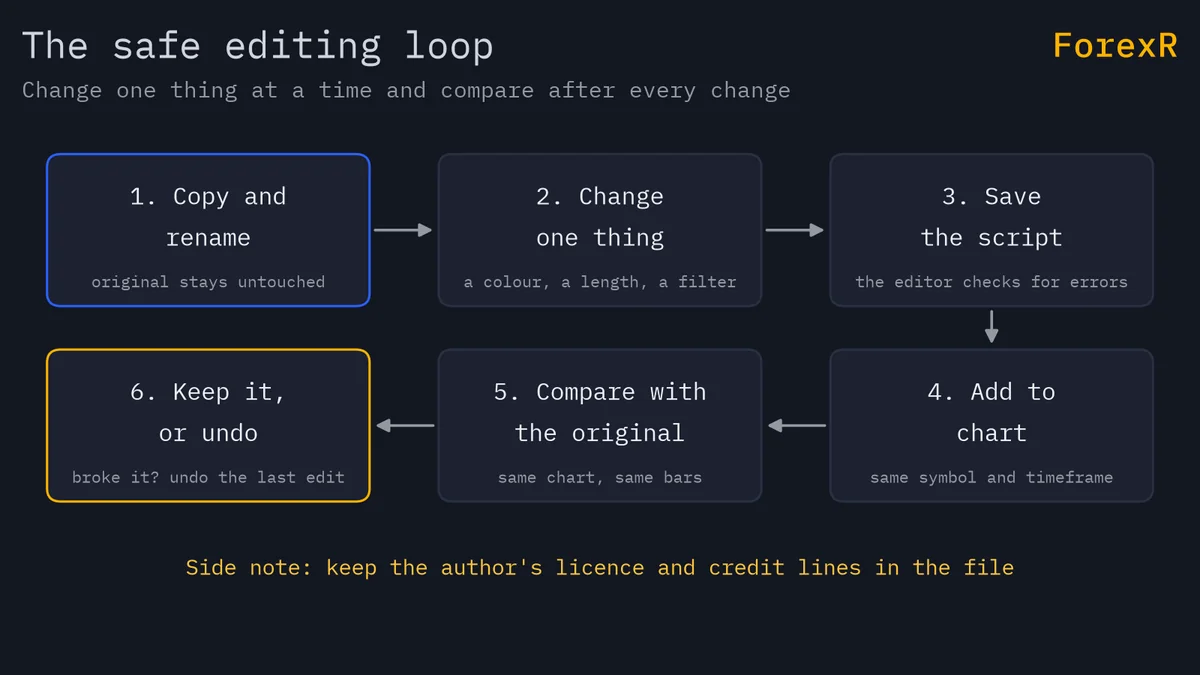
Editing a script is the best way to learn Pine, because you see the result of each change at once. This guide covers colours, lengths, a trend filter and an alert. It assumes you can already read a script; if not, start with how to read a Pine Script and Pine Script basics.
Why Make a Copy and Keep the Credit Lines?
Never edit the only copy of a script you like. Follow the paste steps in how to add a Pine Script to TradingView: create a new indicator or strategy, paste over the template and save it with a name you will recognise. Then rename the script inside the code, in the first argument of indicator() or strategy(), for example by adding “(my copy)”. If two scripts on one chart have the same name, you will not know which is which.
Check the licence before you change anything you plan to share. The Pine Script Library shows each script’s licence in a stat box, and the file often starts with a comment block that names the author. Open licences such as MIT, GPL and the Mozilla Public License 2.0 allow changes, with conditions. Keep the author’s comment lines, add a note of what you changed, and read the licence text for anything you want to republish. Without a licence, the safe use is private: edit for your own chart, and ask the author before you share.
How Do You Change Colours and Line Styles?
You may not need code at all. If the script plots with plot(), the Style tab in the settings window lets you change colours, line widths and which plots are shown. Use it first. It is safer than editing, and it keeps your edits separate from the code.
To change the defaults in the code, find the plot() calls. The color argument takes a built-in colour such as color.orange, or color.new(colour, transparency), where 0 is solid and 100 is invisible. The linewidth argument sets thickness in pixels for a line. A style argument changes how the plot is drawn.
plot(fastMa, "Fast EMA", color = color.new(color.orange, 40), linewidth = 3)
plot(slowMa, "Slow EMA", color = color.blue, style = plot.style_circles)
The first line makes the fast line thicker and 40% see-through; the second draws the slow average as dots. If the script uses plotshape(), the same color argument changes the symbol colour. Change one value, save, and look.
How Do You Turn a Constant Into an Input?
Many scripts keep numbers typed straight into the code. To make one adjustable, replace the number with an input call and use the new variable in the formula:
len = 14
len = input.int(14, "Length", minval = 1)
The first line is the original, the second the edit. Anywhere the script used 14 now uses len, and the value shows on the Inputs tab. Give the input a clear title and a minval so nobody can enter zero. Pine Script inputs covers groups, tooltips and dropdowns. Do not turn every number into an input. Too many settings invite over-tuning.
How Do You Add a Trend Filter to a Signal?
A filter is an extra condition that must be true before a signal counts. A common one for a crossover is a long moving average: only take buys when price is above it. In code, join the conditions with and. The script below is a complete, edited copy of the EMA cross, with a 200-bar trend average and an alert.
//@version=6
// Edited copy of a simple EMA cross: added a trend filter and an alert.
indicator("EMA Cross + Trend Filter (my copy)", overlay = true)

fastLen = input.int(9, "Fast length", minval = 1)
slowLen = input.int(21, "Slow length", minval = 1)
trendLen = input.int(200, "Trend length", minval = 1)

fastMa = ta.ema(close, fastLen)
slowMa = ta.ema(close, slowLen)
trendMa = ta.ema(close, trendLen)
buy = ta.crossover(fastMa, slowMa) and close > trendMa

plot(fastMa, "Fast EMA", color.orange)
plot(slowMa, "Slow EMA", color.blue)
plot(trendMa, "Trend EMA", color.gray, 2)
plotshape(buy, "Buy", shape.triangleup, location.belowbar, color.green, size = size.small)
alertcondition(buy, "Buy signal", "EMA cross up above the trend line")
The key change is the line starting buy =. The cross-up still has to happen, and now close > trendMa must also be true. Some crossovers vanish, mostly the ones that fire against the bigger direction. The three plot lines draw the averages and the shape marks the buy.
Be honest about what a filter does. It cuts the number of signals, which can reduce losses in a downtrend, but it also delays entries and can miss early moves. It does not make the system profitable, and a filter chosen because it improves the past is a case of curve fitting. See moving averages in forex for how long averages behave.
How Do You Add an Alert Condition?
The last line of the script above is alertcondition(buy, "Buy signal", "EMA cross up above the trend line"). It takes the condition, a title and a message. TradingView’s documentation says the title appears in the Condition field of the Create Alert dialog, so after you add the script, create an alert and choose “Buy signal” from the Condition dropdown. Two details matter: the call must start at the left edge of a line, so it cannot sit inside an if block, and the title and message are fixed text. Pine Script alerts covers alert(), frequency and placeholders.
How Do You Re-Add the Script and Compare It With the Original?
After each edit, save and press Add to chart. Put the original on the same chart too, and compare:
- Same bars: with only a colour or title change, the signals must match the original exactly. If they do not, you changed something else.
- Fewer signals after a filter: count them over the same stretch of chart and look at what was removed.
- Timeframes: try two or three. A change that helps on one may hurt on another.
- Live bars: watch a few new bars. A condition that flickers on an unfinished bar is a repainting risk, covered by repainting in TradingView.
How Do You Undo a Change That Broke the Script?
Press Ctrl+Z (Cmd+Z on a Mac) in the Pine Editor to step back through your edits. If the error remains, go back to the library page and copy the original code again into a fresh script. That is the reason to keep an unedited copy: it is a clean starting point. When the editor shows a red error, read the message and find the line it names. A typical cause is a missing closing bracket or a misspelt variable. Pine Script errors and limits explains the common ones.
Which Edits Are Not Safe?
- Changing the version number without converting the code. The line tells TradingView which rules the code follows.
- Removing a lookahead or offset you do not understand. It can turn a safe script into a future-leaking one, or the reverse.
- Deleting credit and licence lines from a script you plan to share.
- Tuning until the backtest looks great. That finds a pattern in noise, not an edge.
If you want to share what you built, how to publish a Pine Script covers licences and TradingView’s rules. To start from many existing ideas, browse the trend scripts in the library; ForexR does not test or recommend any of them.
An edited indicator is still a view of past prices. Filters and colours do not give it foresight. Leveraged forex and CFD trading carries a high risk of losing money quickly, so test on a demo account and only risk money you can afford to lose.
FAQ
Can I edit a Pine Script I copied from GitHub?
Often yes, but the licence decides what you may do. Open licences such as MIT, GPL and the Mozilla Public License 2.0 allow changes with conditions, usually keeping the notice and credit. With no licence, editing for your own private chart is the careful limit, and you should ask the author before sharing.
Why does my edited Pine Script show an error?
Most edit errors are small: a missing bracket, a misspelt name, an extra space in the indentation, or a changed variable used elsewhere. Read the message, go to the line it names, and undo your last change to confirm that is the cause. Make one edit at a time so the culprit is obvious.
How do I change the colour of a Pine Script indicator without coding?
Open the settings with the gear icon next to the script’s name and choose the Style tab. There you can change colours, line widths and which plots show. This works for plot() lines and does not touch the code. Only edit the code if you want a different default for everyone.
Will a trend filter make my Pine Script indicator more accurate?
Not necessarily. A trend filter removes signals that go against the bigger direction, so there are fewer of them and some losers disappear. It also delays entries and misses early moves, and it can fail in ranges. Judge it on data you did not use to choose it, then watch it forward.