Pine Script Indicators vs Strategies vs Libraries Explained

What Is the Difference Between a Pine Script Indicator, Strategy and Library?
An indicator draws information on your chart, such as lines, shapes or colours. A strategy does the same and also simulates buying and selling, so TradingView can report profit, losses and drawdown. A library is a box of reusable functions that other scripts import; it is not meant to be read as a chart tool. The first line of code tells you which one you have.
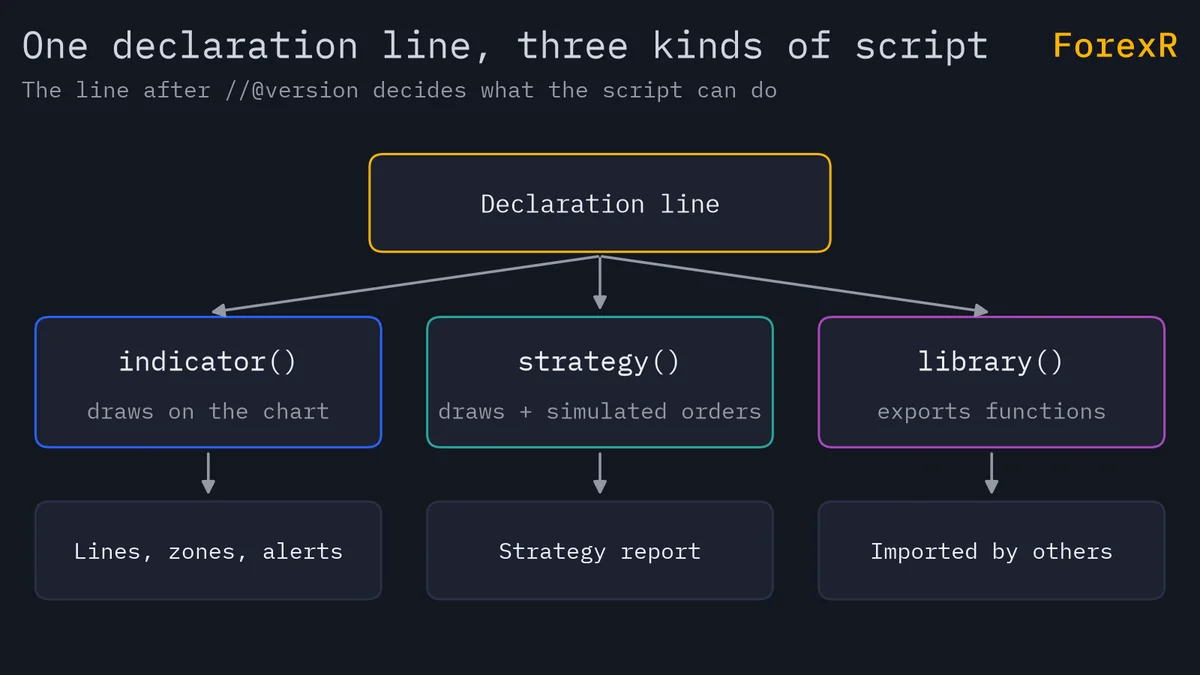
Every Pine Script (TradingView’s programming language for chart tools) starts with a version line such as //@version=6, then one declaration statement. The three possible declarations are indicator(), strategy() and library(), and every script must have one. The Pine Script Library lists all three types, and how to use the Pine library shows how to browse it.
What Does an Indicator Do on the Chart?
An indicator() script calculates values from price and volume and displays them. TradingView requires it to produce some output, for example plot(), plotshape(), barcolor(), a line or label drawing, or an alert() call. It never places a simulated trade, so it has no profit figure to show. Examples are a moving average, an RSI line or a box marking a session.
Indicators are the biggest group in the library: 7,612 of its 10,850 scripts. Read their signals as descriptions of the past, not as predictions. Our guides to the moving average and RSI explain two classic examples.
Overlay or Own Pane: Where Does a Script Draw?
The overlay setting in the declaration decides where the output appears. With overlay=true, the script draws on the main price chart, which suits moving averages, bands and trade markers. Without it, the script draws in a separate pane below the chart, which suits oscillators such as RSI (a line that moves between fixed limits and would be squashed on the price scale).
The library shows this for you. Each page says “Indicator · Pine Script v5 · Own pane” or similar, the Details table has a “Draws” row, and the filters include “On the price chart” and “Separate pane”. The setting applies to indicators and strategies alike.
What Does a Strategy Add?
A strategy() script contains the same kind of calculations, plus order commands such as strategy.entry(), strategy.exit() and strategy.close(). TradingView’s broker emulator (its built-in simulator) turns those commands into pretend trades on past bars. It plots trade markers on the chart and fills a strategy report, a tab in the bottom panel with Metrics and Trades sub-tabs. This is the Strategy Tester view.
By default, the emulator fills a market order at the open of the bar after the one that sent it, because on historical bars the script runs once a bar has closed. Strategy results depend on the properties you set:
- Initial capital: the starting balance of the simulated account.
- Order size: a fixed quantity, set in the script’s declaration and adjustable under “Default order size” in the Properties tab.
- Commission: a script that does not specify one applies no commission to filled orders. That flatters the result, so add a realistic figure.
- Slippage: the difference between the price you expected and the price you got. It sits in the same Properties tab as commission.
- Pyramiding: how many entries in the same direction are allowed. The default is 1, meaning the strategy can open a position but not add to it. A higher number lets it stack positions.
You reach these through the chart’s strategy Settings, in the Properties tab. Our guide to backtesting a Pine strategy walks through them.
What Is a Pine Library For?
A library() script exists to share code. It must export at least one function, method, type or enum, and only exported items are visible to scripts that import it. The import line looks like import username/libraryName/version, and the version number is written out, so your script does not change when the author later updates the library.
Three rules matter when you use one:
- Publishing: a library must be published, privately or publicly, before another script can import it. A public script can only import public libraries.
- Open source: TradingView publishes all libraries as open source.
- No alerts from the chart: you cannot create an alert directly from a library running on a chart.
So pasting a library into the Pine Editor and pressing Add to chart is not how you use it. It is a helper for someone writing an indicator or strategy. There are 198 libraries in the libraries section, against 7,612 indicators and 3,040 strategies. If you only want something to look at on a chart, start with the indicators.
How Do Alerts Differ Between the Three?
Alerts are where the types behave most differently. TradingView offers two functions in code, and strategies add a third route:
- alertcondition(): works in indicators. It compiles in a strategy, but no alert can be created from it. The message is fixed text, the call must sit at the start of a line (not inside an if block), and you pick the frequency in the Create Alert dialog.
- alert(): works in indicators and strategies. The message can change from bar to bar, the call can sit inside conditions, and the script sets the frequency (once per bar, once per bar close or every call).
- Order fill alerts: for strategies only. You can create one on any strategy with no special code, and it fires when the simulated order fills. The user can choose order fills, alert() calls or both.
In a strategy, alert() calls fire once per bar close by default, whatever frequency the code asks for, unless the strategy turns on calc_on_every_tick. Alerts only trigger on the realtime bar, never on past ones. Sending alerts to a MetaTrader account is a separate topic; see TradingView alerts to MT4 and MT5.
Indicator vs Strategy vs Library: Comparison Table
| Feature | Indicator | Strategy | Library |
|---|---|---|---|
| Declaration | indicator() | strategy() | library() |
| Main purpose | Show information on the chart | Show information and simulate trades | Share reusable code |
| Simulated trades and report | No | Yes | No |
| Overlay or own pane | Either | Either | Not its purpose |
| alertcondition() | Yes | No alerts from it | No alert from the chart |
| alert() | Yes | Yes | No alert from the chart |
| Order fill alerts | No | Yes | No |
| Import by other scripts | No | No | Yes, after publishing |
How Do You Tell Which One a Script Is Before You Paste It?
Look for the declaration near the top of the code. The word inside indicator(, strategy( or library( settles it, even if the title says otherwise. In the ForexR library you can tell without opening the code: the filter list has Type with Indicator, Strategy and Library, each card carries the label, and the Details table has a Type row that also shows the Pine version.
Check the version line too. v4, v5 and v6 differ in syntax, and the library records which one each script uses. Then see how a script treats its signals: repainting in TradingView explains why a strategy’s history can look better than live trading.
How Do You Turn an Indicator Idea Into a Strategy?
At a high level, the steps are:
- Write the rule in words: “enter long when the fast average crosses above the slow one.”
- Change the declaration: replace indicator() with strategy() and set initial capital, order size, commission and slippage.
- Replace the signal with an order: where the indicator drew an arrow, call strategy.entry() instead.
- Add the exit: use strategy.exit() or strategy.close() for a stop-loss, a target or an opposite signal. Many scripts omit the stop, and the library flags strategies that enter without one.
- Check the report: look at the trade list and the drawdown, not only net profit.
The signals themselves stay the same, so any weakness in the indicator moves into the strategy, and a tidy backtest says nothing about future trades.
When Do You Want Which?
- Indicator: you want to see something on the chart and make the decisions yourself. This suits trend and oscillator tools.
- Strategy: you want to test a defined set of entry and exit rules on history. Browse the strategy list.
- Library: you are writing your own script and want ready-made functions.
Whichever you choose, indicators describe the past and a backtest can look better than live trading. CFDs and leveraged trading carry a high risk of losing money, so test on a demo account first and only risk money you can afford to lose.
FAQ
Can I use an indicator as a strategy in TradingView?
Not directly. An indicator has no order commands, so TradingView cannot simulate trades from it. You need a strategy() version of the script with entry and exit commands. Some authors publish both versions of the same idea, or you can set alerts on the indicator’s signals and trade them by hand.
Why does my strategy show no trades in the Strategy Tester?
Usually the entry conditions never become true on the chosen symbol, timeframe or date range, or the script has no order command that runs. Check that you added a strategy and not an indicator, widen the visible history, and read the Trades tab. Pyramiding set to 1 also stops extra entries while a position is open.
Can I add a Pine library straight to my chart?
A library is built to be imported by other scripts, and TradingView does not let you create an alert directly from one. It is useful when you are writing an indicator or strategy and want its exported functions. If you only want something to look at on a chart, use an indicator instead.
What does overlay=true mean in Pine Script?
It tells TradingView to draw the script’s output on the main price chart instead of in a separate pane below it. Moving averages and bands usually overlay the price, while oscillators such as RSI normally sit in their own pane because their scale differs from price.