Pine Script Alerts: alertcondition(), alert() and Webhooks

How Do Pine Script Alerts Work?
A Pine Script alert is a condition your script checks on every bar. When the condition is true, TradingView sends you a message by pop-up, email, phone app or webhook. You make the condition in code with alertcondition() or alert(), then switch it on in the Create Alert dialog.
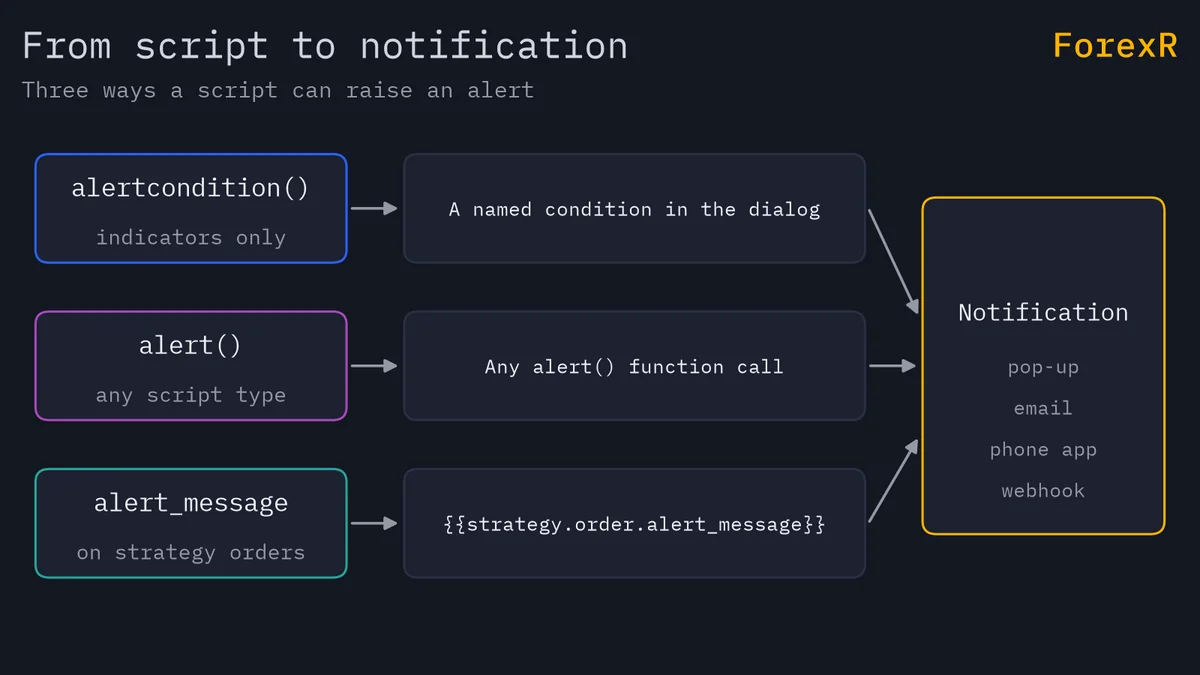
The script only decides when to speak. TradingView does the sending, from its own servers, so the alert can fire while your browser is closed. This guide covers the two functions, the message placeholders and strategy alerts. If you are new to scripts, start with indicators, strategies and libraries to see where alerts fit in each type.
alertcondition() vs alert(): Which Should You Use?
Both functions raise alerts, but they behave differently. The table shows the main differences.
| Point | alertcondition() | alert() |
|---|---|---|
| Works in | Indicators only | Indicators and strategies |
| Message | Fixed text, may hold placeholders | Built in code, can change each bar |
| Frequency | Chosen in the dialog | Set in the call with a constant |
| Shows in dialog as | A named item in the Condition list | A script alert that fires on its calls |
Use alertcondition() when you want a tidy list of named conditions, such as “Fast crosses above slow”. Use alert() when the message must carry numbers you work out in code, or when your script is a strategy. Calling alertcondition() inside a strategy does not cause an error, but you cannot create an alert from it.
How to Write an alertcondition()
The call is alertcondition(condition, title, message). The condition is a series of true/false values, one per bar (a series is a value that has one entry per bar). The title is the name you see in the dialog. The message is the text sent, and it must be a fixed string known when the script compiles. It must start at the left edge of the code, so you cannot put it inside an if block.
Below is a short indicator with both functions. It plots two EMAs (exponential moving averages, averages that weight recent prices more) and raises an alert when they cross. You can find many similar scripts in the indicator section of the Pine Script Library.
//@version=6
indicator("EMA Cross Alerts", overlay = true)
fastLen = input.int(9, "Fast EMA", minval = 1)
slowLen = input.int(21, "Slow EMA", minval = 2)
fast = ta.ema(close, fastLen)
slow = ta.ema(close, slowLen)
crossUp = ta.crossover(fast, slow)
crossDown = ta.crossunder(fast, slow)
plot(fast, "Fast", color.teal)
plot(slow, "Slow", color.orange)
alertcondition(crossUp, "Fast crosses above slow", "Bullish cross on {{ticker}}, close {{close}}")
alertcondition(crossDown, "Fast crosses below slow", "Bearish cross on {{ticker}}, close {{close}}")
if crossUp
    alert("Bullish cross on " + syminfo.ticker + " at " + str.tostring(close), alert.freq_once_per_bar_close)
The two alertcondition() lines make two named conditions. The last two lines use alert() with a message built from the ticker and the close price. Having both in one script is only for teaching: if you switched on both alerts, you would get two messages for one cross.
How Do You Create the Alert in TradingView?
- Add the script to your chart. Use a chart with the symbol and timeframe you want to watch.
- Open the Create Alert dialog from the chart.
- In the Condition field, pick your script. For an
alertcondition()alert, then pick the named condition. For analert()alert, choose the option that lets the script’salert()calls trigger it. - Check the Message field. For
alertcondition()it holds your fixed text, and you can edit it and add placeholders. - Choose how you want to be told, such as a pop-up, an email or a Webhook URL, then create the alert.
The dialog’s wording and options change from time to time, so read what you see on screen. TradingView’s own help pages describe the current version. Alerts also expire after a set period unless your plan keeps them running, so check your alert list now and then.
What Do the alert() Frequency Constants Mean?
The second argument of alert() is the frequency, which says how often calls can fire. There are three constants:
alert.freq_once_per_bar: the default. Only the first call on each live bar fires.alert.freq_once_per_bar_close: fires only when the live bar closes, and only if a call runs on that final update.alert.freq_all: every call on the live bar fires, so you can get many messages in one bar.
For a cross signal, the bar-close constant is the calmest choice, because the bar is finished and the condition cannot change. TradingView’s documentation adds one detail for strategies: unless calc_on_every_tick is on, a strategy recalculates at the bar close, so every alert() call there behaves as the bar-close constant whatever you pass.
Which Placeholders Can You Use in the Message?
A placeholder is a word in double curly brackets that TradingView swaps for a real value when the alert fires. These work in alertcondition() messages and in the dialog’s Message field:
{{ticker}}: the symbol, for example the pair name.{{exchange}}: the exchange or data source of the symbol.{{interval}}: the chart timeframe.{{open}},{{high}},{{low}},{{close}},{{volume}}: values of the bar that triggered the alert.{{time}}: the bar’s start time in UTC.{{timenow}}is the moment the alert fired.{{plot_0}}to{{plot_19}}: the values of your plots, numbered in the order they appear in the script.
So "Go long. Fast EMA is {{plot_0}}" would print the first plot’s value. Inside an alert() call you build the text yourself with string functions such as str.tostring(close), as the script above does.
How Do Strategy Alerts and alert_message Work?
A strategy places simulated orders, and its alerts can fire when those orders fill. In the Create Alert dialog you can choose whether order fills, alert() calls or both trigger the alert. To give each order its own text, add the alert_message argument to strategy.entry(), strategy.exit(), strategy.close() or strategy.order():
strategy.entry("Long", strategy.long, alert_message = "buy " + syminfo.ticker)Then type {{strategy.order.alert_message}} into the alert’s Message field. TradingView puts each order’s own text there when it fills. If an order has no alert_message, the placeholder becomes an empty string. Other placeholders do not work inside the alert_message value itself. To learn how the orders themselves are built, read how to build a moving average crossover strategy.
What Is the Webhook URL Field For?
A webhook is a web address that receives your alert message the moment it fires. In the dialog you tick the Webhook URL option and paste the address; TradingView then sends the message there. Webhooks are available on paid plans. A script cannot place broker orders by itself, so a webhook is the first link in a longer chain: a receiver, then software on your trading platform. Our guide on sending TradingView alerts to MT4 or MT5 walks through that whole chain and its failure points.
Why Do Repainting Scripts Give False Alerts?
Repainting means a signal on the chart changes after it first appears. During a live bar the close, high and low keep moving, so a cross can be true at one tick and false a minute later. An alert that fires on the first tick (the default alert.freq_once_per_bar) sends the message even if the cross later disappears. The chart then looks clean while your phone already buzzed.
To reduce this, fire on bar close, or test barstate.isconfirmed (true only on the last update of a bar). Our guide to repainting explains the causes, and how Pine Script runs bar by bar explains why the live bar behaves this way. When you download scripts from the Pine Script Library, read the Risk Notes before you trust their alerts, and edit the script if you need to change when it fires.
An alert is a prompt to look at the chart, not a reason to trade. It cannot tell you if the signal is good, it can arrive late or not at all, and it does not manage risk. Leveraged forex and CFD trading carries a high risk of loss, so risk only money you can afford to lose.
FAQ
What is the difference between alertcondition() and alert() in Pine Script?
The alertcondition() function makes named conditions that you pick in the Create Alert dialog. It is for indicators and its message is fixed text. The alert() function builds its message in code, works in indicators and strategies, and takes a frequency argument. Use alert() when the message needs live numbers.
Why does my TradingView alert fire only once?
Two things to check: the alert’s trigger setting, since some options stop the alert after one trigger, and its expiry, since alerts end after a set period. Look in your alert list to see if it is still active, and confirm the condition really repeats on later bars.
Can a Pine Script alert include the price in its message?
Yes. With alertcondition() you can put the close placeholder, written with double curly brackets, in the message and TradingView fills in the closing price of the bar that triggered it. With alert() you build the text in code, for example with str.tostring(close). Remember the price comes from TradingView’s data, which may differ slightly from your broker’s.
Do TradingView alerts work when my computer is off?
Alerts run on TradingView’s servers, so they can fire while your browser is closed and your computer is off. You still need an active alert that has not expired, and a way to receive it, such as the phone app, email or a webhook. Delivery can be late or occasionally missed.