How to Backtest a Pine Script Strategy in TradingView

How Do You Backtest a Pine Script Strategy in TradingView?
Add the strategy to a chart from the Pine Editor or the Indicators menu, open the Strategy Report at the bottom of the screen, then set realistic costs in the strategy’s Properties before you read any numbers. Check the trade list, the drawdown and the number of trades, because the headline profit alone says very little.
A backtest replays a rule set on past prices. It shows how the rules would have behaved, not how they will behave next. Our general guide to backtesting and keeping a trading journal covers the ideas; this one covers TradingView. The strategies in the Pine Script Library give you open-source code to practise on, and how to add a Pine Script to TradingView gets one onto a chart.
How to Add a Strategy and Open the Strategy Report
A strategy is a Pine script that places simulated orders, unlike an indicator, which only draws (see indicators, strategies and libraries). Once it is on the chart:
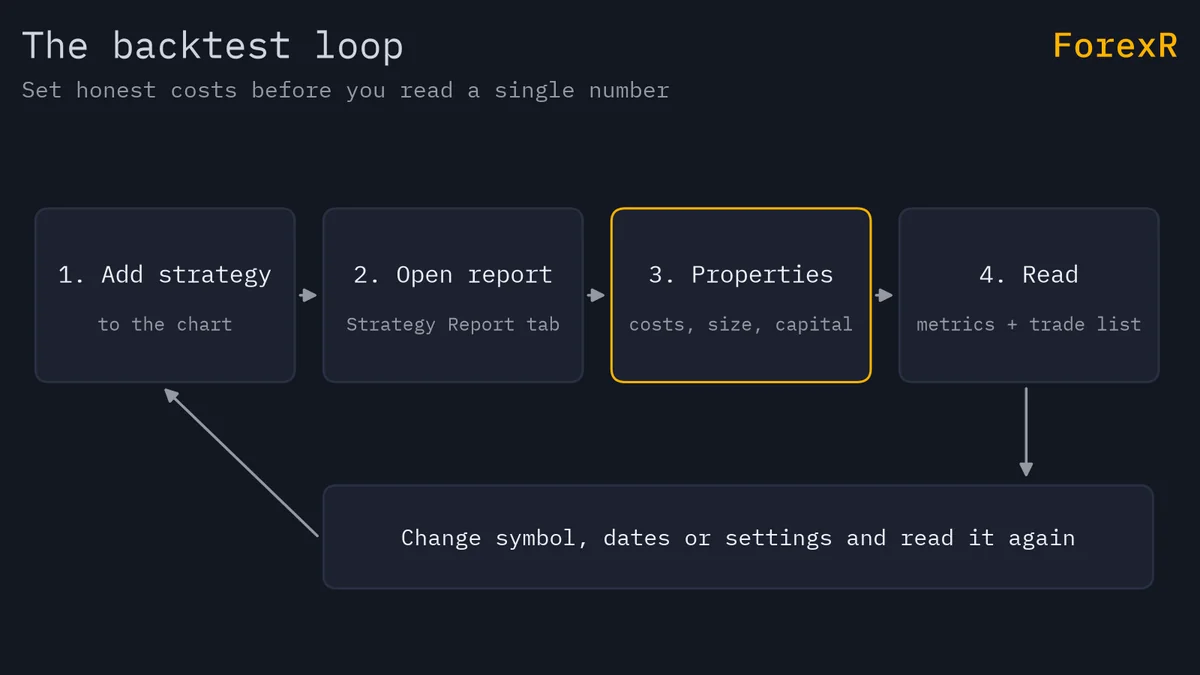
- Open the Pine Editor, paste the code and choose Add to chart, or add a published strategy from the Indicators menu.
- Open the report from the panel at the bottom of the chart. TradingView calls it the Strategy Report; many traders still say Strategy Tester.
- Open the strategy’s settings (the gear icon on its name) and go to the Properties tab.
- Change the symbol, timeframe and chart range, and watch the report update.
Which Numbers in the Report Matter?
The report’s Metrics tab shows the headline figures, and a trade list shows every simulated trade with its entry, exit and result. Other sections break results down by period and by long and short trades, and show how much margin was used. The names below follow TradingView’s current wording and may change.
- Total P&L: net profit or loss over the test. The headline, and the least useful number alone.
- Max drawdown: the biggest fall from a peak to a later low. This is what you would have had to sit through; the drawdown calculator shows the gain needed to recover from any fall.
- Profit factor: gross profit divided by gross loss. Above 1.0 made money in the test; a thin margin rarely survives real costs.
- Profitable trades: the share of winners. A high figure with tiny wins and huge losses is a warning, not a comfort.
- Number of trades: the sample size. A few dozen prove little.
- Average trade: the average result per trade. If it is smaller than your real spread plus slippage, the edge is fragile.
Then read the List of Trades. Look for a few huge winners carrying everything, long losing streaks, and trades that never close.
Why Do Default Settings Flatter a Backtest?
Open the Properties tab and set these before you trust anything. A script’s author can set defaults in the code, and you can override them.
- Initial capital: the starting balance. Use what you would really trade with, not a round million.
- Order size: how much each trade buys or sells, as a fixed quantity, a cash amount or a percentage of equity. Risking a large percentage on every trade makes a lucky run look spectacular. The position size calculator shows what a sensible size looks like, and position sizing explains why it matters.
- Commission: the fee per trade, which can be a percentage, a fixed cash amount or a charge per contract. Use your own account’s costs.
- Slippage: the gap between the price you expected and the price you got, entered in ticks (the smallest price step). It defaults to zero, so every fill is perfect until you change it.
- Margin (leverage): leverage lets you open trades larger than your deposit. The default margin of 100% is 1:1, so a strategy that looks leveraged in real life may be tested without it.
- Pyramiding: how many entries in the same direction the strategy may stack. The default of 1 allows none; a higher number can stack risk quietly.
A strategy that makes money at zero cost and loses it after one tick of slippage does not have an edge worth trading. Retest with costs wider than your guess.
How Does TradingView Decide Where Orders Fill?
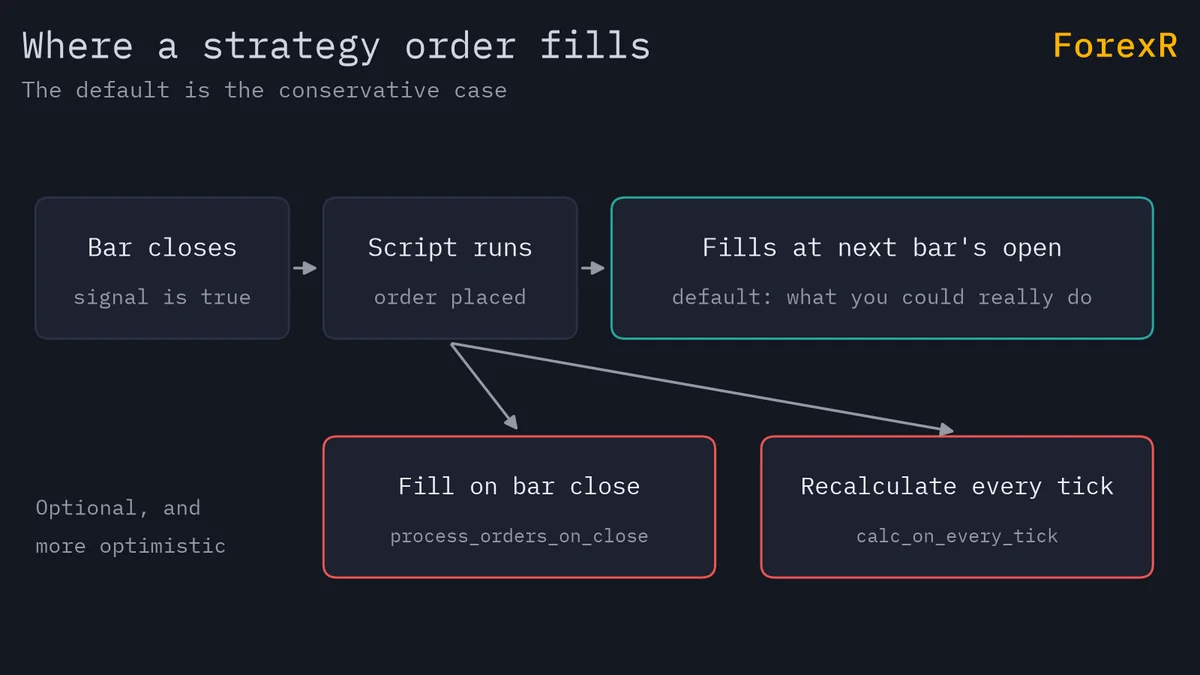
By default, a strategy runs once at the close of each bar, so a market order it places fills at the open of the next bar. That is the honest, conservative case. Two settings change it, and both make results look better than live trading:
- Fill on bar close (process_orders_on_close in the code): fills an order at the close of the bar that signalled it. You usually cannot act on a signal at the very price that produced it.
- Recalculate on every tick (calc_on_every_tick): makes the strategy recalculate on every price change while the latest bar forms. Live behaviour then differs from history, which was only ever calculated at bar close.
Inside a bar, the tester only knows the open, high, low and close. If a stop-loss and a target both sit within one candle, it has to guess which was hit first. Bar Magnifier uses data from a lower timeframe to fill orders more precisely; on paid plans you can switch it on. Deep Backtesting, also on paid plans, unlocks a symbol’s full price history so the report covers more trades than the default range. Its extra trades live in the report, not on the chart, so the two can look different.
Repainting and Lookahead: Traps That Inflate Results
A repainting script changes its past signals after the fact, so history looks perfect while live trading does not match. Two causes matter most in strategies:
- Using the unfinished bar. A signal that appears mid-bar and disappears at the close was never tradable. Authors guard against it with barstate.isconfirmed, which is true only on a bar’s final update, at the cost of later signals.
- Lookahead with higher timeframes. When a script reads another timeframe through request.security with lookahead on and no offset, historical bars can see higher-timeframe values before they existed. The result is a backtest that quietly knows the future.
Our guide on repainting in TradingView explains how to spot both. The Pine Script Library flags repainting and lookahead on each script’s page; treat any flag as a reason to read the code before you read the profit.
Too Few Trades, Curve Fitting and Out-of-Sample Tests
Too few trades. Twenty trades is an anecdote. Extend the date range, try other symbols and timeframes, and look at how the result changes.
Curve fitting (also called overfitting) means tuning inputs until the strategy matches the past, noise included. Signs are many inputs, odd values such as a 37-period average, and results that collapse when you change a setting slightly. A sound idea works across a neighbourhood of values, not at one magic number.
In-sample versus out-of-sample. In-sample data is the period you used to design and tune the strategy. Out-of-sample data is a later period you set aside and test once, without changing anything. If the strategy holds up on both, that is a better sign than a great in-sample curve. Test across trends, ranges and news shocks; our guide to backtesting an EA applies the same method to MetaTrader.
Forward testing. Run the rules on a demo or paper-trading account in real time, with real spreads and your own reaction to signals. Weeks of this expose problems a backtest cannot.
Checklist Before You Trust a Backtest
- Costs: your real commission and slippage, then a wider set.
- Size: a realistic starting balance and a risk per trade you could live with.
- Fills: no same-bar fills or realtime-tick recalculation unless you can explain them.
- Repainting: no unconfirmed-bar signals and no unoffset lookahead.
- Sample: hundreds of trades over several market conditions.
- Drawdown: a max drawdown you would actually tolerate; check what it does to your odds with the risk of ruin calculator.
- Robustness: small input changes leave the result similar, and out-of-sample results are close to in-sample ones.
- Forward test: a period on demo before any real money.
A backtest only shows that a set of rules survived the past with the data and costs you gave it; it cannot predict the next trend or news shock. Automated and leveraged trading of forex and CFDs carries a high risk of losing money, so only risk money you can afford to lose.
FAQ
Why does my TradingView backtest look so good?
Usually because the default settings are kind. Commission and slippage start at zero, so every trade is free, and a small sample or a strategy tuned to one stretch of history can look excellent. Add realistic costs, test on data the strategy was not tuned on, and check that it does not repaint.
How many trades do I need for a reliable backtest?
There is no magic number, but a few dozen trades prove very little because one lucky run can dominate the result. Many traders want at least a few hundred trades across different market conditions. If the strategy trades rarely, test a longer period or more symbols rather than trusting a short list.
What is Bar Magnifier in TradingView?
Bar Magnifier is a setting that lets the strategy tester use data from a lower timeframe to decide how orders were filled inside a bar, which matters when a stop-loss and a target sit in the same candle. On paid plans you can switch it on in the strategy settings. It improves the fills but does not make the result a forecast.
Can I trust a backtest from a published TradingView strategy?
Treat it as a claim to check, not a result. The author chose the symbol, timeframe, dates and costs. Open the strategy’s Properties, add your own commission and slippage, change the dates, and look for repainting before you give the numbers any weight.