Pine Script Errors and Limits: How to Fix the Common Ones

How Do You Fix Common Pine Script Errors?
Read the message, find the highlighted line, and check what that line is meant to do. Most errors are small: a name used outside the block where it was made, a wrong type, or a limit that the script has hit. Fix the first error in the list first, because later ones are often caused by it.
This guide sorts errors into three groups: compile errors, runtime errors and limits. It assumes you can already paste and run a script; if not, start with how to add a Pine Script to TradingView.
How Do You Read the Pine Editor’s Messages?
TradingView’s documentation describes three kinds of problem, each with a code that starts with two letters.
- CE, a compilation error: the script cannot start because of invalid syntax or another fault. The Pine Editor highlights the problem code in red and shows a message.
- CW, a compiler warning: the script still compiles, but something may not behave as you expect. The Pine Editor highlights that code in orange.
- RE, a runtime error: the script compiled, but failed while running on the chart data. The script shows a red exclamation-point icon in the chart’s status line.
Do not ignore warnings. A warning is cheaper to fix now than a wrong result later. Two that the documentation lists are CW10003, which says a function “should be called on each calculation for consistency”, and CW10026, which says an input “might not align correctly” in the Settings tab. Functions that keep their own history are safest when called at the top level of the script, not inside a condition, so move such a call out and use its result inside the condition.
What Does “Undeclared Identifier” Mean?
An identifier is a name, such as a variable or function. “Undeclared” means the script uses a name it has not made in a place where it can be seen. The documentation gives the most common cause: a variable is created inside an if block or a function, then used outside it. A block can read the names of the code around it, but not the reverse.
if close > open
    gap = close - open
plot(gap)
The snippet above does not compile, because gap only exists inside the if. The documented fix is to declare the variable at the top level first with a placeholder value, then change it inside the block with :=.
//@version=6
indicator("Scope fix")
float gap = na
if close > open
    gap := close - open
plot(gap)
The other common causes are a typing slip in a name, a function from an older version, and a missing version line. The versions guide explains the version line.
What Do Type Mismatch Errors Mean?
Pine checks that each value suits the place it goes. A number cannot be used where text is needed. A condition must be true or false, and the documentation lists a compile error (CE10101) for an if-style statement whose condition is not a bool. A value that changes on every bar cannot go where a fixed value is needed. In those cases, read the types named in the message, then look at the function’s entry in the Reference Manual to see what it accepts.
- Check the argument: is it the right type and the right position?
- Check the qualifier: “series” values can change per bar, while “simple” and “const” values are fixed earlier. A parameter that needs a fixed value will not accept a series.
- Convert on purpose: use
str.tostring()to turn a number into text, ormath.round()to round it.
What Do Runtime Errors Look Like?
Runtime errors appear only when the script runs on real data. Two are listed in the documentation’s message table:
- RE10143: “The requested historical offset (X) is beyond the historical buffer’s limit (Y).” The script looked back further than TradingView kept data for it. This is the historical buffer error, covered below.
- RE10139: “Memory limits exceeded.” The script holds too much, often a large array or many objects.
To track one down, find which bar or value triggers it. Many such errors depend on the chart: a script can run on one symbol and fail on another with fewer bars. Test on several symbols and timeframes.
What Are Pine Script’s Documented Limits?
The Limitations page lists these numbers. Quote them from there if they matter to you, since TradingView can change them.
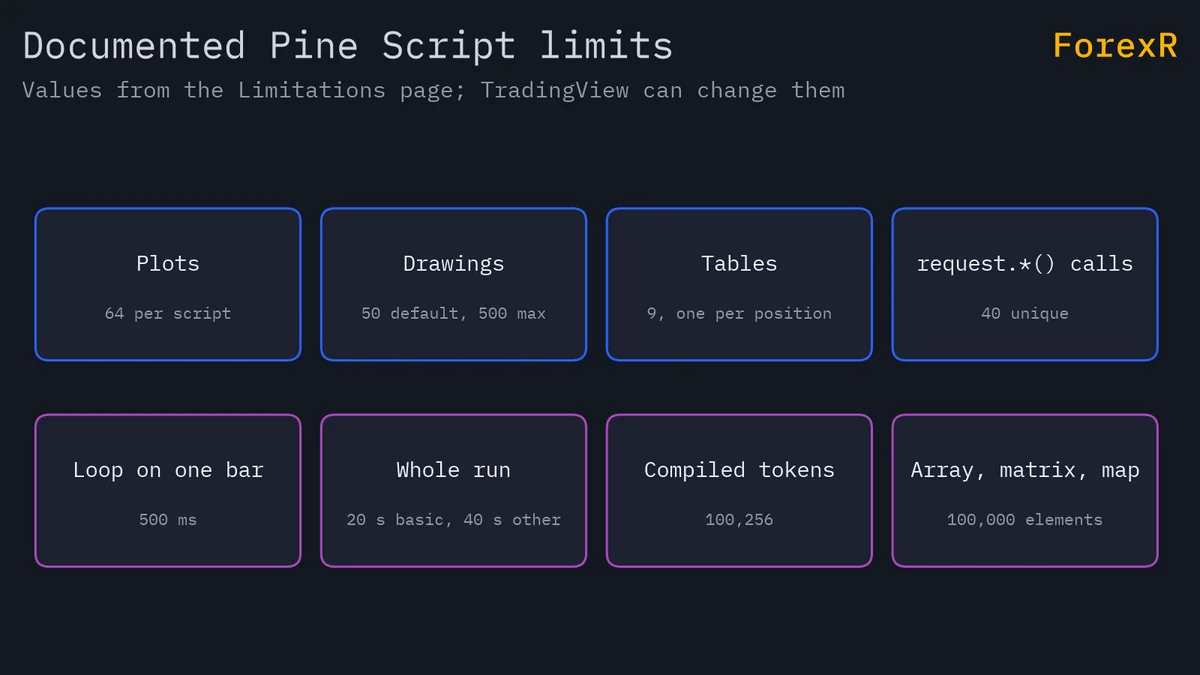
| Limit | Documented value |
|---|---|
| Plots per script | 64 plot counts; each plotting call uses 1 to 7 |
| Lines, boxes, labels shown | 50 by default; up to 500 with max_lines_count and similar |
| Tables | 9, one per chart position |
Unique request.*() calls | 40 per script |
| One loop on one bar | 500 ms |
| Whole execution time | 20 seconds on basic accounts, 40 on others |
| Compiled tokens | 100,256 per script |
The same page gives 100,000 as the largest number of elements in an array, matrix or map, and 1,000 variables per scope. A script that is too long fails to compile with CE10117, “Compiled code contains too many tokens.” Compiling itself has a two-minute limit. A loop that runs past 500 ms on a bar, or a script that runs past its total time, is stopped by TradingView, so keep loops short and avoid searching the whole history on every bar. The request.security guide covers the request limit in use.
What Is max_bars_back, and Why Does the History Error Happen?
Pine keeps a limited history of each series, which is a value that has one entry per bar. The documentation gives 5,000 bars for most series and 10,000 for open, high, low, close and time. Asking for a value further back than the buffer holds causes the RE10143 error.
The size can be changed with the max_bars_back parameter of indicator() or strategy(), or the max_bars_back() function. How far a script looks back is explained in how Pine Script runs. Prefer a smaller lookback: ask whether the script truly needs data that old.
How Do You Debug a Script Step by Step?
- Cut it down: comment out half the script and see whether the error remains.
- Plot the value: a
plot()shows the number in the status line and the Data Window. - Label the text: a label can show text built from several values. A tooltip keeps the chart tidy.
- Log it:
log.info()writes to the Pine Logs pane, but only for personal scripts, and the pane shows up to 10,000 logs from historical bars.
//@version=6
indicator("Debug demo", overlay = true)
len = input.int(14, "Length", minval = 1)
ma = ta.sma(close, len)
plot(ma, "SMA")
if barstate.islast
    string note = str.format("SMA = {0}, close = {1}", ma, close)
    label.new(bar_index, high, tooltip = note, force_overlay = true)
    log.info(note)
Hover over the label to see the text. The same method works for tracing the cause of a strange signal; for a signal that changes on the live bar, see repainting in TradingView. Real scripts in the Pine Script Library are a useful place to compare your code with working examples, and the v6 scripts use the same syntax as this guide.
A script with no errors is not a script that makes money. It only means the code runs, and it can still describe the past badly or fail when the market changes. Leveraged forex and CFD trading carries a high risk of loss, so only risk money you can afford to lose.
FAQ
Why does Pine Script say a variable is undeclared?
Usually because the variable was created inside an if block or a function and then used outside it. Names made inside a block cannot be seen from outside. Declare the variable at the top level first, for example with a value of na, and then assign it inside the block using the := operator.
What is the difference between a compile error and a runtime error?
A compile error stops the script before it starts, because the code is invalid, and the Pine Editor highlights the line in red. A runtime error happens while the script runs on chart data, so the script may compile but then show a red exclamation icon in the status line.
How many plots can one Pine Script have?
The documentation says 64 plot counts per script. A single call to a plotting function uses between 1 and 7 of them, depending on the function and its options, so you may hit the limit with fewer than 64 calls. Combine or remove plots you do not need.
How do I stop the historical buffer error?
The error means the script looked back further than the data TradingView kept for it. Reduce how far back the script reaches, or raise the buffer with the max_bars_back parameter of indicator() or strategy(). Also test on other symbols, because the amount of history differs between them.