How to Publish a Pine Script: Open Source, Private and Licences

How Do You Publish a Pine Script on TradingView?
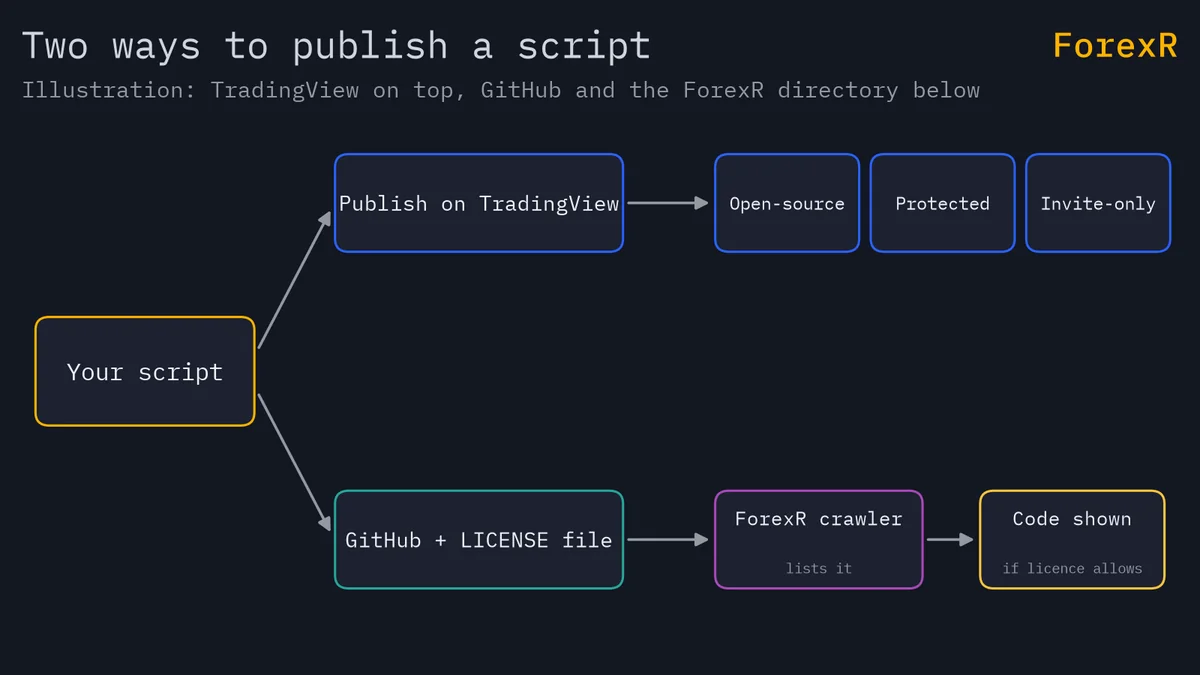
Open the script in the Pine Editor, put it on a chart, and press the “Publish indicator/strategy/library” button in the top-right corner. Enter a title and description, choose whether the script is public or private and whether its code is open, protected or invite-only, then press the final Publish button.
Those choices are hard to undo, so read this guide before you click. It assumes you can already write a script; if not, begin with your first indicator.
What Is the Difference Between Open, Protected and Invite-Only?
TradingView calls this setting “visibility”. It is chosen on the second page of the publish window and cannot be changed after publishing.
| Visibility | Who sees the code | Who can use it |
|---|---|---|
| Open | Everyone | Everyone |
| Protected | Only you | Everyone |
| Invite-only | Only you | Only users you invite |
Protected and invite-only scripts need a paid plan. Invite-only authors must write “Author’s instructions” and count as vendors, with extra requirements. Per the documentation, public invite-only scripts are the only published scripts that may require payment. That rule stands on TradingView’s side; ForexR does not sell or endorse scripts.
What Is the Difference Between Public and Private?
- Public: listed in the community scripts feed and findable by everyone. Moderators review public scripts, and ones that break the rules are hidden. You can edit or delete a public publication only for 15 minutes after you publish it.
- Private: not searchable, visible only to people with the link. You can always edit or delete it, so it works well as a draft.
A sensible routine is to publish privately first, check how the page looks, then publish a public version when it is ready. Because libraries are always open source, a private library is still imported the same way; functions and libraries covers that.
What Licence Does an Open-Source Script Use?
The documentation says all open-source scripts on TradingView use the Mozilla Public License 2.0 by default. Authors who prefer another licence can state it in the source code. A licence is a set of terms that says what other people may do with your code. Three well-known choices:
- MPL-2.0: the TradingView default. If someone changes your files and shares them, those files stay under the same licence.
- MIT: very short and permissive. People may reuse the code if they keep your copyright notice.
- GPL-3.0: stricter. Shared changes must stay open under the same licence.
Pick one on purpose, write it at the top of the file, and keep it there when you edit. Licence text is legal language, so for anything commercial, ask a qualified person. The same goes for code you copy: how to edit a Pine Script explains how to keep the author’s licence and credit lines.
What Are the House Rules?
Publications must follow TradingView’s House Rules and its Script Publishing Rules. Points from the documentation:
- Title and description: neither may be empty. The title uses English in standard 7-bit ASCII with no emoji, and avoids all-caps words (except abbreviations), misleading claims and advertising. The description explains what the script does, how it works, how to use it and why it is original.
- Chart: the script must be active, with only necessary visuals, and the symbol, timeframe and script name visible. Show the default settings.
- Reuse: reused code must credit the original author, add meaningful improvements and stay open source unless the author agrees otherwise.
- Strategies: use realistic starting capital, commission, slippage and margin values. The documentation says risking more than 10% of equity per trade is generally not seen as sustainable, and aims for about 100 or more trades in the default setup.
Do not publish a strategy on Heikin Ashi, Renko or Kagi charts, since the documentation excludes non-standard charts for strategies, alerts and trade signals. The reason is the same one in how to backtest a Pine strategy: results must be reproducible.
What Should You Check Before You Press Publish?
- Test it: run the script on several symbols and timeframes, and read the error pane. Pine Script errors and limits helps with that.
- Credit others: if you reused code, name the author in the description and in the source. The documentation says reuse needs credit and meaningful improvement.
- Describe honestly: say when the script fails, such as in a sideways market, and whether it can repaint.
- Choose the licence: write it in the source before you publish.
- Start private: look at the page, then go public.
How Do You Update a Published Script?
The “Edit” button on the script page changes only the title, description and tags. To change the code, open the publish window and choose “Update existing script” at the top of the first page. Pick the script, add release notes, check the difference viewer, press “Continue”, then press “Publish new version”. Release notes are final once published, so proofread them.
How Do You Share a Script on GitHub Instead?
GitHub is a site where programmers share code. Many authors put the .pine file in a repository next to a README and a licence file. Choose MIT or GPL-3.0 and add the licence text as a LICENSE file in the repository, so anyone who finds the code knows what they may do with it. A short README should say which Pine version the script uses, what it draws, and what its settings do.
// Prior day levels
// Author: your name
// Licence: MIT (see LICENSE file in this repository)
//@version=6
indicator("Prior day levels", overlay = true)
The comment lines above the version line carry credit and licence. GitHub is also where open-source EAs live; open-source forex EAs on GitHub covers licences for MetaTrader code.
How Does ForexR List Scripts From GitHub?
The ForexR Pine Script Library is a free directory of open-source Pine scripts published on GitHub. A crawler searches GitHub every week for new Pine files, and stars, update dates and licences are refreshed daily. A repository needs at least one star to be listed, and copies of the same code are listed once. Each page links back to the original repository and file.
Whether a page shows the code depends on the licence. Open licences such as MIT, GPL and Apache, or TradingView’s Mozilla Public License 2.0 header, let ForexR show the source. For other files, the page says “The code stays on GitHub” and the Copy script button reads the file from GitHub. So a clear licence line makes your script easier to find and share, and you can see how it will look by browsing the indicators category. How to use the Pine library shows the page from a reader’s side.
Publishing a script does not make it good. ForexR does not test or recommend any script, and a published script can still repaint, overfit or fail in a range. Leveraged forex and CFD trading carries a high risk of loss, so only risk money you can afford to lose.
FAQ
Can I sell a Pine Script on TradingView?
Under the documentation, public invite-only scripts are the only published scripts that may require payment. Open-source, protected and private scripts cannot be sold. Authors of invite-only scripts count as vendors and must meet extra requirements, so read TradingView’s current rules before you set any terms.
Can I change a script from open to protected after publishing?
No. The documentation says visibility and privacy are chosen when you publish and cannot be changed afterwards. If you need a different setting, you have to publish a new script. Decide on the setting before you press publish, and use a private publication as a draft.
Do I need a licence file to put Pine code on GitHub?
Nothing forces you, but without a licence other people have no clear permission to reuse your code. Adding a LICENSE file with MIT or GPL-3.0 text, and a comment at the top of the script, makes the terms plain. For legal questions about licences, ask a qualified person.
Why does my script not show its code in the ForexR library?
The library shows source code only when the licence allows it, such as MIT, GPL, Apache or a Mozilla Public License 2.0 header. With no clear licence, the page says the code stays on GitHub and the Copy script button reads the file from there. A visible licence line is the usual fix.