How to Send TradingView Alerts to MT4 or MT5

Can TradingView Alerts Place Trades on MT4 or MT5?
Not directly. TradingView can send an alert to a webhook, a web address that receives a message. To trade, you need a receiving program that accepts it and an expert advisor (EA, a trading robot) running in MetaTrader that reads the signal and places the order. Each link in that chain can fail, so every one needs testing.
People build this to keep charts and signals on TradingView while the money sits in a MetaTrader account. It is an advanced project: you are connecting a charting site, a server and a trading platform, and a mistake at any link can place wrong orders. Read how to use MetaTrader and MT4 vs MT5 first if either is new to you.
The Chain From Alert to Order
Four links connect a TradingView signal to a MetaTrader order:
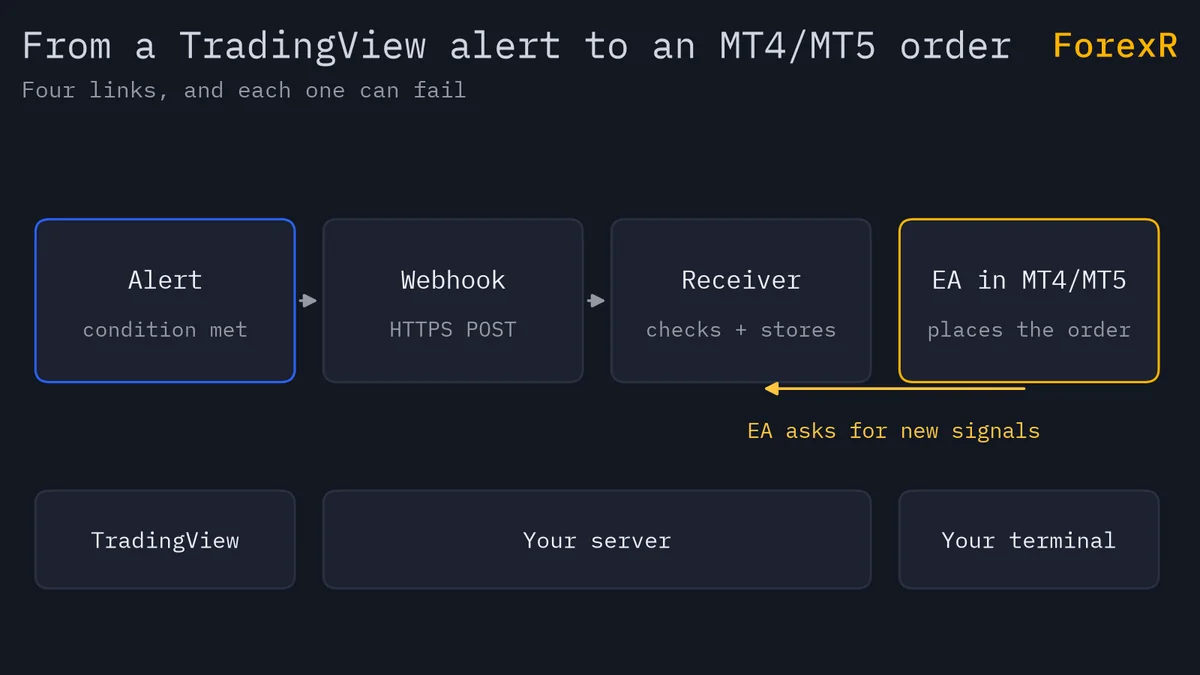
- Alert: a rule in TradingView fires when a condition is met.
- Webhook: TradingView sends the alert’s message as an HTTP POST to a URL you give it.
- Receiver: a small server or bridge accepts the message, checks it and holds it for the terminal.
- EA: an EA in MT4 or MT5 asks the receiver for new signals and places the order.
The EA has to do the asking because MetaTrader terminals usually sit behind a home or office connection and cannot be called from outside. That is why the receiver exists.
Step 1: Create the Alert in TradingView
An alert can come from three places in Pine Script, and the choice matters:
- alertcondition(): used in indicators. Its message is fixed text, though it can contain placeholders, and it has no setting for how often it fires.
- alert(): works in indicators and strategies and can build its message in code, so the text can vary from bar to bar. It also takes a frequency, such as once per bar close.
- Strategy alerts: a strategy alert can fire when the strategy’s simulated orders fill. Add {{strategy.order.alert_message}} to the message box to include the text each order was given in code.
The message can contain placeholders that TradingView fills in when the alert fires. Common ones include {{ticker}}, {{exchange}}, {{interval}}, {{close}}, {{time}} and, for strategy alerts, {{strategy.order.action}} and {{strategy.order.contracts}}. Remember that the close price is TradingView’s feed, which may differ from your broker’s quote.
Choose a format your EA can parse and keep it short. Valid JSON is sent with a JSON header; any other text goes as plain text. Our guide to repainting in TradingView matters here: an alert that fires on an unfinished bar can fire and then vanish.
Step 2: Set Up the Webhook
In the alert dialog, switch on the webhook option and paste your URL. Know the limits:
- Webhooks are available on paid plans only.
- Two-factor authentication (2FA) must be switched on for your TradingView account.
- Only ports 80 and 443 are accepted, and IPv6 is not supported.
- If your server takes longer than about three seconds to reply, TradingView cancels the request. Reply at once and process afterwards.
- Webhooks may occasionally fail to arrive. The alert log has a Webhook status column; check it.
Step 3: Find a Receiver and an EA
You can write your own receiver, a few lines of code on a server you control, or adapt open-source code. The copiers and bridges section of the EA Library lists free, open-source projects of this kind from GitHub, and the wider EA Library holds EAs you can read for order-placing code. Copiers and bridges are not alerts-specific, so you may need to adapt them.
Read any code before you run it. It will hold the power to trade your account, so apply the same checks as in how to choose a safe forex EA. Skip anything that ships unreadable executables, asks you to disable your antivirus or wants your password.
Step 4: Let the EA Talk to Your Receiver
An EA that fetches signals from the internet uses the WebRequest function, and MetaTrader blocks it until you allow the address:
- In MT4 or MT5, open Tools > Options > Expert Advisors.
- Tick Allow WebRequest for listed URL.
- Add your receiver’s address to the list and press OK.
Also make sure automated trading is switched on and the EA is allowed to trade; how to install an EA in MT4 and MT5 covers installation and common errors. WebRequest does not work inside the Strategy Tester, so you cannot backtest this chain.
Security: Who Can See Your Webhook?
- Never put credentials in a message. No account numbers, passwords or API keys. The EA is already logged in.
- Treat the URL as a secret. Anyone who learns it can send fake signals. Use a long random path or a shared secret in the message, and make the receiver reject anything without it.
- Limit what a signal can do. Accept only known symbols, directions and sizes, and cap the lot size in the EA itself.
- Use HTTPS so messages are encrypted in transit.
- Watch shared alerts and screenshots. Alert messages can show up in logs, emails and shared screens.
What Goes Wrong: Latency, Misses, Duplicates and Symbols
- Latency: every hop takes time, and the EA only checks at intervals. Fine for a daily-close signal, risky for fast scalping. The fill price will differ from the alert price.
- Missed alerts: the terminal was off, the server was down, or a webhook failed. Decide what the EA does with a signal that arrives late; ignoring stale ones is safer.
- Duplicate alerts: retries, double-clicks and repeating alerts can fire twice. Give each signal a unique ID and have the EA ignore an ID it has seen.
- Symbol names: TradingView says XAUUSD; your broker may use XAUUSD.a or GOLD. Keep a mapping table and reject unknown symbols.
- Lot sizing: TradingView’s quantity does not match your account. Size on the MetaTrader side from your balance and stop distance, using the position size calculator as a check. Risk management explains how much to risk.
- Stops: send the stop-loss with every entry so a lost follow-up message cannot leave a trade unprotected.
Test on Demo First
Run the whole chain on a demo account for weeks before real money; forex demo accounts explains how to open one. Send a test alert for each case: buy, sell, close, bad symbol, duplicate and a signal while the terminal is offline. Compare TradingView’s alert time and price with the fill, and check that the demo spread resembles live. Leave the chain running through a weekend and a restart of the terminal to see what it does when nothing is happening, and when everything reconnects at once. Keep a log of every signal received and every order placed, so you can reconcile them later.
Automating signals adds failure points that the chart never shows. Automated trading of forex and CFDs carries a high risk of losing money, so test on a demo account first and only risk money you can afford to lose.
FAQ
Can TradingView place trades on MT4 or MT5 directly?
No. TradingView can send an alert to a webhook URL, but it has no built-in link to a MetaTrader account. You need something in between that receives the message, and an EA or script on the MetaTrader side that turns it into an order.
Why is my TradingView webhook not working?
Check the common causes first: two-factor authentication must be on, the URL must use port 80 or 443, and your server must answer within about three seconds. Then look at the Webhook status column in the alert log, and confirm the message text is what your receiver expects.
Do I need a VPS to run this?
The MetaTrader terminal must be running and connected for the EA to act, so a computer that sleeps or restarts will miss signals. Many people run the terminal on a VPS, a rented computer that stays online. Your receiving service needs to be reachable the whole time too.
Is it safe to put my MT5 login in the alert message?
No. Never put an account number, password or API key in an alert message. Anyone who can see the alert or intercept the request could read it. The EA is already logged in to your account, so the message only needs to say what to do, such as buy, sell or close.