Running an EA 24/7: Forex VPS, Forward Testing & Going Live

How do you run an EA 24/7?
To run an EA 24/7, keep MetaTrader open, logged in and connected at all times, with algorithmic trading switched on. You can do that on your own PC with sleep and restarts disabled, on a rented Windows VPS near your broker's server, or with MetaTrader's built-in virtual hosting. Then monitor it daily.
Our overview of forex robots and expert advisors covers what an EA is and how to judge one. This guide covers keeping one running, testing it forward and going live safely.
Why an EA needs the terminal running
An EA lives inside your MetaTrader terminal, the program on your computer, not on your broker's server. If the computer sleeps, restarts for an update or loses its internet connection, the EA stops.
Your open trades stay with the broker, and any stop-loss or take-profit attached as a real order still works. What stops is everything the EA does itself: trailing stops, basket exits, “hidden” stops kept only in its memory, and new entries. A grid EA offline in a trend has lost its only exit plan.
Your own PC vs a forex VPS vs built-in hosting
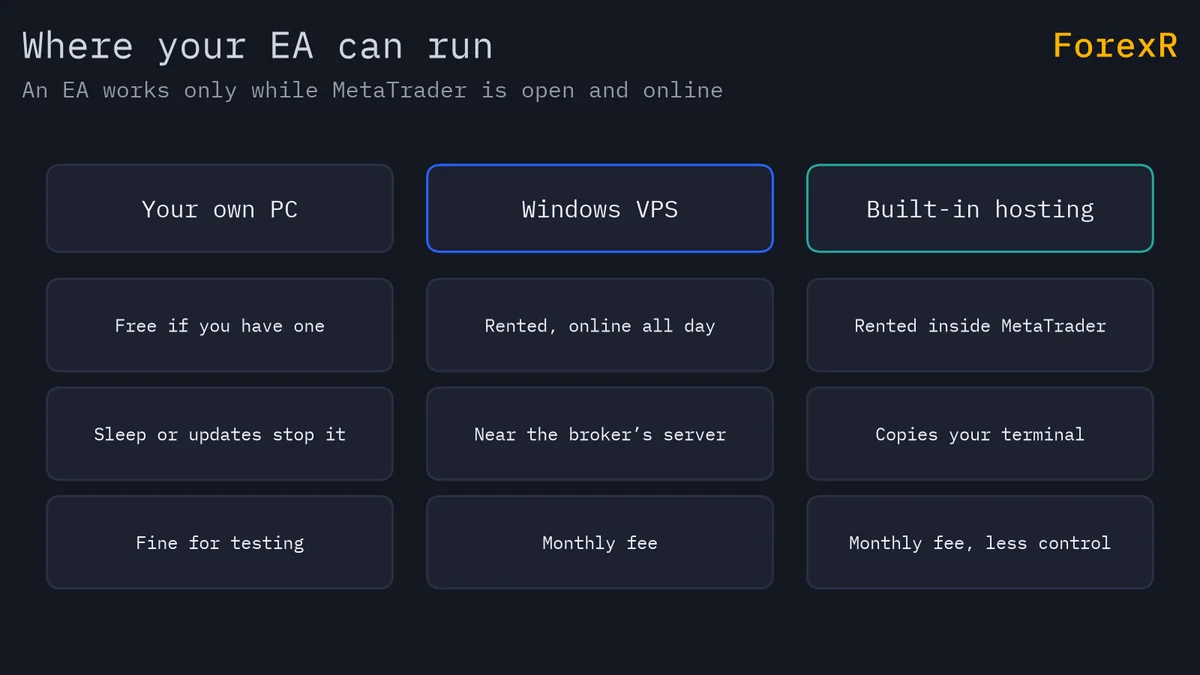
- Your own PC: the cheapest option. Set sleep to never in the power settings and set Windows Update active hours so restarts happen outside trading time. It still fails when the power or internet does.
- A Windows VPS: a virtual private server, a rented Windows computer in a data centre that never sleeps, controlled through a remote desktop app. It costs a monthly fee, more for more memory.
- MetaTrader's built-in virtual hosting: rented from inside the terminal, it copies your charts, EAs and settings to a hosted terminal, a step called migration. It is usually the cheapest managed option for one account, but there is no desktop, you migrate again after changes, and EAs that call DLLs (outside code libraries) are generally not allowed. Turn the EA off at home so it does not trade twice.
Latency is the time an order takes to reach the broker's trade server and come back, in milliseconds (ms). A VPS nearby might answer in a few ms; one on another continent can take over a hundred. A swing EA barely notices, but for a scalper chasing 2 or 3 pips a slower fill can mean a worse price. So pick a VPS location close to your broker's trade server; your broker can tell you where it is.
How to set up MetaTrader on a VPS, step by step
- Choose the plan: enough memory for your terminals, near your broker's server.
- Connect: log in through a remote desktop app with the details you are sent.
- Install the terminal: download MetaTrader from your broker's website, log in with File > Login to Trade Account and save the password so it reconnects after a restart.
- Copy the EA: use File > Open Data Folder, put the file in MQL4/Experts or MQL5/Experts, and refresh the Navigator window. Our guide on installing an EA in MT4 and MT5 has the details.
- Attach and allow: drag the EA onto the right chart, set its inputs, tick “Allow live trading” (MT4) or “Allow Algo Trading” (MT5) in the Common tab, then switch on the AutoTrading or Algo Trading button.
- Make it restart-proof: put a terminal shortcut in the Windows Startup folder. It normally reopens its charts and EAs as you left them.
- Disconnect, do not sign out: close the remote desktop window when you leave; signing out of Windows closes the terminal.
How to monitor an EA: tabs, alerts and a daily checklist
The window at the bottom of the terminal (Terminal in MT4, Toolbox in MT5) has two key tabs. Experts shows messages and errors from the EA; Journal shows the terminal's own events, such as lost connections and orders sent.
For alerts, find your MetaQuotes ID in the MetaTrader mobile app, enter it in the desktop terminal under Tools > Options > Notifications and send a test message. EAs that support it can then push alerts to your phone. A two-minute daily checklist:
- Connection: the terminal is connected, with no long gaps in the Journal.
- Permission: the AutoTrading or Algo Trading button is on, and the EA's icon in the chart's top-right corner shows it is active.
- Errors: nothing new in the Experts tab.
- Trades: open trades and lot sizes match what the EA should be doing.
- Money: equity, the day's loss and the margin level (equity as a percentage of the margin in use) are inside your limits.
- The machine: the VPS has spare memory and did not restart unnoticed.
A forward-test plan on a demo account
A forward test runs the EA on live prices without real money, on a demo account with the same broker, account type, deposit and lot size you plan to use live. Note the EA's default inputs first; each EA's page in the EA Library lists them.
- Length: at least one to three months, longer for an EA that trades rarely.
- Sample: 50 to 100 trades before judging; twenty is mostly luck.
- Compare: when the demo period ends, backtest the same dates with the same settings, as in our guide on how to backtest an EA. Trade count, win rate and average trade should roughly match.
Suppose the backtest shows 60 trades averaging $6 each, and the demo 60 trades averaging $3.50. The gap is 60 × (6 − 3.50) = $150. Find the cause: wider real spreads, slippage (a fill at a worse price than requested) or trades missed while offline.
Going live small: lot size, risk cap and a kill switch
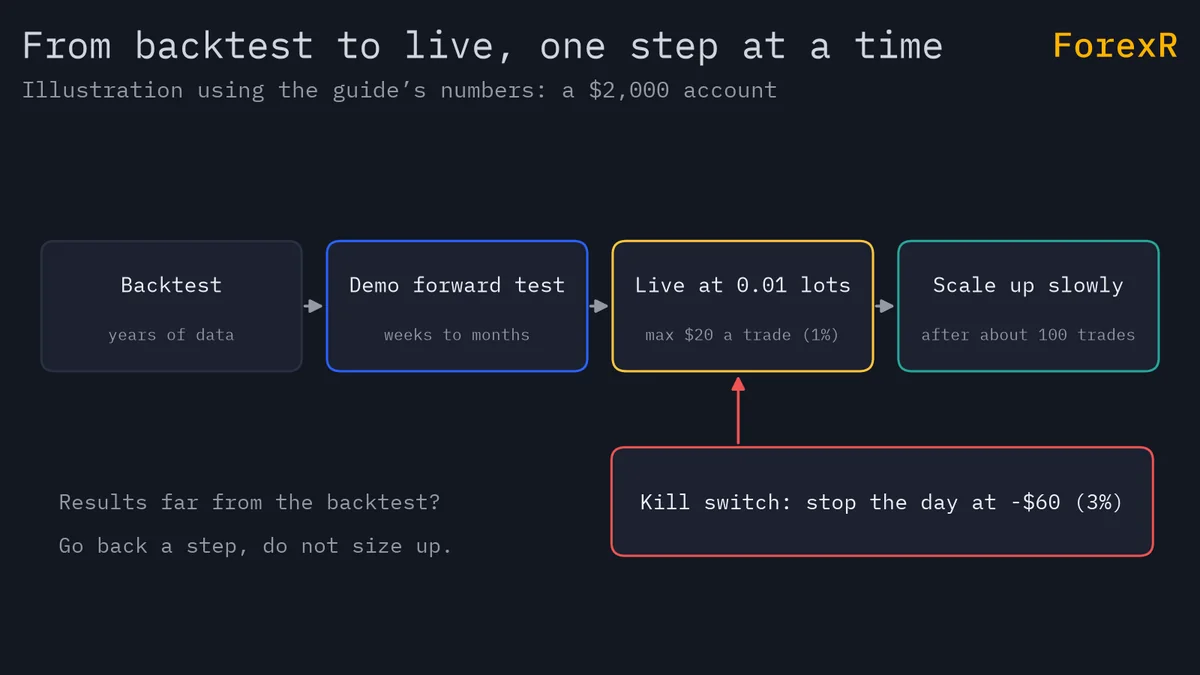
- Start at the minimum lot: usually 0.01, or 1,000 units of currency. You are testing real fills, not earning yet.
- Cap the risk: with a $2,000 account and a 1% limit, one trade may risk $20. The position size calculator turns that into a lot size for your stop.
- Add a kill switch: a daily loss limit, the most the account may lose in a day before trading stops. At 3% of $2,000, that is $60. A risk EA can close all trades when the limit is hit; browse the risk and protection EAs and test one on demo too.
- Scale up only after a sample: after about 100 live trades close to the demo and backtest, raise the lot one step, such as 0.01 to 0.02, and review again.
When to switch an EA off
Set your switch-off rules before you start, while you are calm:
- Drawdown beyond the backtest's worst: if the worst tested drawdown was 12%, a live 18% (one and a half times that) means the EA is outside its tested range. Getting back from 18% down needs 18 ÷ 82 ≈ 22%; the drawdown calculator does this for any loss.
- A regime change: the market has changed character, such as a range EA meeting a strong, lasting trend.
- Strange behaviour: more trades than its maximum, or lot sizes it should not use.
- A losing streak longer than any in testing.
To switch off, turn off AutoTrading or Algo Trading, then decide separately what to do with open trades.
Maintenance: updates, broker changes, weekends and rollover
- Terminal updates: MetaTrader updates itself and restarts from time to time. Afterwards, check the EA reloaded and the trading button is on.
- Broker changes: new server or symbol names (such as a suffix added to EURUSD), leverage or contract sizes can break an EA's maths. If the conditions no longer suit it, compare other brokers.
- Weekends: the market closes from Friday evening to Sunday evening, New York time, and prices can gap, jump past your stop, at the open. Decide whether the EA should hold trades over it, and do VPS restarts then. The market hours tool shows the times.
- Rollover: around the New York close each day, spreads often widen sharply for a few minutes, and swap, the overnight interest charge or credit, is applied, triple once a week at many brokers; see forex swap fees.
Keeping an EA online keeps it working; it does not make its strategy sound, and no VPS protects a bad setup from a trend or a gap. Automated trading of forex and CFDs carries a high risk of loss, so only risk money you can afford to lose.
FAQ
Does my EA keep trading if I close MetaTrader?
No. The EA runs inside the terminal, so closing it, signing out of Windows or shutting down the computer stops the EA at once. Trades already open stay with your broker, and stop-losses or take-profits placed as real orders still work. Anything the EA manages itself, such as trailing stops or basket exits, stops until you restart it.
Can I run an EA on the MetaTrader mobile app?
No. The mobile apps for phones and tablets can place trades, show charts and receive push notifications, but they cannot run expert advisors. The EA must run in the desktop terminal, whether on your own computer, a VPS or MetaTrader's virtual hosting. You can then use the app to watch the account and receive alerts from the EA.
How powerful does a forex VPS need to be?
For one terminal with a few charts, a basic plan is usually enough, because MetaTrader is fairly light. Each extra terminal, chart and indicator adds to memory use, and backtesting on the VPS needs far more. Check memory and processor use in Windows Task Manager after a week, and upgrade if the machine often runs near its limit.
Can I run two EAs on the same account?
Yes, as long as each has its own magic number, an ID it stamps on its trades, so neither closes the other's positions. The bigger risk is combined exposure: two EAs can open trades on the same pair in the same direction and double your risk. Add up their worst drawdowns and check the account can carry both at once.