Pine Script Drawings: Lines, Labels, Boxes and Tables

How Do You Draw Lines, Labels, Boxes and Tables in Pine Script?
You call a creation function: line.new(), label.new(), box.new() or table.new(). Each returns an object, a handle you can store in a variable and change later. Lines, labels and boxes sit at chart coordinates (a bar and a price). Tables sit in a fixed corner of the screen.
Plots, covered in your first indicator, give one value per bar. Drawings can sit anywhere, so they suit levels, zones and notes. This guide uses them to mark yesterday’s high and low.
How Does line.new() Work?
A line needs two points. The documented form is line.new(x1, y1, x2, y2), where x is a bar number (bar_index) or a time, and y is a price. Useful options and their documented defaults:
- xloc:
xloc.bar_indexby default. Usexloc.bar_timeto place x by time. - extend:
extend.noneby default.extend.right,extend.leftandextend.bothrun the line past its ends. - color, style, width:
color.blue,line.style_solidand 1 pixel by default. Other styles includeline.style_dashedandline.style_dotted.
A line whose two points are identical is not shown, although the object still exists. With xloc.bar_index, a point cannot sit more than 10,000 bars behind the current bar; for larger gaps use time.
How Do You Add Labels and Boxes?
A label is a small text bubble pinned to a price. label.new(x, y, text) is the basic call, and options include style (for example label.style_label_down or label.style_label_up), color, textcolor and size. The tooltip option shows text only when the mouse is over the label, which keeps a busy chart tidy.
A box is a rectangle: box.new(left, top, right, bottom). Its options include border_color, border_width, bgcolor, extend and text settings. The default bgcolor is solid blue, so wrap a colour in color.new(color.gray, 70) to make it see-through. Here 70 means 70 percent transparent, so the box lets 30 percent of its colour through.
How Do You Add a Table?
Call table.new(position, columns, rows) once, then fill cells with table.cell(table_id, column, row, text). The nine position.* constants run from position.top_left to position.bottom_right. Column and row numbers start at zero. Nothing shows until at least one cell has been filled.
A table does not move when you scroll or zoom. The documentation says a script can show at most nine tables, one per position, and that a new table in an occupied position replaces the old one. It also warns that tables often use more resources than other drawings, especially when created or updated often. Declare the table with var, so it is made once, and fill it on barstate.islast, the last bar, since nobody can see past table states.
Example: Previous Day’s High and Low
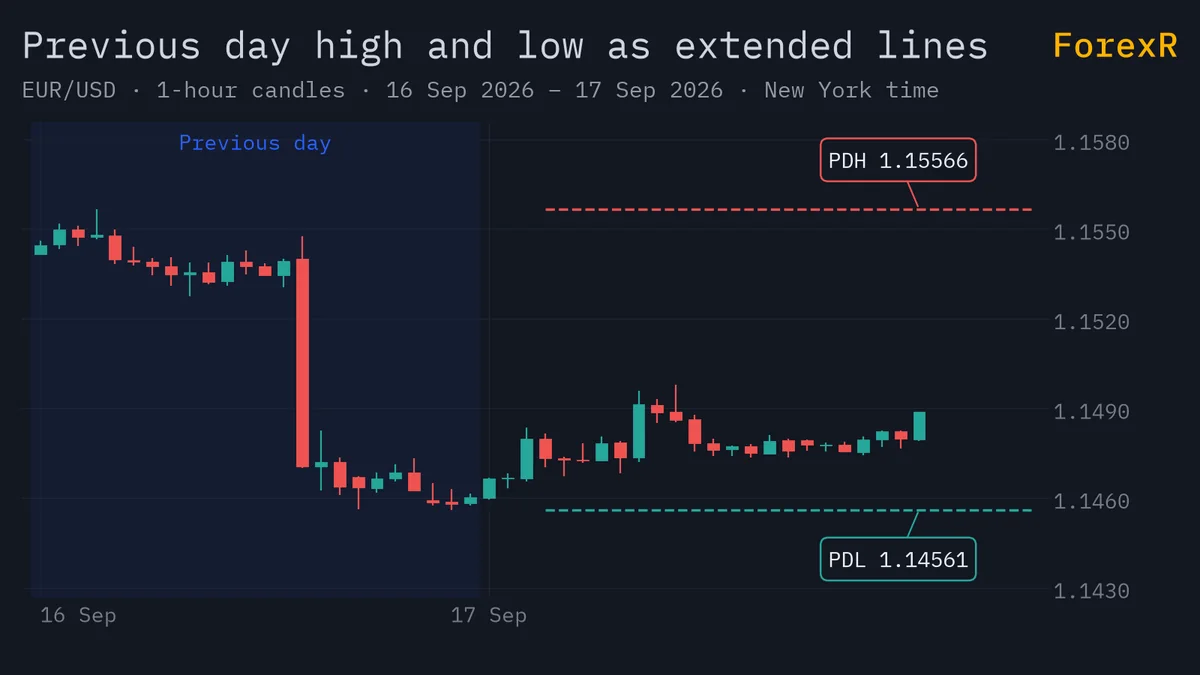
This script tracks each day’s high and low, then on the last bar draws two lines, two labels and a two-row table with yesterday’s values.
//@version=6
indicator("Prior day levels", overlay = true)
var float dayHigh = na
var float dayLow = na
var float prevHigh = na
var float prevLow = na
var table info = table.new(position.top_right, 1, 2, bgcolor = color.new(color.gray, 30))
if timeframe.change("D")
    prevHigh := dayHigh
    prevLow := dayLow
    dayHigh := high
    dayLow := low
else
    dayHigh := math.max(dayHigh, high)
    dayLow := math.min(dayLow, low)
if barstate.islast and not na(prevHigh)
    int left = math.max(bar_index - 20, 0)
    string hiText = str.tostring(prevHigh, format.mintick)
    string loText = str.tostring(prevLow, format.mintick)
    line.new(left, prevHigh, bar_index, prevHigh, extend = extend.right, color = color.red)
    line.new(left, prevLow, bar_index, prevLow, extend = extend.right, color = color.green)
    label.new(bar_index, prevHigh, "PDH " + hiText, style = label.style_label_down, color = color.red, textcolor = color.white)
    label.new(bar_index, prevLow, "PDL " + loText, style = label.style_label_up, color = color.green, textcolor = color.white)
    info.cell(0, 0, "Prev high: " + hiText, text_color = color.white)
    info.cell(0, 1, "Prev low: " + loText, text_color = color.white)
On a one-hour chart, timeframe.change("D") is true on the first bar of each day. That bar saves the finished day’s high and low as “previous” and restarts the day’s numbers. If yesterday’s high was 2,010.50 and its low 1,998.00, the labels read those two prices. Because the drawings are created only on the last bar, there is nothing to delete when new bars arrive.
Should You Update or Delete Drawings?
You have three choices, and the right one depends on how often the drawing changes.
- Create on the last bar: as above. Simple, and good for “current” levels.
- Create once, then update: store the object with
var, then change it with setters such asline.set_xy2(),label.set_text(),label.set_xy()orbox.set_right(). Setters change the object in place and return nothing. - Delete:
line.delete(),label.delete()andbox.delete()remove an object and its drawing. Use them when a level is no longer valid.
What Are the Drawing Limits?
The documentation says lines, boxes, polylines and labels are limited. By default a script shows about 50 of each, and you raise the count with max_lines_count, max_boxes_count, max_polylines_count or max_labels_count in indicator() or strategy(). The ceilings are 500 for lines, boxes and labels, and 100 for polylines. When a script goes over its limit, the oldest objects are deleted.
//@version=6
indicator("Many lines", overlay = true, max_lines_count = 500)
if bar_index % 10 == 0
    line.new(bar_index, close, bar_index + 5, close)
This keeps up to 500 short lines, so the chart shows more history. The cost is time. Other documented ceilings, such as the plot count, apply too. Consider whether you need 500 drawings or only the newest few.
Why Can Drawings Mislead You?
A drawing made on the open bar is redrawn on every tick until the bar closes, so a line or label can move or vanish before the bar is done. That is the same trap that repainting in TradingView describes for signals. A label that says “breakout” on the live bar may disappear if price falls back before the close.
Hindsight is the second trap. A script that draws a zone after price has already reacted to it makes the past look tidy. Ask when the script could first have known each level. A previous-day level is known at the start of the day, so it is safe. A swing high is only known after later bars confirm it.
How Do You Keep Drawing Scripts Fast?
- Draw less: use only the newest few objects. Ask for 500 only when you need the history.
- Skip history: wrap output in
barstate.islast, as the example does, when only the current state matters. - Reuse objects: change an existing line with a setter instead of creating a new one each bar.
- Keep tables small: a table with a few cells is cheap to update, and a big one filled on every bar is not.
- Use tooltips: put long text in a label’s tooltip, so the chart stays readable.
Speed matters because every script has a time budget, which the errors and limits guide explains.
Where Can You See Drawings in Real Scripts?
Many scripts in the support and resistance and sessions categories of the Pine Script Library are built from boxes, lines and labels. The Details table on a script page has a “Draws” row. Check the code of any drawing script for its max_*_count settings, and read Pine Script sessions and time for a box-based example. The pivot points guide explains one popular set of levels.
Drawn levels are lines on past prices. Price can cut through any of them, and a line that looks perfect on history may have been placed with hindsight. Leveraged forex and CFD trading carries a high risk of loss, so only risk money you can afford to lose.
FAQ
How many lines can a Pine Script draw?
By default a script shows about 50 lines. You can raise that with the max_lines_count argument of indicator() or strategy(), up to the documented ceiling of 500. When the script draws more than its limit, TradingView deletes the oldest lines. Labels, boxes and polylines have matching settings.
Why do my labels disappear after a while?
Because of the label limit. A script shows about 50 labels unless you set max_labels_count, which can go up to 500. Once the limit is reached, the oldest labels are removed to make room for new ones. Raise the setting, or draw fewer labels.
Can I put more than one table in the same corner?
No. The documentation says a script can show at most nine tables, one for each of the nine positions. If you create a new table in a position that already has one, the new table replaces the old one. To show more data, add rows or columns to one table.
Should I draw on every bar or only the last bar?
Draw on every bar only when you need a mark in the history, such as a signal arrow. For levels, tables and notes about the current state, draw on the last bar. Tables in particular are only worth updating there, because nobody can look at a table as it was on an old bar.